WARNING:
While the meter is uploading data to the TeleHealth,
it will be unable to perform a blood glucose test.
Data Transmission Via Bluetooth
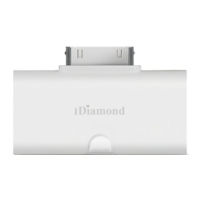
1.Go to your health provider with your iDiamond
and the mobile device. They should assist you to
set up your own TeleHealth patient account and to
register your iDiamond to the TeleHealth system for
you.
2.Please make sure that the iFORA App, under the
Setting, should have the correct Server URL for the
TeleHealth so that the data will be uploaded onto
the correct server when you update your data.
3.To check if you have successfully completed the
registration and set up procedures, please carry out
a test run.
You can use your device with iOS (5.0.1 or higher)
or Android (2.3.3 or higher) system to download
data from your meter via Bluetooth. Follow the
steps below to transmit data from your meter.
Please contact local customer service or place of
purchase for assistance. Please note that you must
complete the pairing between meter and Bluetooth
receiver before transmitting data.
1. Turn on the Bluetooth on both your blood glucose
monitor and your mobile device. (iOS with 5.0.1
or higher and Android with 2.3.3 or higher)
2. Your mobile device will now begin searching for
the Bluetooth signal to pair with.
3. Once the mobile device has found the blood
glucose monitor; the name of the meter will
appear on the pairing list. Please select and add
to the list.
4. On the mobile phone, the blood glucose monitor
will be shown as a paired device and on the
blood glucose monitor the Bluetooth Indicator
LED will lit solid, indicating that the devices have
been successfully paired.


 To Next Page