w
w
w
w
w
w
.
.
f
f
o
o
s
s
c
c
a
a
m
m
.
.
c
c
o
o
m
m
17
S
S
h
h
e
e
n
n
z
z
h
h
e
e
n
n
F
F
o
o
s
s
c
c
a
a
m
m
I
I
n
n
t
t
e
e
l
l
l
l
i
i
g
g
e
e
n
n
t
t
T
T
e
e
c
c
h
h
n
n
o
o
l
l
o
o
g
g
y
y
C
C
o
o
.
.
,
,
L
L
i
i
m
m
i
i
t
t
e
e
d
d
T
T
e
e
l
l
:
:
8
8
6
6
7
7
5
5
5
5
2
2
6
6
7
7
4
4
5
5
6
6
6
6
8
8
F
F
a
a
x
x
:
:
8
8
6
6
7
7
5
5
5
5
2
2
6
6
7
7
4
4
5
5
1
1
6
6
8
8
17
same MAC ID sticker is found at the bottom/back of the camera.
Another Way:
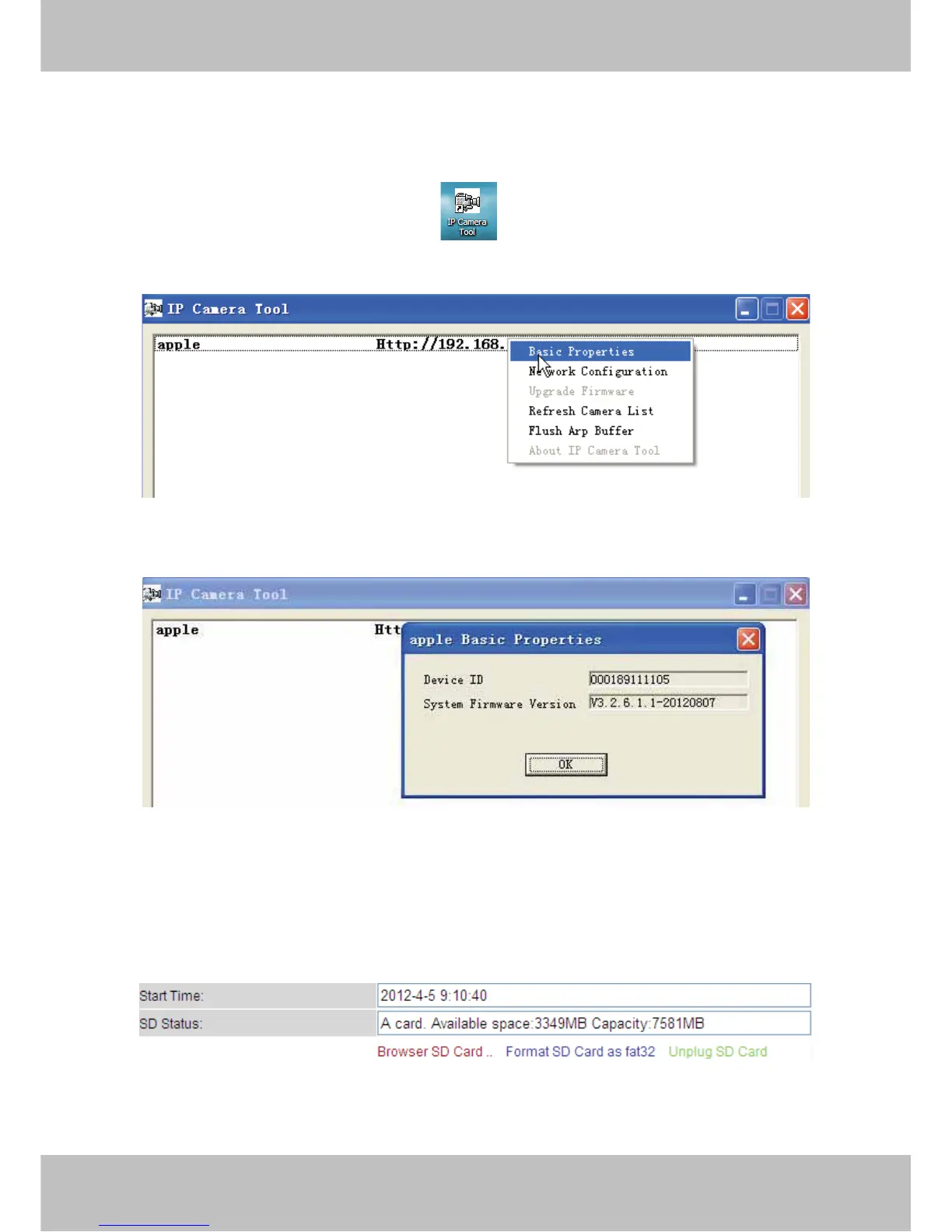
Double click the the icon “IP Camera.exe”
, select the camera, right click and select the
Basic Properties, you can also see the Firmware Version and MAC Address, such as the
following screen:
Figure 3.2
Figure 3.3
SD Status: Some information about the plugged SD Card. If the camera has inserted SD card
and it works well, this status column will display the SD card information as the following screen
and the SD Card light on the back of the camera will turn on, else it will display “no devices:
figure 3.1.
Browser SD Card: Click it and you can see the stored files if the camera has plugged SD card.
You need enter the user name and password again before looking the following screen:



 To Next Page