w
w
w
w
w
w
.
.
f
f
o
o
s
s
c
c
a
a
m
m
.
.
c
c
o
o
m
m
16
S
S
h
h
e
e
n
n
z
z
h
h
e
e
n
n
F
F
o
o
s
s
c
c
a
a
m
m
I
I
n
n
t
t
e
e
l
l
l
l
i
i
g
g
e
e
n
n
t
t
T
T
e
e
c
c
h
h
n
n
o
o
l
l
o
o
g
g
y
y
C
C
o
o
.
.
,
,
L
L
i
i
m
m
i
i
t
t
e
e
d
d
T
T
e
e
l
l
:
:
8
8
6
6
7
7
5
5
5
5
2
2
6
6
7
7
4
4
5
5
6
6
6
6
8
8
F
F
a
a
x
x
:
:
8
8
6
6
7
7
5
5
5
5
2
2
6
6
7
7
4
4
5
5
1
1
6
6
8
8
16
3
3
A
A
d
d
v
v
a
a
n
n
c
c
e
e
d
d
C
C
a
a
m
m
e
e
r
r
a
a
S
S
e
e
t
t
t
t
i
i
n
n
g
g
s
s
Click the bar “For Administrator”, goes to Administrator Control Panel to make advanced camera
settings.
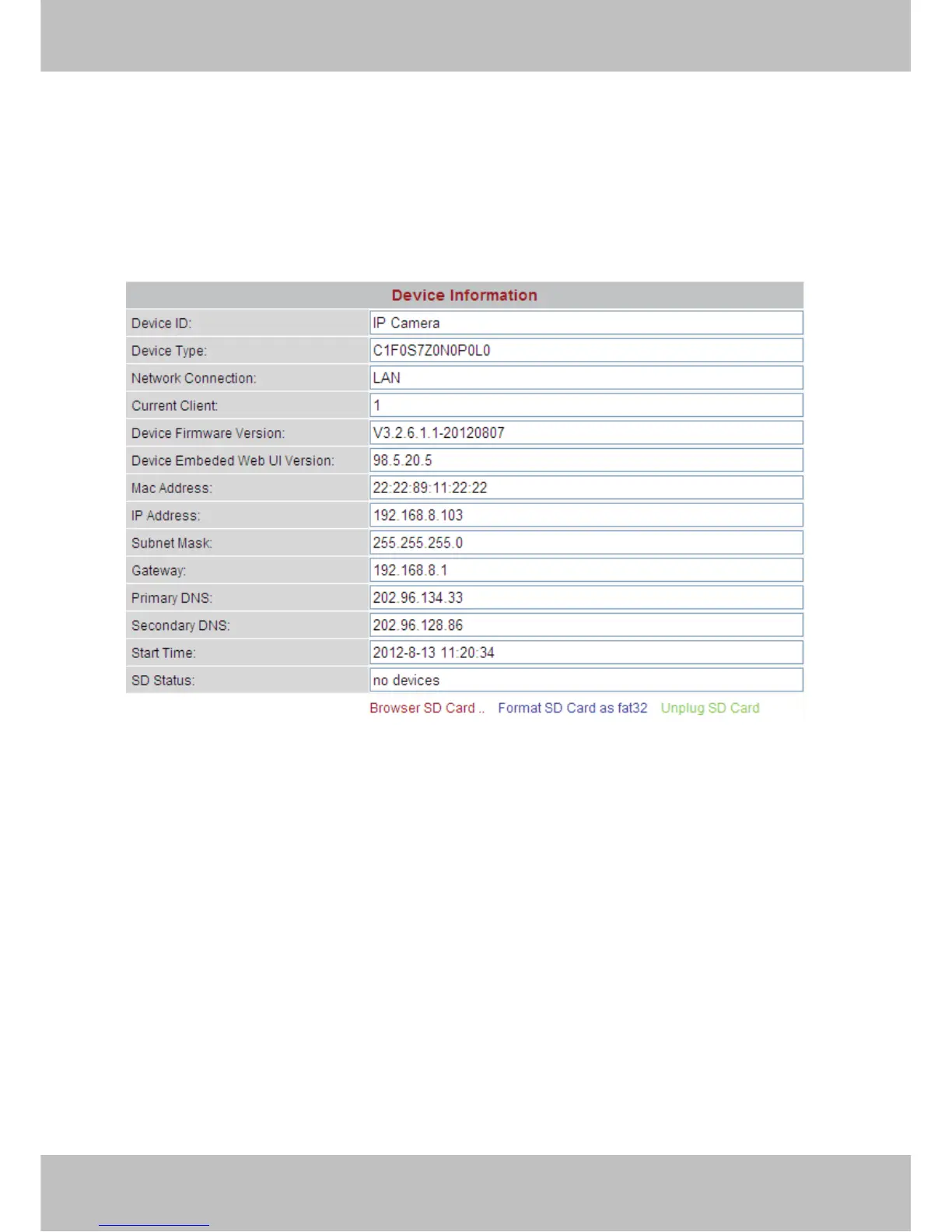
3.1 Device Information
Figure 3.1
Device ID: It displays “IP Camera”. This ID is different form the camera name. You can set any
camera name you like for the camera in “For Administrator—> Video—>Parenthesis Options”
and the camera name can be showed at the video window, but the device ID will always display
“IP Camera”.
Network Connection: LAN or Wireless, If the camera gets wired connection, here will show
LAN, if the camera gets wireless connection, here shows Wireless.
Current Client: It shows that how many people are viewing the video. For example, the Current
Client shows 1,that means one people are looking the video. If someone have logged in the
camera but do not open the video, the Current Client will not change.
Device Firmware Version/Device Embedded Web UI Version: The camera’s software
version.
Mac Address: Each camera has its own MAC ID. For example Device ID is 00606E8C5058, the



 To Next Page