w
w
w
w
w
w
.
.
f
f
o
o
s
s
c
c
a
a
m
m
.
.
c
c
o
o
m
m
7
S
S
h
h
e
e
n
n
z
z
h
h
e
e
n
n
F
F
o
o
s
s
c
c
a
a
m
m
I
I
n
n
t
t
e
e
l
l
l
l
i
i
g
g
e
e
n
n
t
t
T
T
e
e
c
c
h
h
n
n
o
o
l
l
o
o
g
g
y
y
C
C
o
o
.
.
,
,
L
L
i
i
m
m
i
i
t
t
e
e
d
d
T
T
e
e
l
l
:
:
8
8
6
6
7
7
5
5
5
5
2
2
6
6
7
7
4
4
5
5
6
6
6
6
8
8
F
F
a
a
x
x
:
:
8
8
6
6
7
7
5
5
5
5
2
2
6
6
7
7
4
4
5
5
1
1
6
6
8
8
7
the IP Camera Tool, you need not download again. If you use Firefox, Google Chrome, Safari or
others, you should download and install QuickTime Player as the ActiveX from other website.
For remote IE users, first time you use the IPCAM, you may need download and install the
ActiveX. (Please read chapter 5.1 in Appendix about how to download and install the ActiveX).
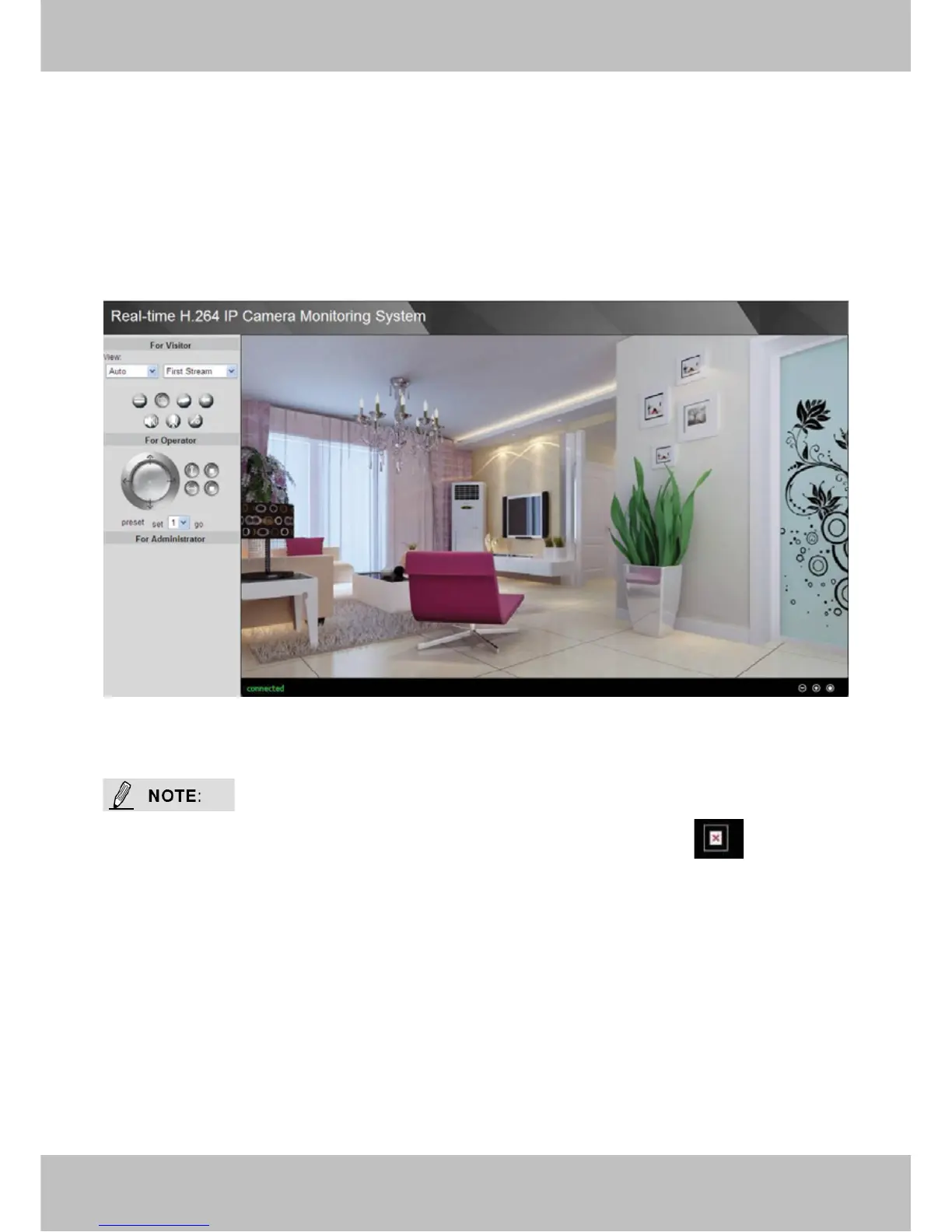
Click the login button under Video View, you will see the video window:
Figure 2.2
If you could not view living video after running the ActiveX, only a red cross in the center
of the video or just a black screen. Please change another port number to try.
Make sure all firewall or antivirus software on your computer does not block the active download
and installation. If you are unable to run the ActiveX control, try shutting down the firewall or
antivirus program.
For Firefox, Google Chrome and Safari
Install the Quick Time Player and fill in user name and password then login, you will see the
living video.



 To Next Page