© 2021 Flanders Scientic, Inc.
15
Return to Table of Contents
Function Menu
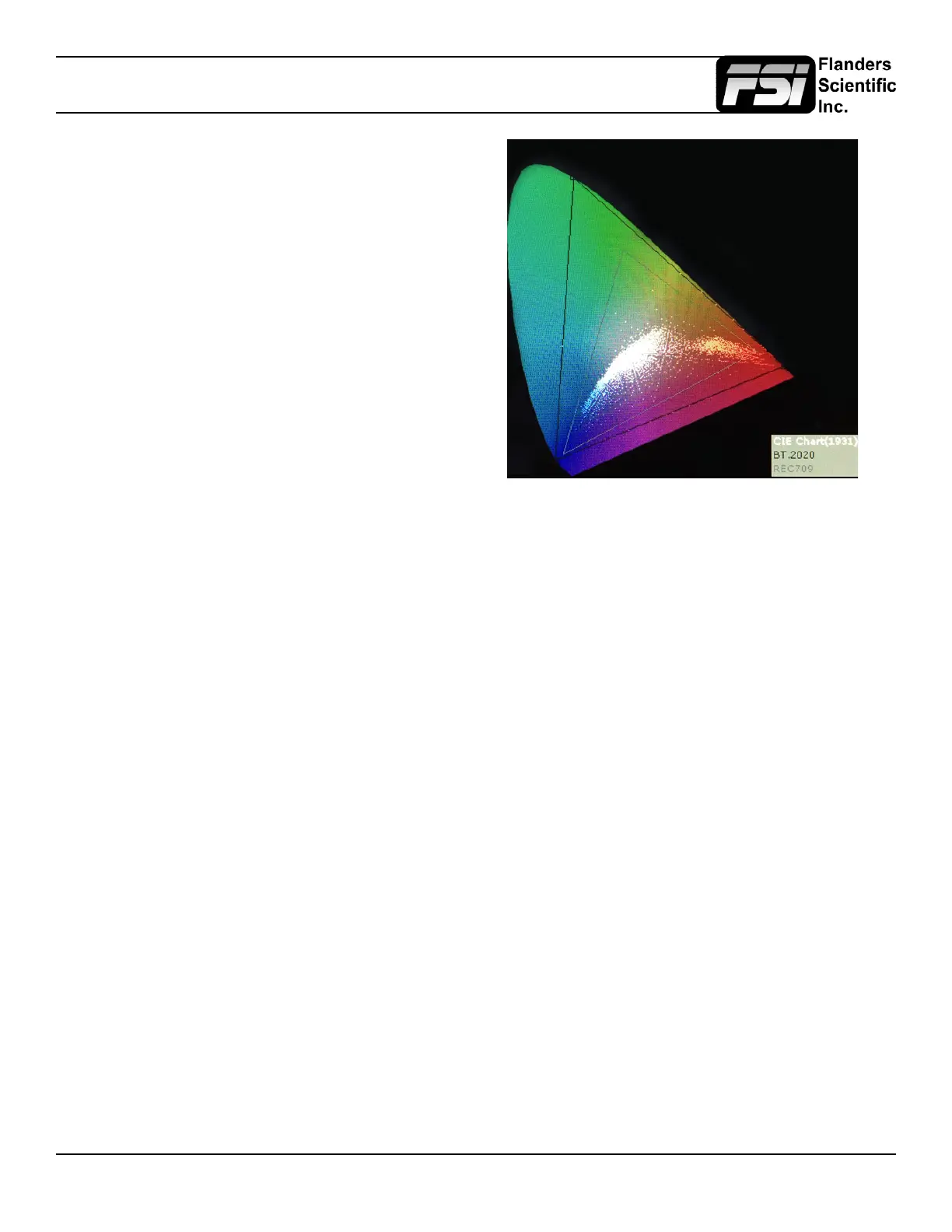
CIE Scope
This function maps out full frame signal data on a CIE diagram.
Signal levels are mapped out relative to your active color space
selection on the Color Management menu. Your active color
space selection is represented by a black triangle on the CIE
diagram.
If you have one of the custom User Color Space selections active
then this reference gamut will default to Rec709. In addition
to the primary color gamut indication (black triangle) you can
press down on the V POS rotary knob to generate a secondary
color gamut overlay as a grey triangle. This secondary color
gamut overlay is purely for comparative reference and does not
inuence how signal levels are mapped relative to the primary
color gamut selection.
The CIE diagram may be toggled between CIE 1931 and CIE
1976 views by pressing down on the H POS rotary knob.
This is a very processor power intensive feature and video quality, specically video sharpness, will be degraded while
active. For this reason we suggest using the CIE Scope feature as needed for specic color gamut analysis, but we do not
recommend leaving the feature enabled at all times.
4K Display
This feature is specically for monitoring Dual 3Gbps SDI (6G total bandwidth) 4K signals. In addition to this feature you may
also monitor a quarter resolution sampled image by sending one link of a Two Sample Interleave (2SI) Quad SDI signal.
Blue/Red/Green Only
This function activates the monitor’s Blue Only, Red Only, and Green Only modes. The respective channels can be shown
as just that color (Red, Green, Blue) or as monochrome.
Still Frame
This function allows you to freeze a video source at anytime. To unfreeze simply press the function key assigned to Still
Frame a second time.
Variable Wipe
When monitoring a Level B 3Gbps SDI signal comprised of two multiplexed 1.5Gbps HD-SDI signals the monitor will allow
you to view these signals in a vertical or horizontal split screen mode. By activating the Level B Variable Split function while
in split screen mode the positioning of the split can be adjusted using the H POS rotary knob. To quickly reset the split screen
positioning to the default center position simply press down on the H POS rotary knob while the Variable Wipe function is
active. Once your desired split screen wipe position is set you can turn the Variable Wipe function off to remove the guide
line between the two signals. This feature can also be used with the Horizontal and Vertical Split PAP modes using two
distinct signals fed to SDI 1 and SDI 2 on the monitor.
CX Scale
This scaling mode was designed specically to allow the scaled down and top centered ’gate check’ output from Codex™
ARRIRAW Recorders to be scaled full screen. Once assigned to a function key you can quickly enter or exit this custom
scaling mode with a single button press. Please note that some functions, such as markers, will not work while this mode is
active. However, other useful functions such as Waveform and Vector Scope will continue to operate normally.
Max Sharpness
In addition to the Sharpness Level Setting found on the Video Menu there is an assignable function called Max Sharpness
that will allow you to use a function button to toggle in/out of maximum sharpness mode quickly.



 To Next Page