© 2021 Flanders Scientic, Inc.
16
Return to Table of Contents
Function Menu
Focus Assist
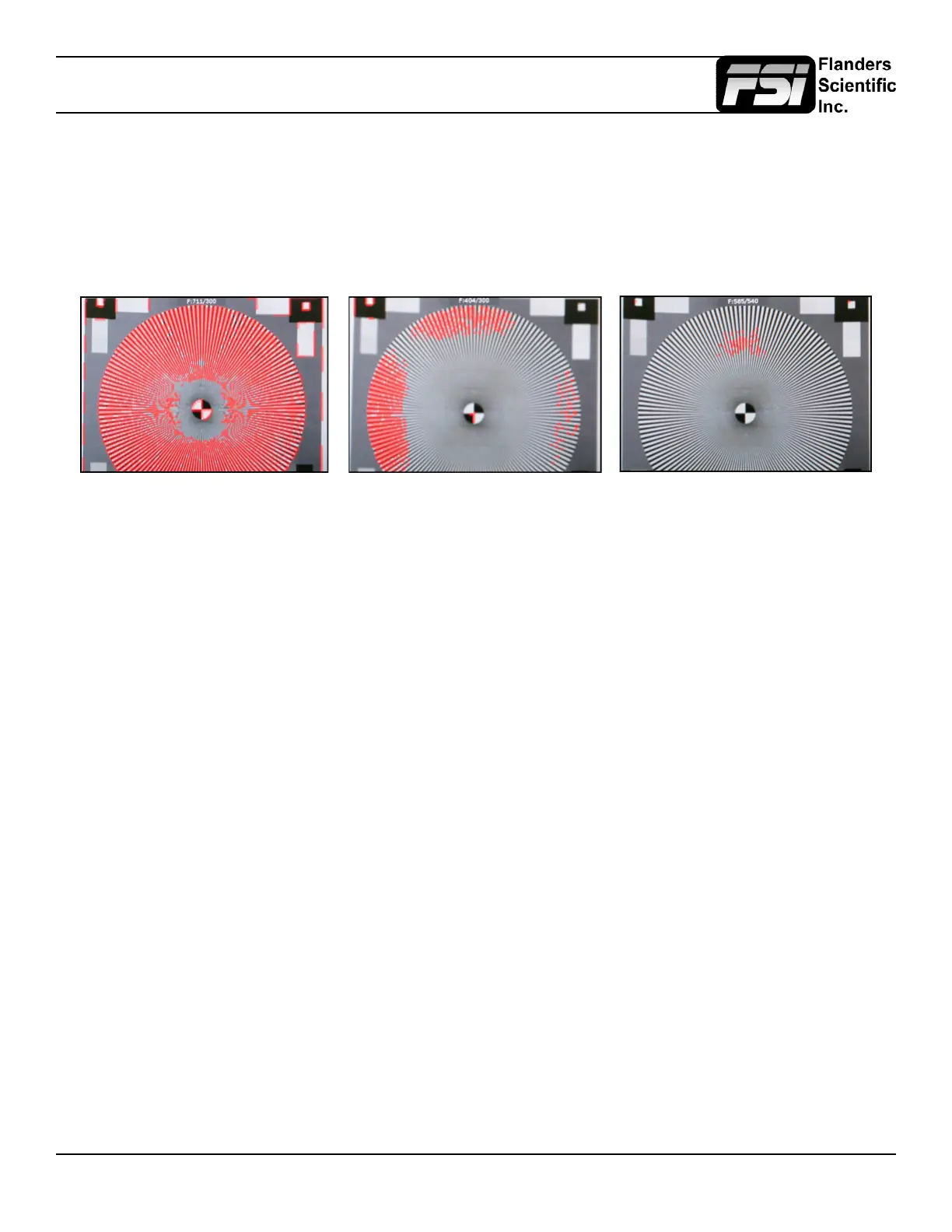
The focus assist feature is comprised of two main parts: a numerical focus meter and a graphical focus highlight.
The numerical focus meter is shown on screen as your current focus value over your reference focus value (i.e.
560/300). When the focus assist feature is activated the rotary knob labeled Ref POS allows you to adjust the
reference focus value. The reference focus value represents the in-focus threshold for the focus highlight portion
of the focus assist feature. Adjusting the focus reference value higher means that the threshold at which the focus
highlight begins to trace in-focus items with a red boundary will be higher. In other words a greater degree of focus
will need to be achieved before the focus highlight feature is visible on screen as a red trace around in-focus objects.
C-Log, S-Log, S-Log2, S-Log 3 and BMD-Log Modes (Also selectable via Video Menu)
These modes allow for easier on-set monitoring of uncorrected C-Log, S-Log, S-Log2, S-Log3, or BMD Cinema Camera
Film Mode Output by roughly normalizing the footage. For all Log modes there is both a Standard and Full selection. The
Standard selection is suitable for most applications, but does clip highlights to allow for a brighter overall image. The Full
mode is best used for scenes with extremely wide latitude or scenes that are just very bright overall. Full mode preserves
the entire native latitude of the signal (nothing is clipped), but this can result in a rather dark image in many applications.
We provide both for this reason and you can quickly toggle between them as needed for different applications by assigning
these modes to function keys. These modes should only be used to offer on set viewers a rough normalization of the footage
to give them an idea of what the content might look like as a starting point in post production. In other words, it provides you
with a helpful tool to show on set viewers something that does not look ‘at’. These modes are not a replacement for full 3D
LUT transforms and not a substitution for proper color correction in post production applications. For more advanced Log
mode normalization use a custom 3D DIT LUT.
On-Screen Tally
When activated this function will generate an onscreen box that mirrors the status of the physical tally on the monitor’s bezel.
This can be particularly useful in applications where the physical tally may be obscured.
Zoom
This function zooms in on the incoming source until the entire screen is lled. This is strictly a zooming function and does
not alter the native aspect ratio of the source to ll the screen. When viewing a 4:3 source in Zoom mode on a 16:9 display
the aspect ratio of the visible video will remain 4:3 though the entire 16:9 screen will be lled. Essentially the Zoom mode
results in viewing a 16:9 section of the 4:3 source and is most useful when viewing a letterboxed SD source on a widescreen
display so that the letterboxing is not shown and only the video within the letterboxing is present.
DSLR Zoom
This function is designed to be used with many popular DSLR cameras that have preview/record monitoring output in 1080
& 480 resolutions. When DSLR Zoom is active the 16:9 area that will be recorded is scaled to ll the screen. On DSLR
cameras that switch from 1080 to 480 while recording the DSLR Zoom can be left on and the same correct aspect zoom will
be maintained regardless of whether the DSLR is in preview or recording mode. While DSLR Zoom is active the markers
may also be turned on and will be correct relative to the 16:9 video that will be captured to the camera’s memory card. Please
note it may be necessary to toggle the viewing mode preference (Info button on many DSLRs) to ll the screen correctly.
In Focus Shot with Default Focus
Reference Value
Less Focused Shot with Default
Focus Reference Value
Example of Shot with Focus
Reference Value Turned Up


 To Next Page
 Loading...