Section 4 Service, Configuration & Testing
42 FT722 & FT742 (RS485) – FF & PM Sensors – User Manual
7. Once the above sequence is complete, wait approximately 5 seconds and then run Acu-Vis 2.0 by
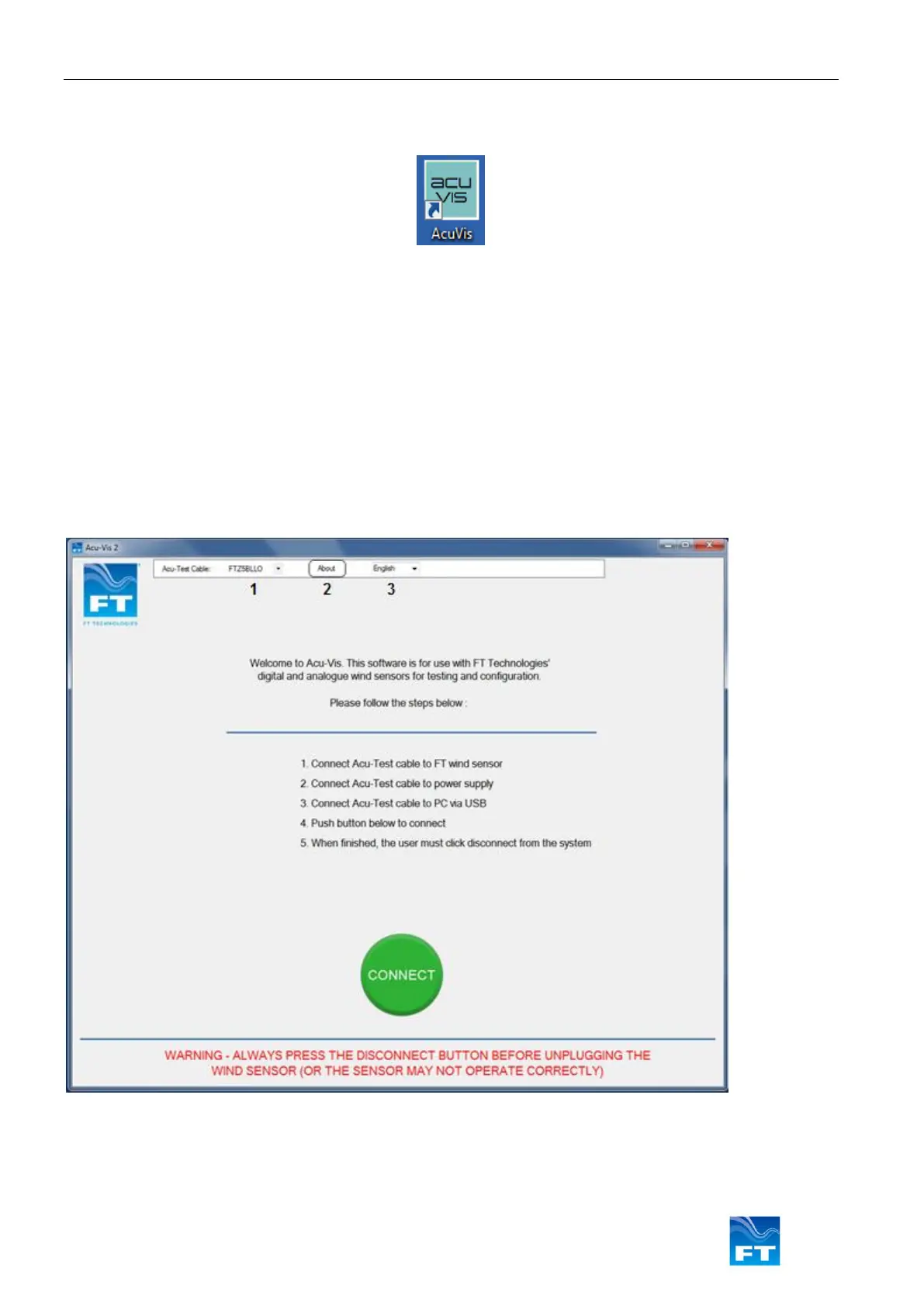
selecting the shortcut icon on the desktop or from the start menu in the FT Technologies folder.
Figure 38: Acu-Vis Windows Launch Icon
8. If you need to change the Acu-Test cable it is recommended to press the ‘Disconnect’ button and follow the
exit process, close the Acu-Vis program and then disable the power. Remove the USB cable and replace
with the required cable
In case of technical issues please contact the technical support team at FT Technologies.
4.4.2 Acu-Vis 2.0 Software Operation
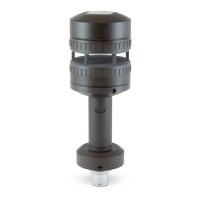
Acu-Vis 2.0 opens on the Connect display window - press the green ‘CONNECT’ button to begin a user session,
the program will detect the wind sensor as long as it is powered up and operating normally. If the sensor is in
Continuous Update mode Acu-Vis 2.0 will disable it (and provide an option at the end of the session to re-enable
it).
Figure 39: The Acu-Vis Home Screen
1. The Acu-Test cable serial number
2. About Window: FT Technologies contact information and software build versions
3. Language selection options: English, French, Chinese, Spanish, Japanese and Korean


 To Next Page