45
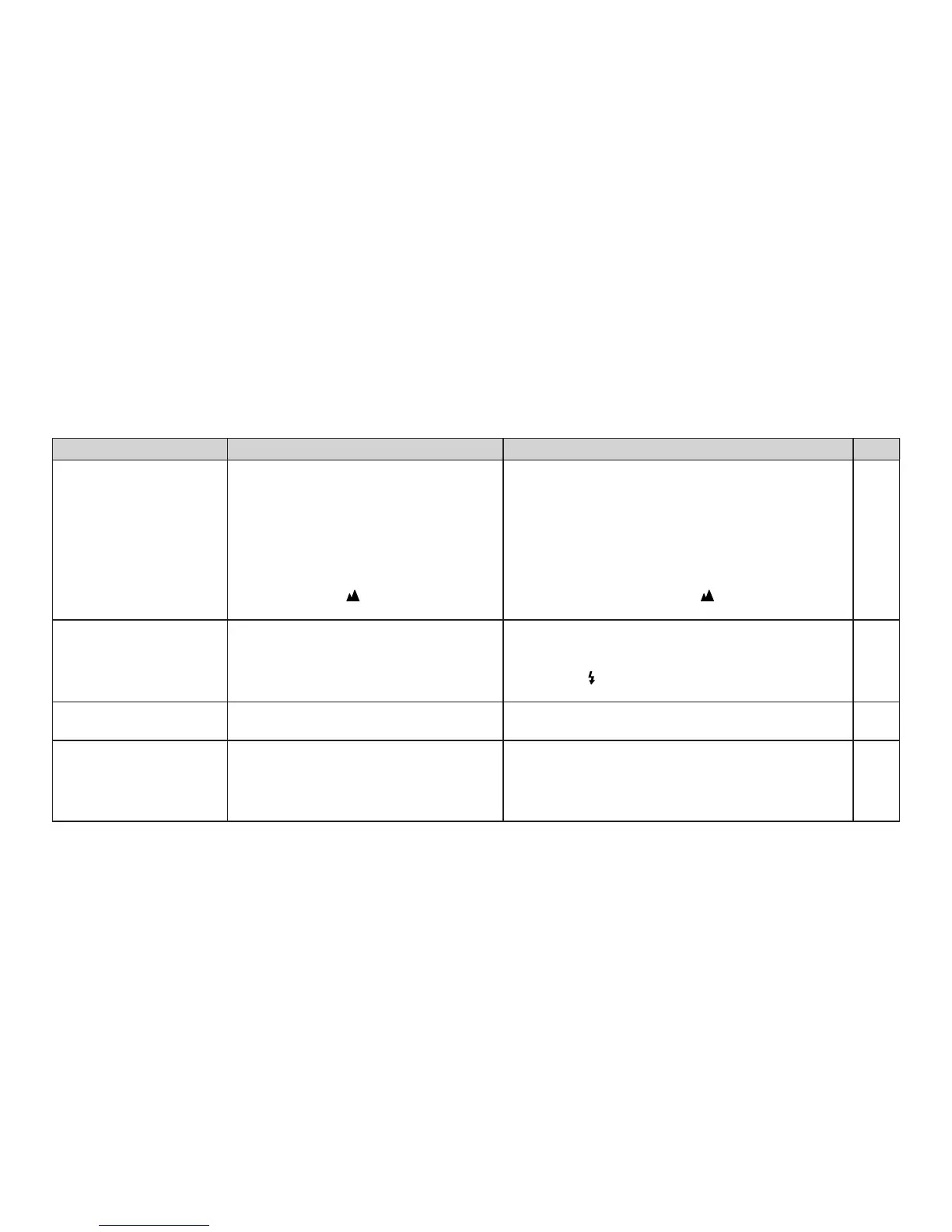
Picture is not sharp.
Picture is too dark.
Printed date/time is incor-
rect.
The date is not printed on
the front./The date is not
printed clearly.
1 When shooting a picture, hold your camera cor-
rectly so that your finger is not on the AF windows.
2 Compose the picture in the AF frame and shoot,
or shoot using AF Lock.
3 Clean the lens.
4 Hold the camera firmly and press the shutter re-
lease button gently. Use a tripod for slow shutter
speeds.
5 Select a mode other than
mode.
1 Shoot within specified coverage distance of elec-
tronic flash.
2 Do not cover the flash with your finger.
3 Turn on
mode and press the shutter release but-
ton.
● Set date and time after replacing battery.
1 Select a date mode other than “- - - - - -” before
taking pictures.
2 Try to arrange that there is nothing light-colored
where the date appears.
21
26
46
21
31
33
21
36
13
16
16
1 Was your finger on the AF windows
when shooting?
2 Did you aim the subject properly?
3 Is the lens dirty?
4 Is the camera moving?
5 You selected
mode when shooting
at a close distance.
1 Subject was too far from the camera
for flash photography in a dark place.
2 Was your finger over the flash?
3 Was the subject backlit from being
taken next to a window, etc.?
● You didn’t set correct date and time af-
ter replacing battery.
1 Wasn’t “- - - - - -” selected before tak-
ing pictures?
2 Is there something light-colored (white,
yellow, orange) where the date ap-
pears?
Printed pictures
Problems Possible Causes Solutions Page



 To Next Page