4.4 Configuring Scanning Application
fi-5000N Operator’s Guide 37
Installing and Setting Driver
4
■ For FUJITSU ISIS Scanner Driver
This description uses the scanning application "QuickScan Pro™" as an example.
1. Start the application.
From the [Start] menu, select [All Programs] -> [QuickScan] -> [QuickScan].
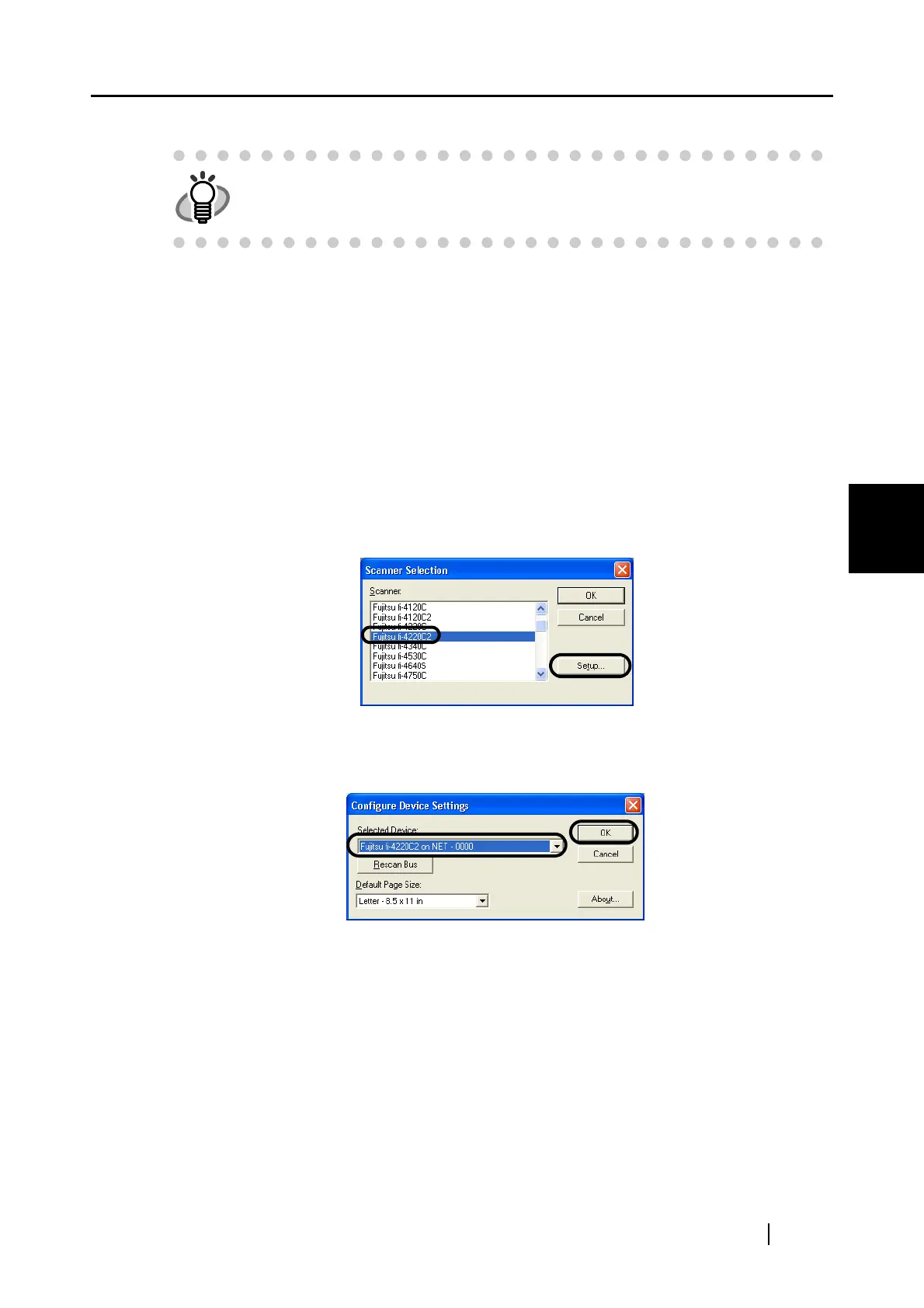
2. From the menu, display the "Scanner Selection" dialog box.
Select [Scan] -> [Select Source].
3. Select the scanner to be used.
The scanner connected to fi-5000N is displayed as "Fujitsu + Device Name". Select the
name, and click the [Setup...] button.
⇒ The following window appears
In this window, the scanner name is displayed as "Fujitsu + Device Name + On NET".
Select the name, and click the [OK] button.
Selection of the scanner is completed.
With the scanning application, the scanner can be used in the same way as a scanner that is directly
connected to a PC.
HINT
For details on scanning documents and configuring the scanning applica-
tion, refer to the "Operator's Guide", "FUJITSU TWAIN32 Scanner Driver
Installation Guide", or "ScandAll 21" help supplied with the scanner.


 To Next Page
 Loading...