6.3 User Authentication by PIN
fi-5000N Operator’s Guide 75
User Authentication
6
6.3 User Authentication by PIN
PIN authentication is equipped as an alternative to injured users or users with difficulties in finger-
print authentication.
1. When "Place your finger on the sensor" is displayed on the fi-5000N Message Display
(this indicates the "Logout" status), open the cover and press the [ID] key.
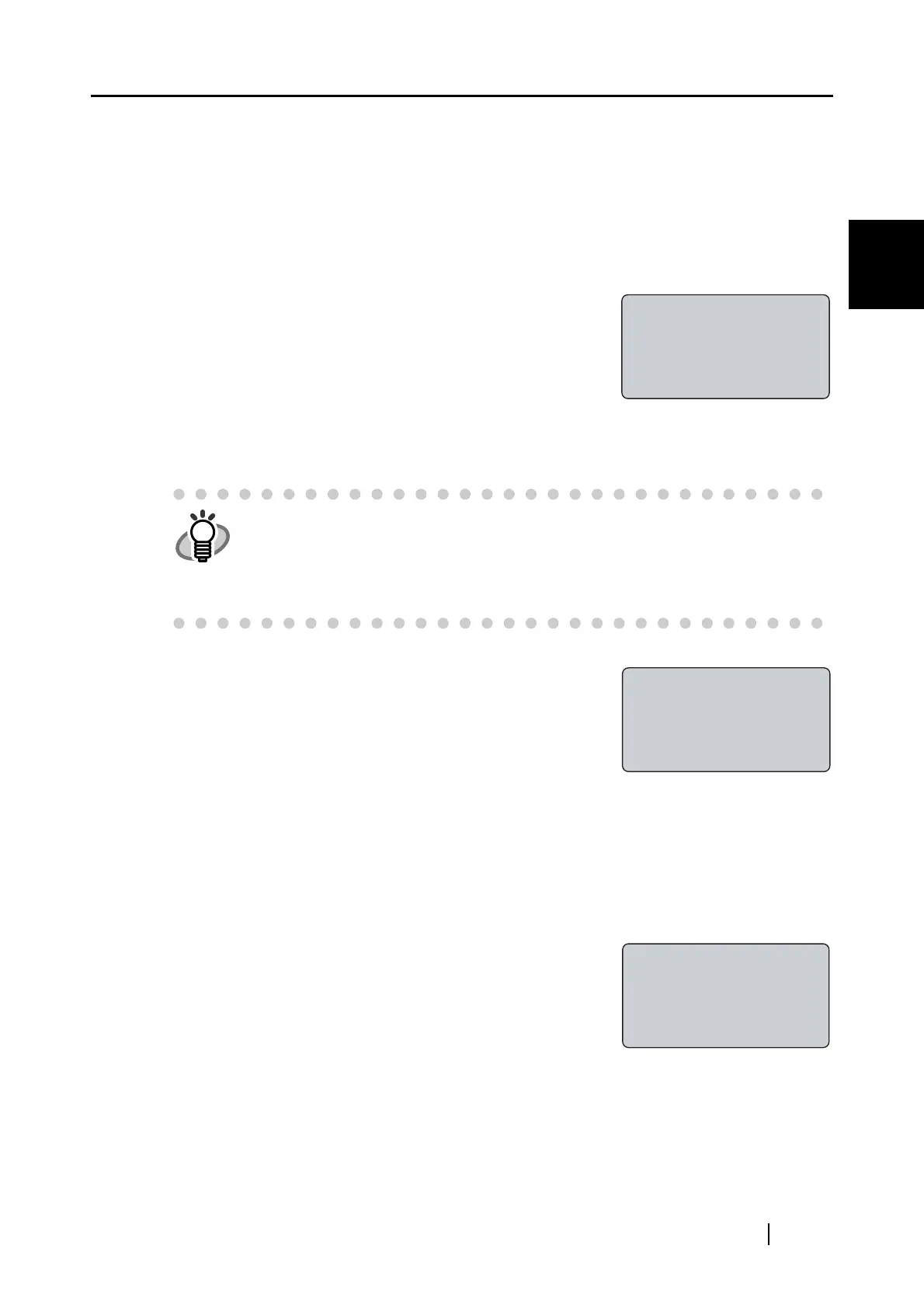
The "Select User" screen appears as follows.
2. Select the registered user with the [K], [L] keys, and press the [ENT] key.
The next screen appears, and the PIN is prompted.
3. Enter the user’s PIN, and press the [ENT] key.
If the PIN does not match, the message "The PIN is incorrect" appears, and you are
prompted to enter again.
4. If the PIN matches, the login screen appears.
HINT
You can also select the registered user by entering user ID number:
1. With the keyboard, enter the user ID number.
2. Press the [ENT] key.
⇒The name of the user to log in will appear selected.
3. Press the [ENT] key again.
Select User
1(user's name)
2(user's name)
3(user's name)
PIN:_
Cancel:[ESC]
Load the documents
onto scanner & press
[Scan]/[Send to]
(user's name)


 To Next Page