EasyManua.ls Logo

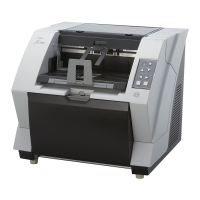
Fujitsu FI-5015C - User Manual

Fujitsu FI-5015C
88 pages
Print Icon
To Next Page IconTo Next Page
Loading...
Operator's Guide
fi-5015C Image Scanner
P3PC-1592-01ENZ0

Other manuals for Fujitsu FI-5015C

Questions and Answers

  • C
    Christopher MooreSep 12, 2025
    How to fix a Fujitsu FI-5015C Scanner that does not turn on?
    • A
      amanda11Sep 13, 2025
      If your Fujitsu Scanner doesn't turn on, try the following: * Ensure the main switch is turned on. * Press the power button. * Verify that the AC cable and adapter are correctly connected. Try disconnecting and reconnecting them. * If using Windows, try pushing the power button again after Windows has completely started.
  • B
    brendagordonSep 12, 2025
    What to do if shipping lock error occurred on Fujitsu Scanner?
    • J
      Joseph BowenSep 12, 2025
      Confirm that the shipping lock is released.
  • M
    Michael SaundersSep 12, 2025
    Why is there a shadow on the leading edge of the generated image of Fujitsu FI-5015C Scanner?
    • S
      Stephanie GrantSep 12, 2025
      If there is a shadow on the leading edge of the generated image from your Fujitsu Scanner: * Clean the Pinch rollers. * Adjust the [Sub-scan Setting] in [Scanners and Cameras] in the control panel.
  • C
    Charles GonzalezSep 9, 2025
    How to fix vertical lines on Fujitsu Scanner?
    • J
      Jamie CastilloSep 10, 2025
      If vertical lines appear in the generated image from your Fujitsu Scanner, clean the glass following the provided instructions.
  • M
    Mary WarrenSep 8, 2025
    Why does the generated image shift or is distorted on Fujitsu Scanner?
    • T
      Taylor FlemingSep 9, 2025
      If the generated image from your Fujitsu Scanner shifts or is distorted, ensure that the documents are loaded correctly.
  • A
    Amber SmithSep 7, 2025
    Why does my Fujitsu FI-5015C Scanner generate elongated images?
    • C
      Christopher HudsonSep 7, 2025
      If your Fujitsu Scanner is generating elongated images, clean the Pick roller.
  • K
    Karen MartinAug 23, 2025
    Why is my Fujitsu Scanner not turning on?
    • E
      ericbeardAug 23, 2025
      If your Fujitsu Scanner isn't turning on, try the following: * Ensure the main switch is turned on. * Press the power button. * Verify that the AC cable and adapter are correctly connected. * Try disconnecting and reconnecting the AC cable and adapter. * Try pushing the power button again after Windows has completely started.
  • V
    vmartinSep 6, 2025
    How to remove shadow on Fujitsu FI-5015C Scanner image?
    • J
      Jennifer WilliamsSep 6, 2025
      If there's a shadow on the leading edge of the generated image from your Fujitsu Scanner, clean the Pick roller unit and adjust the [Sub-scan Setting] on [Scanners and Cameras] in the control panel.
  • R
    ronaldsandovalSep 4, 2025
    Why are the images elongated on my Fujitsu FI-5015C?
    • D
      David YangSep 5, 2025
      If the generated images from your Fujitsu Scanner are elongated, you should clean the Pick roller unit.
  • C
    Christopher RasmussenSep 4, 2025
    How to improve image quality on Fujitsu FI-5015C Scanner?
    • J
      jennifermillerSep 4, 2025
      If the generated image quality from your Fujitsu Scanner is unsatisfactory, clean any dirty areas on the scanner.

Summary

Essential Safety Precautions for Scanner Operation

Scanner Safety Guidelines

Provides essential safety guidelines for operating and handling the scanner.

Chapter 1: Scanner Parts Identification

Chapter 2: Basic Scanner Operations

Scanner Power Management Procedures

Explains the procedure for powering the scanner on and off, including power save mode.

ADF Document Loading Instructions

Provides instructions on checking document conditions and loading them into the Automatic Document Feeder.

Flatbed Document Loading Process

Details the process for placing and scanning documents using the flatbed scanner.

Document Scanning Procedure with Software

Outlines the steps for performing a scan using the ScandAll 21 software.

Scanner Driver Usage and Configuration

Explains how to configure settings and use the FUJITSU TWAIN32 and ISIS scanner drivers.

Chapter 3: Scanner Maintenance Procedures

Clearing Paper Jams from the ADF

Provides step-by-step instructions for removing jammed documents from the ADF.

Chapter 4: Troubleshooting Scanner Issues

Interpreting Error Indicators and Solutions

Explains temporary errors (U-codes) and device alarms (E-codes) with their remedies.

Fujitsu FI-5015C Specifications

General IconGeneral
BrandFujitsu
ModelFI-5015C
CategoryScanner
LanguageEnglish

Related product manuals