EasyManua.ls Logo

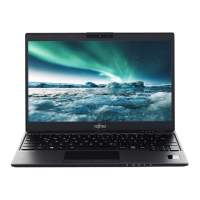
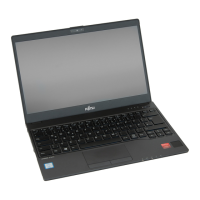
Fujitsu Lifebook U939X - User Manual

Fujitsu Lifebook U939X
117 pages
Print Icon
To Next Page IconTo Next Page
Loading...
System
Operating Manual
FUJITSU LIFEBOOK U939X

Table of Contents

Other manuals for Fujitsu Lifebook U939X

Questions and Answers

  • N
    nwalkerSep 12, 2025
    What to do if my Fujitsu Lifebook U939X suddenly stops working?
    • S
      Susan BassSep 12, 2025
      If your Fujitsu laptop stops working, it might be in energy-saving mode. Try ending the energy-saving mode. Another reason could be that an application program has caused the malfunction. In this case, close the application program or restart the laptop by restarting the operating system or switching the device off and back on again. Also, the battery could be dead. Connect the laptop to the power supply via the AC adapter and charge the battery.
  • M
    Michael RhodesAug 23, 2025
    Why doesn't the wireless connection work on my Fujitsu Laptop?
    • D
      Donna WilsonAug 23, 2025
      If the wireless connection to a network does not work on your Fujitsu Laptop, first ensure that the wireless component is enabled. Then, check whether the wireless connection is switched on via the software.
  • Z
    zbrownAug 25, 2025
    What to do if I only get numerals when typing characters on my Fujitsu Lifebook U939X keyboard?
    • V
      vguzmanAug 26, 2025
      If you only get numerals when typing characters on your Fujitsu Laptop keyboard, the virtual numeric keypad of your device is activated. Press the Num key to deactivate it.
  • D
    David RodriguezAug 26, 2025
    Why my Fujitsu Lifebook U939X Laptop does not start?
    • A
      Alexandra RodriguezAug 27, 2025
      If your Fujitsu laptop does not start after switching it on, it could be due to a dead battery. Connect the laptop to the power supply using the AC adapter to charge the battery. Alternatively, the AC adapter might not be properly connected. Check the connection between the AC adapter and the laptop, and then switch the laptop on.
  • T
    Taylor ParkerAug 27, 2025
    What to do if my Fujitsu Lifebook U939X battery discharges too quickly?
    • A
      Amanda AndersonAug 27, 2025
      If your Fujitsu Laptop battery discharges too quickly, it may be too hot or too cold. Allow the notebook to return to a normal temperature. If the operating time is extremely short, the battery may be too old and need replacement by an authorized service provider. Also, using the mains adapter as frequently as possible can help, especially if you have applications running that consume a lot of power. Reducing the screen brightness using the key combination for decreasing screen brightness can also reduce power consumption.
  • J
    Jesus GravesAug 29, 2025
    Why does my Fujitsu Lifebook U939X Laptop battery discharges too quickly?
    • A
      Ashley WilsonAug 29, 2025
      If the battery on your Fujitsu laptop discharges too quickly, it could be because the battery is either too hot or too cold, in which case the battery indicator will flash. Move the laptop to a location where the temperature is within the normal range. If the operating time is extremely short, the battery is likely too old and may need to be replaced by an authorized service provider. Another reason could be an application running that consumes a lot of power due to frequent access of the hard disk or optical drive, so use the AC adapter whenever possible. The maximum brightness setting for the screen could also be the reason. Set the screen slightly darker with the key combination for decreasing the screen brightness to reduce power consumption.
  • R
    rhondavelezSep 18, 2025
    What does 'Previous boot incomplete' mean on Fujitsu Lifebook U939X?
    • C
      Cory WongSep 19, 2025
      If you see the message 'Previous boot incomplete - Default configuration used' on your Fujitsu laptop, press the F1 function key when prompted to do so.
  • S
    Sabrina ShieldsSep 12, 2025
    Why is my Fujitsu Laptop not printing?
    • V
      Victor NguyenSep 12, 2025
      If the printer does not print from your Fujitsu laptop, ensure that the printer is switched on and ready for operation. Also, check that the data cable connecting the laptop to the printer is properly connected. Finally, verify that the correct printer driver is loaded.
  • A
    Andrew BaldwinSep 9, 2025
    What to do if the SmartCard reader is not recognised on my Fujitsu Laptop?
    • R
      Ryan NelsonSep 9, 2025
      If the SmartCard reader is not recognised on your Fujitsu Laptop, check if you inserted your SmartCard into the SmartCard reader correctly. Also, ensure that the SmartCard you are using is supported and complies with the ISO standard 7816-1, -2, -3 and -4.
  • T
    Tina RodriguezSep 6, 2025
    What to do if the battery indicator does not illuminate on my Fujitsu Laptop?
    • C
      Christina BrownSep 6, 2025
      If the battery indicator does not illuminate on your Fujitsu Laptop, connect the Tablet PC to a mains outlet using the mains adapter. Note that the battery will only be charged again when the battery capacity is less than 90 %.

Summary

Ports and Controls

Left Side Ports

Details the physical ports located on the left side of the notebook.

Important Notes

Safety Instructions

Essential safety guidelines to follow while operating the notebook.

First-Time Setup of Your Device

Unpacking and Initial Setup Steps

Guide to unpacking the device and performing initial setup procedures.

Connecting Power and First Boot

Instructions for connecting the AC adapter and performing the first system boot.

Working with the Notebook

Security Functions

Overview of Security Features

A summary of the notebook's security features for system and data protection.

BIOS Password Protection

Steps to configure password protection for BIOS Setup and system boot.

Smart Card Reader and TPM

Information on using Smart Card readers and the Trusted Platform Module (TPM).

Connecting External Devices

Settings in BIOS Setup Utility

Troubleshooting and Tips

Input and Display Issues

Solutions for problems related to stylus input, touch screen, and LCD display.

Connectivity and Power Problems

Troubleshooting steps for network connectivity, printer issues, and battery discharge.

Error Messages and System Errors

Information on interpreting and resolving common error messages and system faults.

Appendix

Fujitsu Lifebook U939X Specifications

General IconGeneral
Operating SystemWindows 10 Pro
GraphicsIntel UHD Graphics 620
BluetoothBluetooth 5.0
Display13.3 inch, FHD (1920 x 1080), IPS
ProcessorIntel Core i7-8565U
Storage512 GB SSD
Weightapproximately 1.0 kg
Battery Lifeup to 12 hours
WebcamHD Webcam
PortsHDMI
WirelessIntel Wireless-AC 9560 802.11ac Wi-Fi
Battery4-cell Li-ion 50Wh

Related product manuals