Getting Started
Chapter 7 Setup / Change Connection PC – Emulation System
© Fujitsu Microelectronics Europe GmbH - 35 - MCU-AN-391005-E-V17
• A Fujitsu support engineer can easily help solving a concrete problem by debugging
your application out of a Fujitsu support centre.
• You can control the emulator from different locations without having to move your
hardware installation from one place to another.
• Program download will be more than 6 times faster than with RS232C
7.3.2 Configuring the LAN Adapter
1. Connect emulator and PC by the serial RS232-Port (or USB-Port)
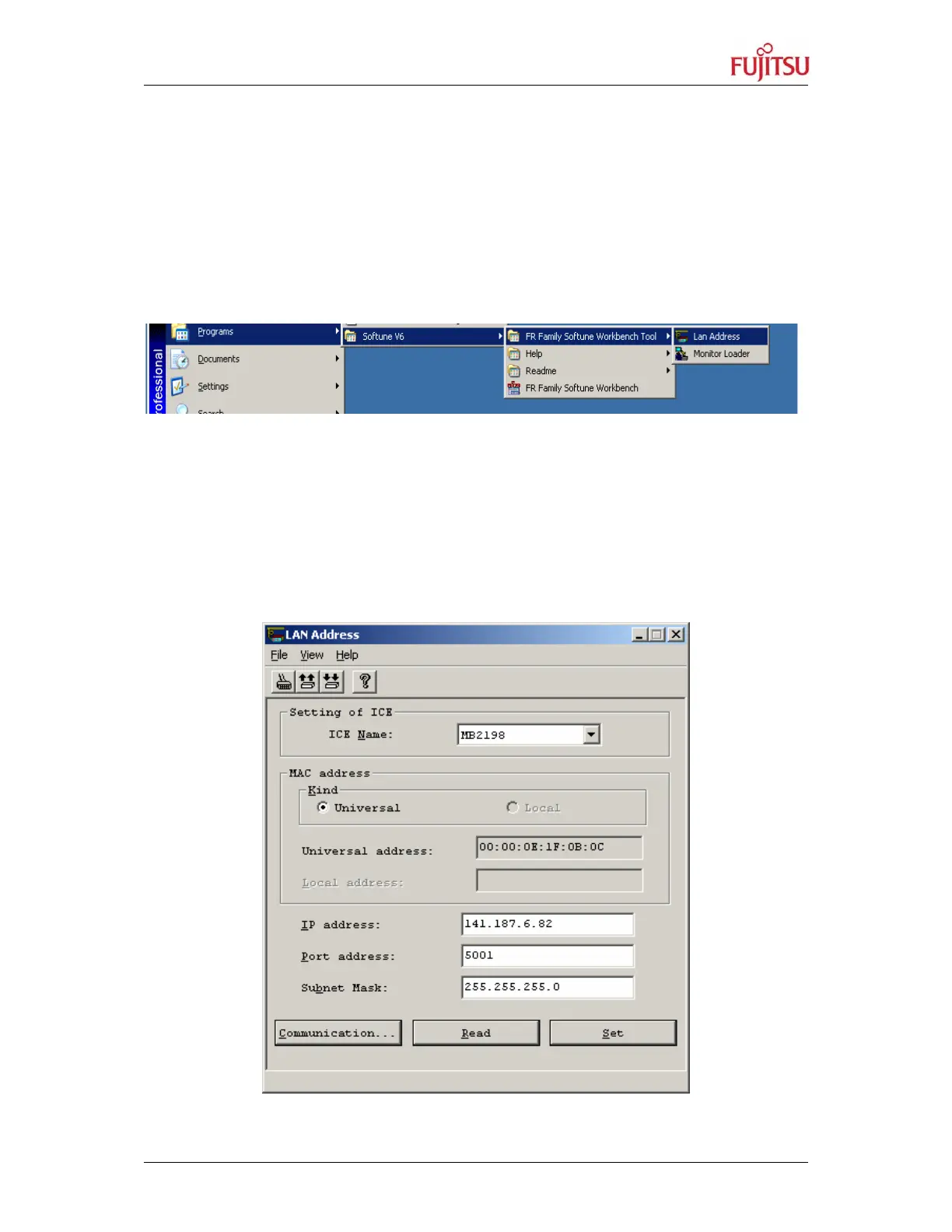
3 Start the „LAN Address“ Program in the Softune Workbench Folder
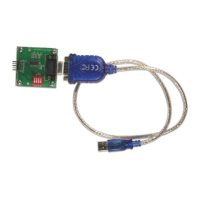
4 Click on Communication to define the serial RS232 Port where the emulator is
connected to or use USB connection.
5 Read current status from the emulator
6 Set the unique IP address given from your network manager. This is a very important
point; every IP-address within a network has to be unique.
7 Check the Port address: must be 5001
8 Make settings valid by „Set“, and reset the emulator when prompted
9 Close Program „LAN Address“
Figure 23: Changing the IP-Address


 To Next Page