Getting Started
Chapter 7 Setup / Change Connection PC – Emulation System
MCU-AN-391005-E-V17 - 38 - © Fujitsu Microelectronics Europe GmbH
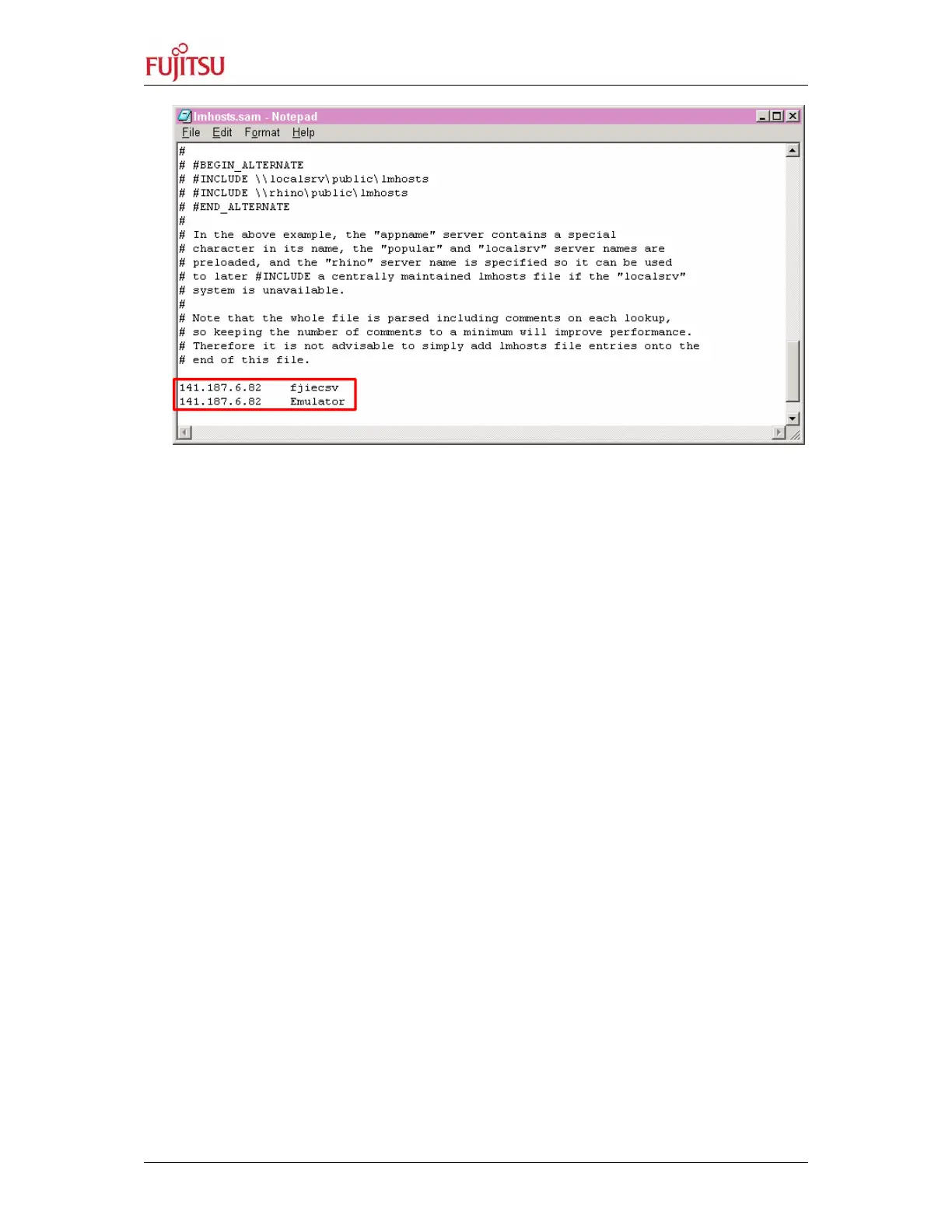
Figure 26: Edit the File Imhosts.asm
„the unique IP address (as set by LAN-Address, see above)“ „nickname
of emulator“
e.g.
141.187.6.82 fjicescv
141.187.6.82 Emulator
When saving again the file Imhosts get sure that your editor (e.g. notepad) will
not add any extension, e.g. .txt, to your file. To get sure, use quotation marks
for the filename:
e.g. File save as:”lmhosts” (or lmhosts.sam)
7.3.4 Checking the network-connection
Disconnect serial RS232 (or USB) cable from Emulator and try to find the emulator:
• Open DOS-Window (or open RUN (Ausführen) in the Start-Menu)
• The command
ping Emulator should acknowledge with some time-values,
that means the network is set up right.
The emulator with LAN-adapter is successfully integrated in the network environment
and can be used by the Softune Workbench.
7.3.5 Troubleshooting
If the command
ping my_emulator will reply with a timeout-message, try to find the
emulator by its IP-address: Type command
ping IP-address, e.g. ping
141.187.6.82
.
If this will work, then check settings (nickname and IP-address) within Imhosts and
Hosts.
If neither nickname (my_emulator) nor IP-address will work, check settings done
by the program LAN-address and check the file Services.


 To Next Page