4.2 Changing Scanning Settings
ScanSnap S510 Operator's Guide 73
Setting the ScanSnap
4
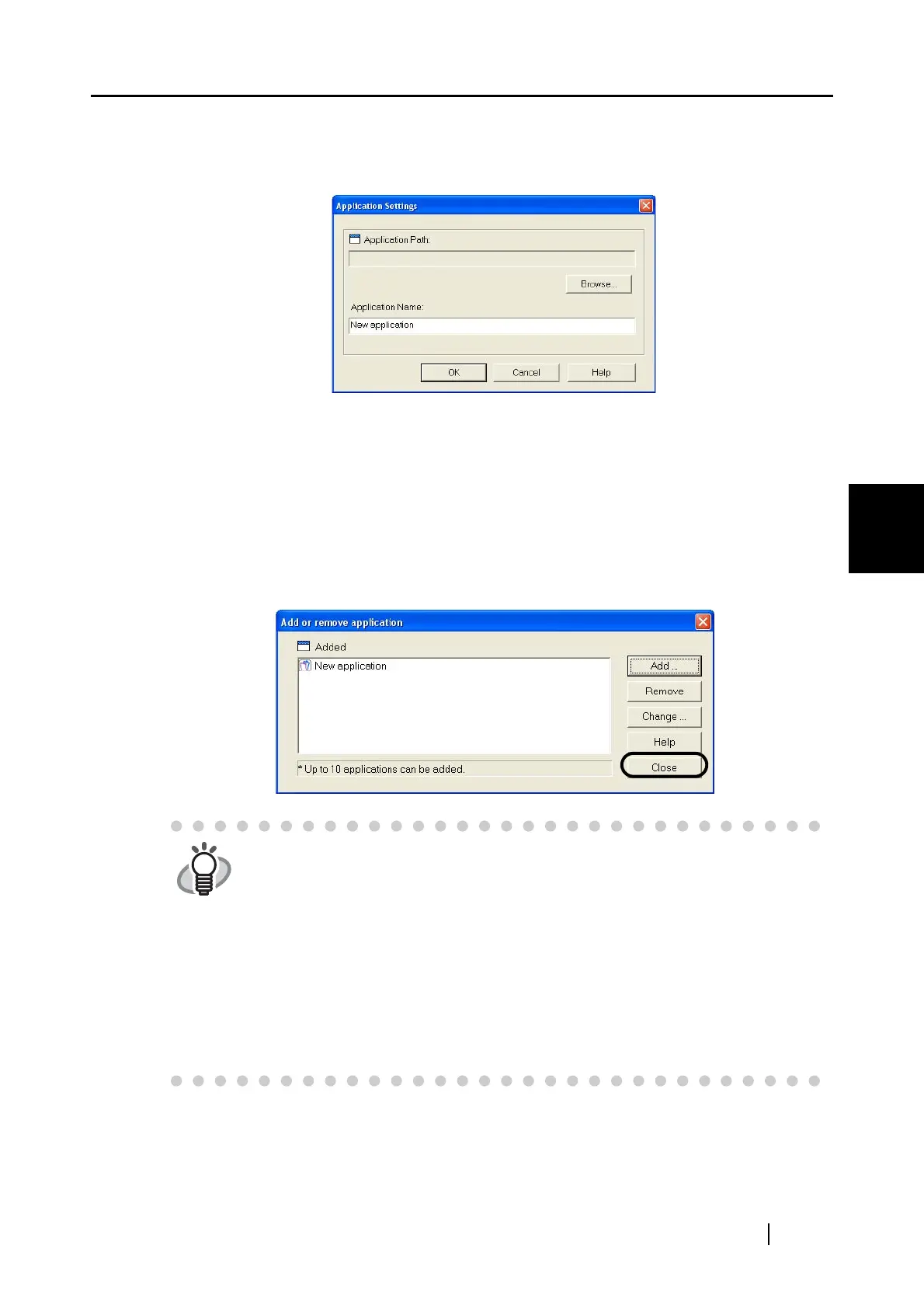
<To add an application>
1) Click the [Add] button.
2) The dialog box below appears.
• Click the [Browse] button to select an executable file (.exe) or a shortcut file
(.lnk).
⇒ The path to the selected application is displayed in the "Application Path" field.
• Type in a name for the newly selected application.
⇒ The application name is displayed in the "Application" drop-down list.
3) When you have finished the procedure, click the [OK] button.
4) In the dialog box below, the new application appears in the list. Click the [Close]
button to close the window.
HINT
You must select an application that supports JPEG (*.jpg) and/or PDF (*.pdf)
file format.
Depending on applications, password-protected or text-recognized (processed
through OCR) PDF files may not open.
You can verify that the selected application supports the above file formats by
doing the following:
Example: Check that the selected application supports JPEG file format>
1. Create a shortcut to the application you want to add.
2. Drag a file in JPEG format (*.jpg) onto the shortcut (drag-and-drop action).
⇒ If the application starts up and the file opens, then the application
supports JPEG file format.



 To Next Page
 Loading...