EasyManua.ls Logo

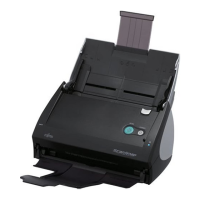
Fujitsu PA03360-B525 - User Manual

Fujitsu PA03360-B525
286 pages
Print Icon
To Next Page IconTo Next Page
Loading...
P3PC-1792-01ENZ0
SCAN
POWER
Color Image Scanner
S510
Operators Guide

Table of Contents

Questions and Answers

  • C
    clementsjacquelineAug 18, 2025
    How to fix Fujitsu PA03360-B525 when it cannot be turned on?
    • S
      Suzanne AllenAug 18, 2025
      To resolve the issue of the Fujitsu Scanner not turning on, try the following: * Ensure the Power/USB cable is correctly connected. * Disconnect and then reconnect the power cable, waiting at least 5 seconds before reconnecting. * Open the paper chute. * Wait for Windows to start up completely (the LED will turn off during startup or in sleep mode). * Press the [POWER] button.
  • J
    James HorneAug 20, 2025
    What to do if scanning does not start on Fujitsu PA03360-B525?
    • S
      sarahramirezAug 20, 2025
      If your Fujitsu Scanner isn't starting the scan, here are a few things you can try: * Ensure the USB cable is correctly connected, paying attention to the hub's power supply if one is in use. * Disconnect and reconnect the power cable, waiting at least 5 seconds before reconnecting. * If the ScanSnap Manager icon isn't visible, start ScanSnap Manager from the programs menu. * Close the "ScanSnap Manager D Scan and Save Settings" window before scanning.
  • J
    Julie HaasAug 22, 2025
    Why is the Fujitsu PA03360-B525 Scanner scanning so slow?
    • R
      Ronald NelsonAug 22, 2025
      If the scanning speed of your Fujitsu Scanner is very slow, check these points: * Ensure your PC meets the recommended system requirements. If not, at [Scanning] D [Option] in the "ScanSnap Manager D Scan and Save Settings" dialog box, clear the checkboxes of the following to increase the scanning speed: Correct skewed character strings automatically and Allow automatic image rotation. * If you're using a USB 1.1 connection, switch to a USB 2.0 port if your PC has one. If using a USB hub, make sure it supports USB 2.0.
  • B
    Brian FloresAug 26, 2025
    What to do if Fujitsu PA03360-B525 Scanner is not recognized after ScanSnap Manager installation?
    • B
      Brent AyalaAug 26, 2025
      If the Fujitsu Scanner is not recognized even after installing ScanSnap Manager, it might be registered as an "Other device" in the Device Manager. To fix this, go to [Start] menu, select [Control panel] D [System] D [Hardware] D [Device Manager]. Delete the device name such as USB device (differs with the OS) under "Other Device" selection in the [Device Manager] and restart your PC.
  • P
    phillipsdanaAug 27, 2025
    Why does my Fujitsu PA03360-B525 Scanner have frequent multi-feed errors?
    • A
      Ashley MejiaAug 27, 2025
      If multi-feed errors occur frequently with your Fujitsu Scanner, consider the following: * Replace the pad if it is dirty, following the instructions in section "8.3 Cleaning the Inside of the Scanner". * Replace the pad if it's worn out, following the instructions in section "9.2 Replacing the Pad ASSY". * Reduce the number of sheets in the document stack to 5 mm thickness or less.
  • W
    William DavisAug 30, 2025
    Why is paper not feeding properly in my Fujitsu Scanner?
    • R
      rwalshAug 30, 2025
      If paper is not feeding correctly (stops midway) in your Fujitsu Scanner, check these items: * Clean the Pick roller, following the instructions in section "8.3 Cleaning the Inside of the Scanner". * Replace the Pick roller if it's worn out, following the instructions in section "9.3 Replacing the Pick Roller". * Remove any debris from the document feeding path. * Ensure the loaded documents meet the paper size conditions described in section "3.2 Paper Size of Documents to be Scanned". If not, slightly push through the first sheet or change the insertion direction.
  • D
    Dillon OrtizSep 1, 2025
    Why are lines blurred on scanned documents with Fujitsu PA03360-B525?
    • A
      andersonshaneSep 1, 2025
      If lines on the document are blurred when using the Fujitsu Scanner, and you are scanning in color mode, documents including handwritten or typed text, tables or frames with ruled lines, select the checkbox for [Setting for text only document] at [Scanning] D [Option] in the "Scan and Save Settings" window. If it does not improve even after you have tried this method, change "Image quality" setting.
  • M
    mariabakerSep 4, 2025
    What to do if ScanSnap files won't open with other applications?
    • H
      hickmanjenniferSep 4, 2025
      If files created with the Fujitsu ScanSnap cannot be opened with a specified application, verify the location of the Image saving folder, and then delete corrupted files, if any. After that, retry scanning.
  • C
    Christina ValdezSep 6, 2025
    How to remove vertical lines from Fujitsu PA03360-B525 Scanner images?
    • S
      Sharon WilliamsSep 6, 2025
      If vertical lines appear in the scanned image from your Fujitsu Scanner, clean the inside of the ADF following the instructions in Chapter "8 Daily Care".
  • S
    Stephanie DavisSep 9, 2025
    How to adjust brightness on Fujitsu Scanner?
    • A
      Allison JuarezSep 9, 2025
      If the image scanned by your Fujitsu Scanner is too light or too dark, adjust "Brightness" at [Scanning] D [Option] in the "ScanSnap Manager D Scan and Save Settings" dialog box.

Summary

Introduction

Regulatory Information

Information regarding FCC declaration and Canadian DOC regulations.

Liability

Details PFU LIMITED's disclaimer of liability for errors or omissions in the manual.

Trademarks

Lists registered trademarks of software and hardware manufacturers.

Safety Precautions

Explains warning indications and symbols used in the manual for safe operation.

Chapter 1 Before You Start Using the ScanSnap

Checking the Contents of the Scanner Package

Instructions for verifying all items are present after unpacking the scanner.

Names and Functions of Components

Identifies and describes the various parts and their functions on the scanner.

Chapter 2 Connecting the ScanSnap

Installing the Supplied Programs

Guide to installing essential software like ScanSnap Manager and Adobe Acrobat.

Connecting the ScanSnap to your PC

Step-by-step instructions for connecting the scanner to a computer via USB and power.

Chapter 3 Using the ScanSnap

Flow of Operations

Explains the basic scanning process, including button functions and modes.

Paper Size of Documents to be Scanned

Details the supported document sizes with and without the carrier sheet.

Loading Documents

Instructions on how to properly load various types of documents into the scanner.

Chapter 4 Setting the ScanSnap

About the ScanSnap Icon

Explains the ScanSnap Manager icon and its associated menus (Right-Click/Left-Click).

Changing Scanning Settings

Guide to configuring various scanning parameters via ScanSnap Manager.

Saving Scanning Settings

Instructions on how to create, manage, and use scanning profiles.

Using the ScanSnap Quick Menu

Details how to use the Quick Menu for selecting scanning actions.

Changing Carrier Sheet Settings

Configuration options for using the carrier sheet for scanning documents.

About Automatic Interaction with Applications

Explains how ScanSnap interacts with applications like Organizer and CardMinder.

Chapter 5 About Actions

About Actions in the Action List

Describes the purpose and helpful scenarios for using ScanSnap actions.

Saving Data in the Specified Folder

Guide to saving scanned files to a shared or network folder for group sharing.

Sending Files by E-Mail

Instructions on how to scan documents and attach them to an email.

Using the ScanSnap as a Copy Machine

Explains how to print scanned images directly to use the scanner as a copier.

Converting into Word; Excel; PowerPoint Files

Guide to converting scanned documents into editable office file formats via OCR.

Chapter 6 Using the ScanSnap in Various Ways

Using ScanSnap Manager

Details on configuring and using ScanSnap Manager for various scanning tasks.

Using Adobe Acrobat

Instructions on modifying PDF files using Adobe Acrobat features.

Scanning Business Cards

Guide to scanning business cards using the CardMinder application.

Using ScanSnap Organizer

Instructions on displaying, sorting, and managing scanned files with ScanSnap Organizer.

Chapter 7 Troubleshooting

Clearing Document Jams

Step-by-step guide for safely removing jammed documents from the ADF.

Troubleshooting Checklist

A guide to diagnosing and resolving common scanner issues and symptoms.

Chapter 8 Daily Care

Cleaning Materials

Lists recommended cleaning supplies and their part numbers for scanner maintenance.

Cleaning the Scanner Exterior

Instructions for cleaning the outer surfaces of the scanner and stacker.

Cleaning the Inside of the Scanner

Detailed guide for cleaning internal components like rollers and ADF glass.

Cleaning Carrier Sheet

Method for cleaning the carrier sheet to prevent scanning errors.

Chapter 9 Replacing Consumables and Carrier Sheet

Replacing Consumables

Information on consumable parts, their part numbers, and replacement cycles.

Replacing the Pad ASSY

Step-by-step instructions for replacing the Pad ASSY consumable.

Replacing the Pick Roller

Detailed guide for replacing the Pick Roller consumable.

Purchasing the Carrier Sheet

Information on how to purchase replacement carrier sheets.

Appendix A Updating ScanSnap Manager

Appendix B Uninstalling ScanSnap

Appendix C Quick Menu Mode; Left-Click Menu Mode

Appendix D Installation Specifications

Repairs

Fujitsu PA03360-B525 Specifications

General IconGeneral
TypeDocument Scanner
Optical Resolution600 dpi
Maximum Resolution600 dpi
InterfaceUSB 2.0
Duplex ScanningYes
ADF Capacity50 sheets
Color Depth24-bit
Resolution600 dpi
Supported Operating SystemsWindows XP, Windows Vista, Windows 7, Windows 8
Scanning TechnologyCCD

Related product manuals