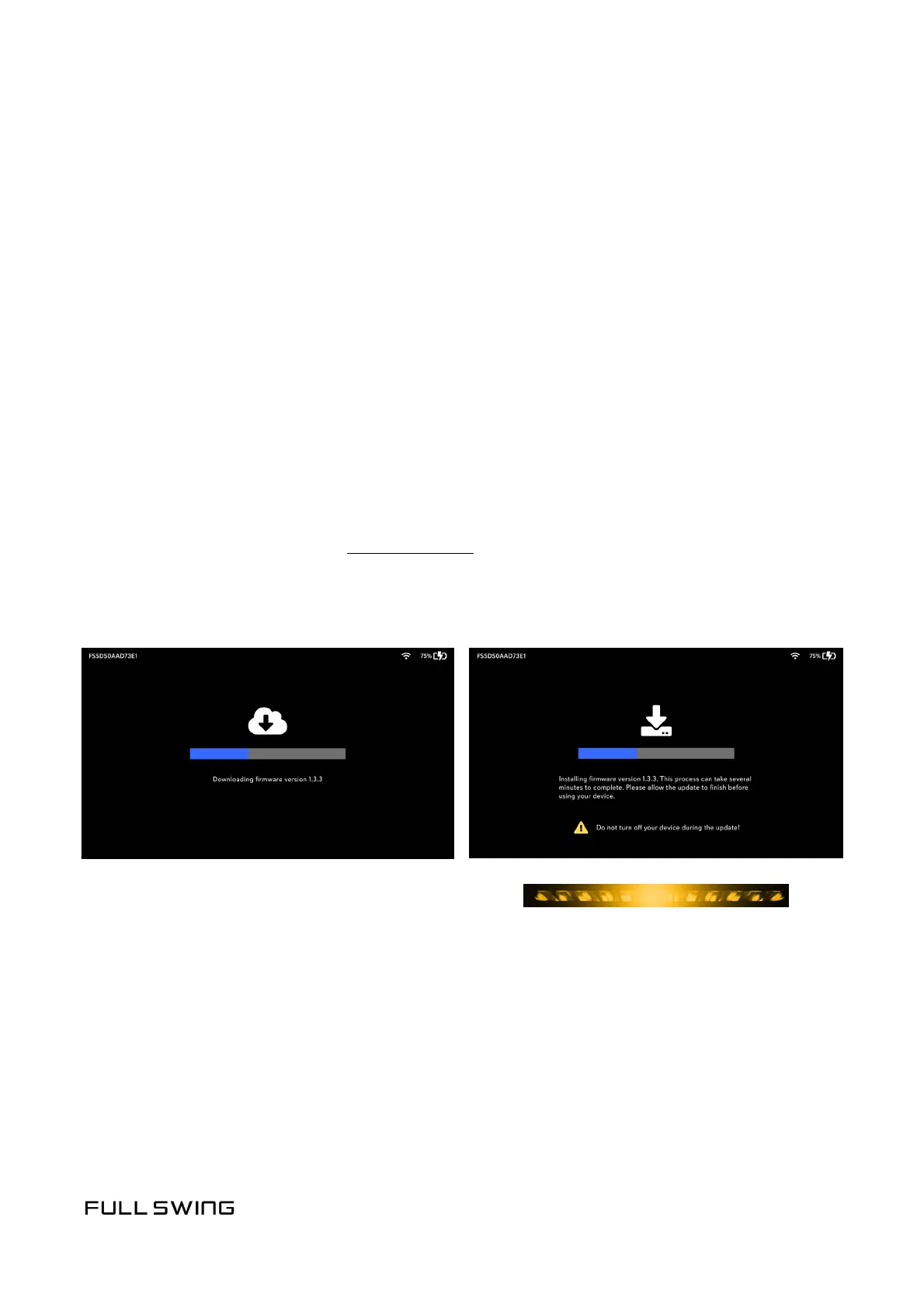
New rmware updates will automacally download and install when the unit is connected to
Wi-Fi. Download me is dependent on Internet speed. Following download, rmware
installaon could take up to 15 minutes to complete.
Note: The LED ashes amber while the rmware installaon is underway. Do not power o
the unit aer the rmware installaon begins and unl installaon is complete.
1. Ensure the unit is plugged into the charger but do not power the unit on.
Note: Firmware updates will automacally download and install while in charging mode.
If the KIT is fully powered on (with the LED bar pulsing blue), the rmware update will
download; however, installaon will not happen unl the next me the KIT is powered
on or o.
2. Ensure the unit is connected to Wi-Fi.
Note: If unsure, tap the Power buon to view Wi-Fi indicator in the upper, right corner.
For addional informaon, see Congure Wi-Fi.
3. Allow any rmware updates to download and install prior to operang the unit.
An amber LED indicates that the rmware is
currently updang. However, if the LED
is pulsing blue, do not power o the unit
because installaon is underway.
UPDATE FIRMWARE


 To Next Page