10
EN
OTHER SETTINGS
Some settings need to enter PIN code, refer to “Lock
Settings” (p. 16).
Channel Settings
You can edit the channel settings.
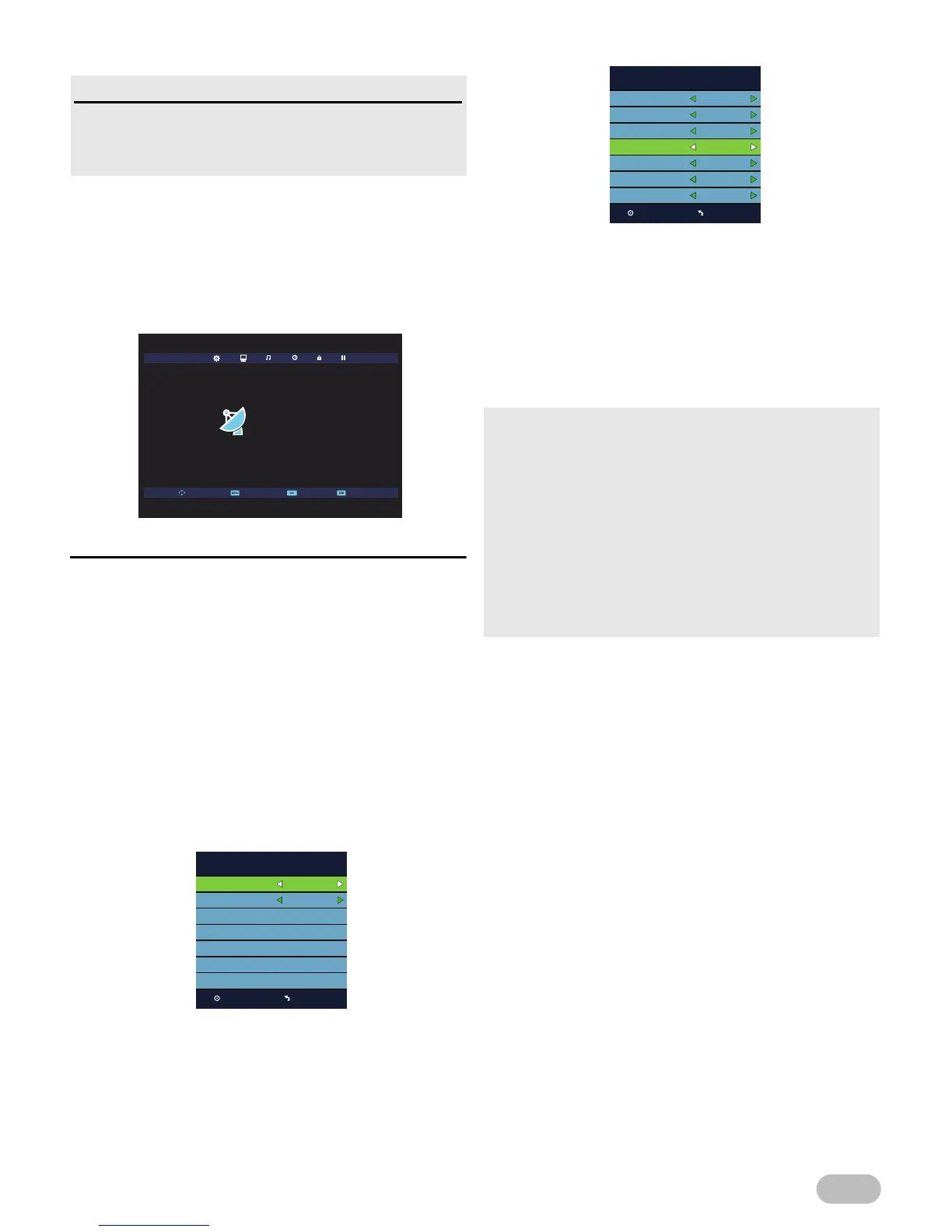
1 Use ◄ / ► to select [CHANNEL].
[Auto Tuning]
You can scan the DTV, ATV or both channel in your
area automatically.
2 Use ▲ / ▼ to select [Auto Tuning], then press
OK.
3 Use the Number buttons to enter the 4-digit PIN
code you set.
4 Use ▲ / ▼ to select [Country], then select the
country you want, using ◄ / ►.
5 Use ▲ / ▼ to select [Tune Type], then select
[DTV], [ATV] or both channels, using ◄ / ►.
< For DVB-T scanning >
6 Press OK to start scanning.
< For DVB-C scanning >
6 Use ▲ / ▼ to select [Digital Type], then select
[DVB-C], using ◄ / ►.
7 Use ▲ / ▼ to select [Scan Type], then select
[Standard] or [Advanced], using ◄ / ►.
8 Use ▲ / ▼ to select the item you want, and then
adjust the setting, using ◄ / ►.
9 Press OK to start scanning.
Read this first
Before adjust each setting, press MENU to display the
menu.
To exit the menu, press MENU.
• Scan confirmation menu will appear.
• In case when not all available cable channels are found
through [Standard] scanning mode, these programs can be
scanned by selecting [Advanced] mode. Please note, that
[Advanced] mode scanning can take additional time.
• Depending on cable TV provider specification, correct
subscription to cable signals cannot be guaranteed.
• When the scanning is completed, the lowest memorised
digital or analogue channel will be displayed.
• If you press MENU during the scanning, this operation will
be stopped and the lowest memorised channel will be
displayed.
Standard
Auto Tuning
OK Menu
Auto
Symbol Rate
Auto
Frequency
Auto
Network ID
Scan Type
ATV + DTV
Tune Type
Germany
Country
DVB-C
Digital Type


 To Next Page