17
Change Settings
English
Setup Menu
Closed
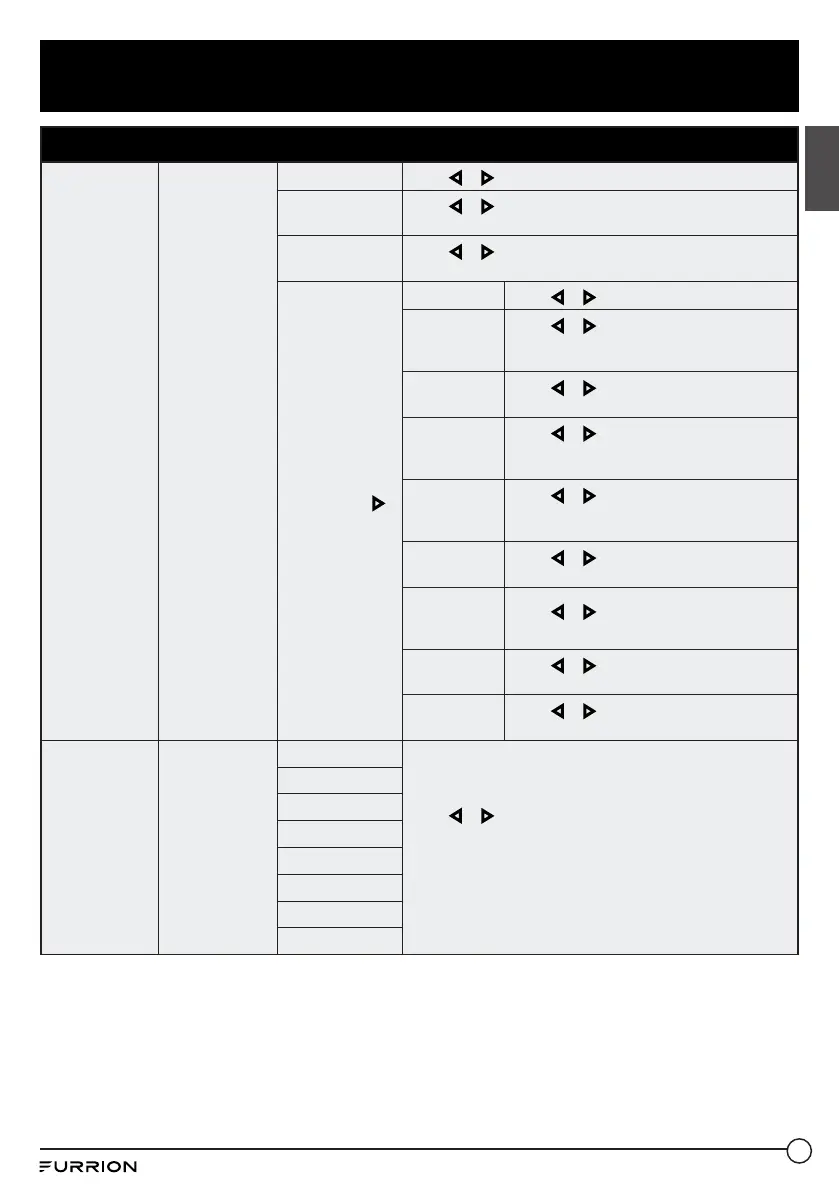
Caption
Configures
Closed Caption
functions
CC Mode
Press or to select CC On, CC Off or CC On Mute.
Analog CC
Press or to select CC1, CC2, CC3, CC4, Text 1, Text 2,
Text 3 or Text 4.
Digital CC
Press or to select Off, Service1, Service 2, Service 3,
Service 4, Service 5 or Service 6.
Option
* Press OK or
to enter the sub
menu
Mode
Press or to select Default or Custom.
Font Style
Press or to select Default, Font 0,
Font 1, Font 2, Font 3, Font 4, Font 5, Font
6 or Font 7.
Font Size
Press or to select Default, Normal,
Large or Small.
Font Edge
Style
Press or to select Default, None,
Raised, Depressed, Uniform, Left Shadow
or Right Shadow.
Font Edge
Color
Press or to select Default, Black,
White, Red, Green, Blue, Yellow, Magenta
or Cyan.
FG Color
Press or to select Default, White, Red,
Green, Blue, Yellow, Magenta or Cyan.
BG Color
Press or to select Default, Black, Red,
Green, Blue, Yellow, Magenta or Cyan.
FG Opacity
Press or to select Default, Solid,
Flashing, Translucent or Transparent.
BG Opacity
Press or to select Default, Solid,
Flashing, Translucent or Transparent.
Source Label
Allows labeling
of input sources
TV
Press or to select Custom, Default, Antenna, Cable,
Satellite, DTV, DVD, Blu-ray, HD-DVD, XBOX, Wii, PS3,
Game, Computer, VCR or DV.
*The configuration of the connection ports may vary from
model to model.
AV
Component
HDMI1
HDMI2
HDMI3
PC
Media


 To Next Page