3736
CHAPTER 5: F
¯
ENIX
™
2 CHAPTER 5: F
¯
ENIX
™
2
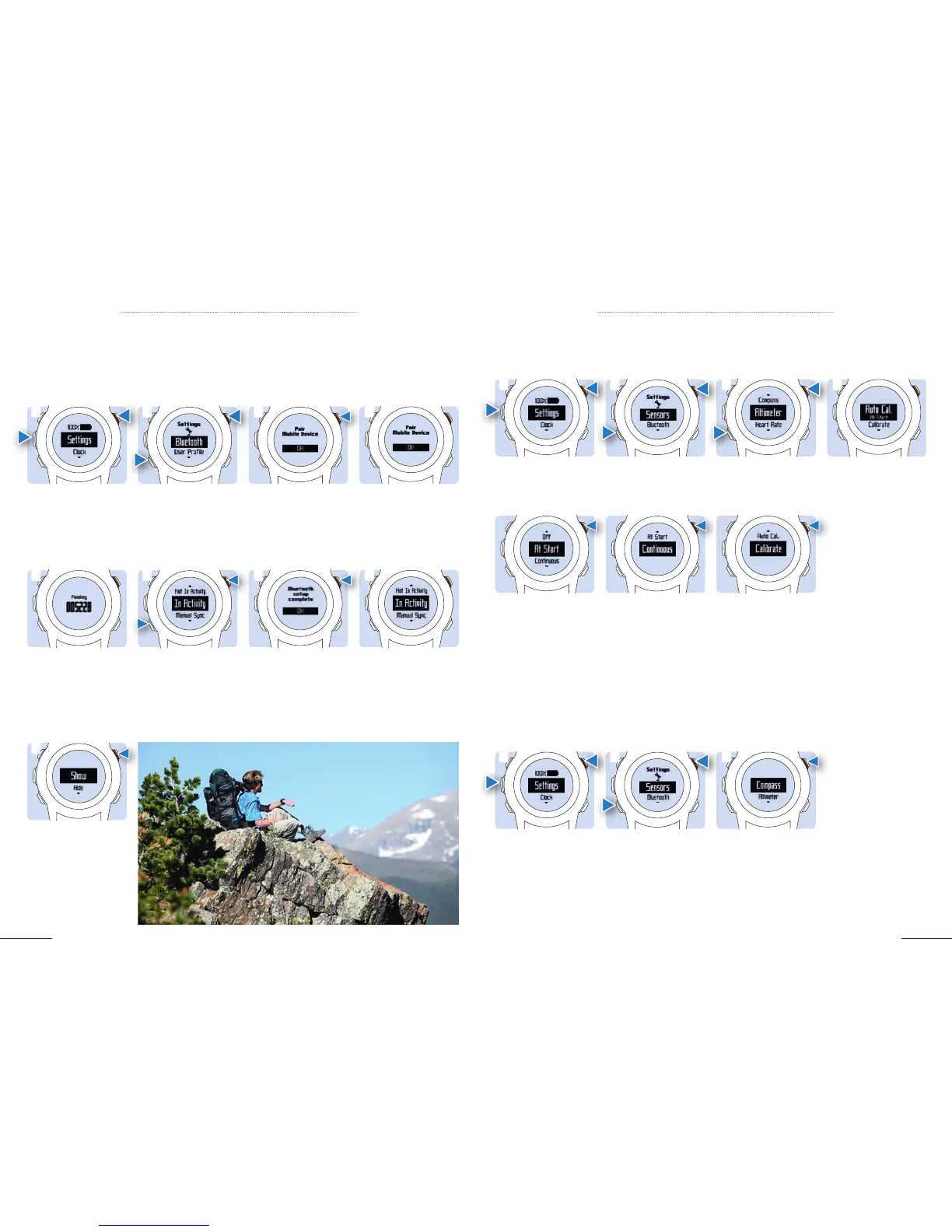
2. Scroll down to
Bluetooth, then select.
2. Scroll down to
Sensor, then select it.
2. Scroll down to
Sensor, then select it.
6. On fe¯ nix
™
2, select
Always On, In Activity,
or Not in Activity
to determine when
Bluetooth connection
is active.
4b. To calibrate the
Altimeter automatically
with periodic GPS cali-
bration updates, select
Auto Cal., then select
Contiuous.
3. If this is the first
time you have paired a
phone with your device,
select OK. If not, select
Pair Mobile Device.
3. Scroll down to
Altimeter then
select it.
3. Select Compass
.
7. Select OK to confirm.
4c. To enter manually
the current elevation
or sea-level pressure,
select Auto Cal., then
select Calibrate.
4. On your smartphone,
go to the Bluetooth
settings, search for
nearby devices and
select fe¯ nix
™
2.
4. Select an option:
8. Scroll to
Notifications.
1. Once you are close to
your smartphone (10m)
hold Menu, then select
Settings.
1. Select Settings
.
1. Hold Menu, then
select Settings
.
5. On your smartphone,
enter the passkey that
appears on the fe¯ nix
™
2
screen.
4a. To calibrate the
Altimeter automatically
from your starting point,
select Auto Cal., then
select Start.
9. Select Show or Hide
to show or hide smart-
phone notifications on
the fe¯ nix
™
2 screen.
5.6 SMART NOTIFICATIONS: CONNECT TO YOUR SMARTPHONE 5.7 ALTIMETER SETTINGS
5.8 COMPASS
1
1
1
5
9
3
3
3
7
4
4
8
You can receive notifications from your smartphone (appointments, emails, sms, facebook messages)
directly on your fe¯ nix
™
2. To check if your smartphone supports smart notifications with your device visit:
www.garmin.com/ble
The altimeter displays your approximate elevation based on pressure changes.
Your device can display a compass with your direction of travel at the top.
2
2
2
6


 To Next Page