GPSMAP 292/298 Owner’s Manual 13
BASIC OPERATION > NAVIGATING TO A DESTINATION
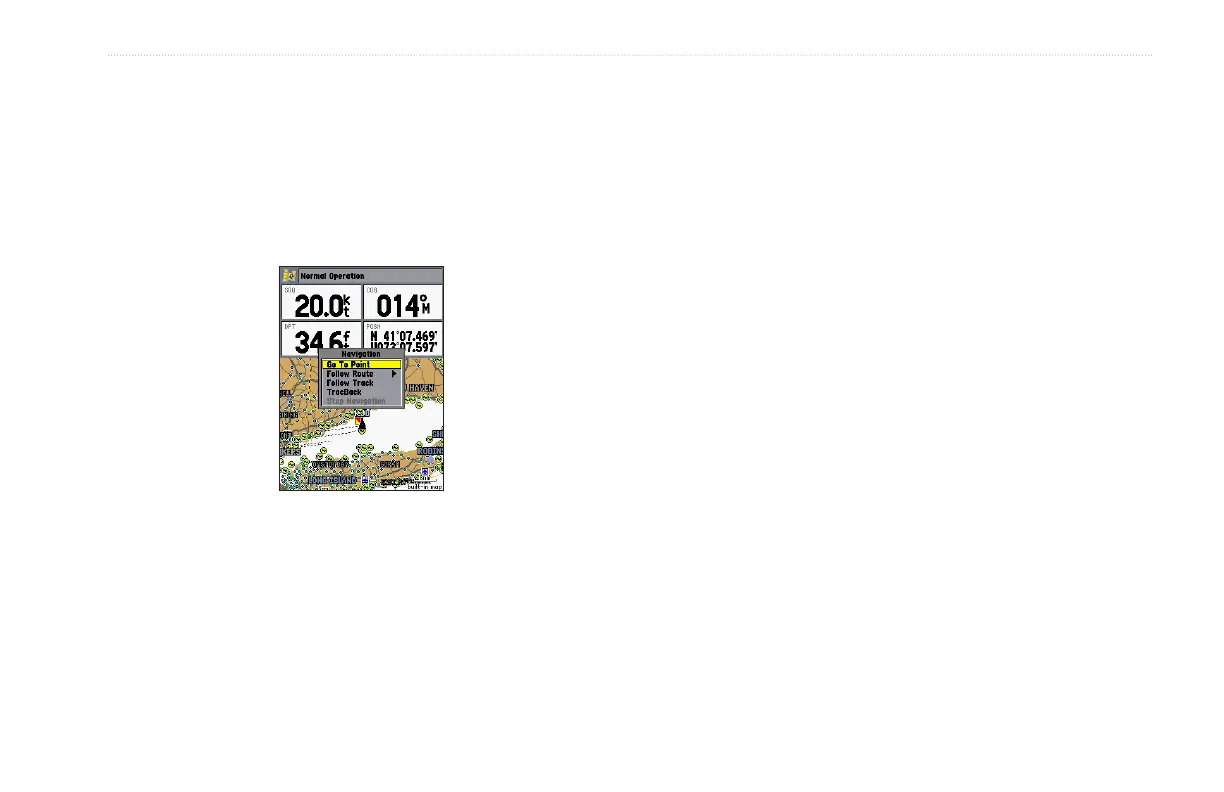
To start a Go To from a point list:
1. Press NAV. Highlight Go To Point, and press ENTER.
2. From the Find menu, highlight Waypoints or another menu
option, and press ENTER.
3. To select a waypoint from the waypoint lists, use the
ROCKER to highlight either the By Name or Nearest tab,
select a waypoint, and press ENTER.
Selecting a Go To Graphically
A Go To can be used to select one of three items from the Map
Page: an existing waypoint, an on-screen map item such as roads,
rivers, cities, and navaids, or a new map point. If you are selecting
a map item as the Go To destination, the GPSMAP 292/298
automatically uses the name of the map item, but the point is not
stored in the waypoint list. See page 8 for creating waypoints using
map items. If you are selecting a new map point (non-map item) as
the Go To destination, the GPSMAP 292/298 automatically creates
a waypoint at the map pointer location.
To Go To an existing waypoint or map item from the
Map Page:
1. Use the ROCKER to highlight the waypoint or on-screen
map item.
2. Press NAV. Go To <waypoint name> appears.
3. Press ENTER to start navigating to the waypoint.





 To Next Page