Setting up multiple monitors
47
2 Plug the projector or monitor cable into
the secondary VGA port on your
computer. For the location of the VGA port
on your computer, see the setup poster or
“Back” on page 8.
3 Turn on your computer.
4 Plug the projector’s or monitor’s power
cord into an AC power outlet, then turn it
on. Windows recognizes the new hardware
and searches for its driver. You may need to
install the driver from the disc supplied by
the manufacturer or download the driver
from the manufacturer’s Web site.
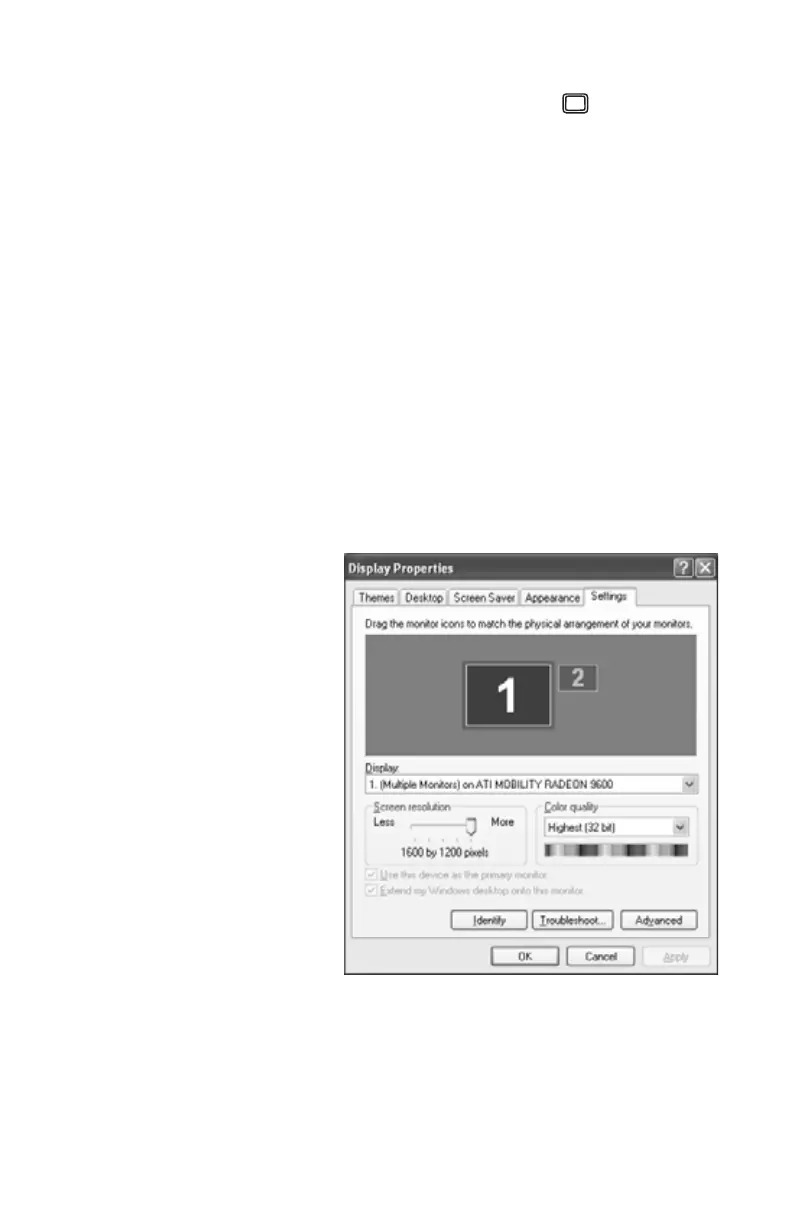
5 After the driver is installed, right-click any
empty space on the desktop, then click
Properties. The Display Properties dialog
box opens.
6 Click the Settings tab.
7 Right-click the second monitor icon
(labeled 2), then click Attached.
8 Click Apply.
8511781.book Page 47 Tuesday, October 10, 2006 4:41 PM



 To Next Page