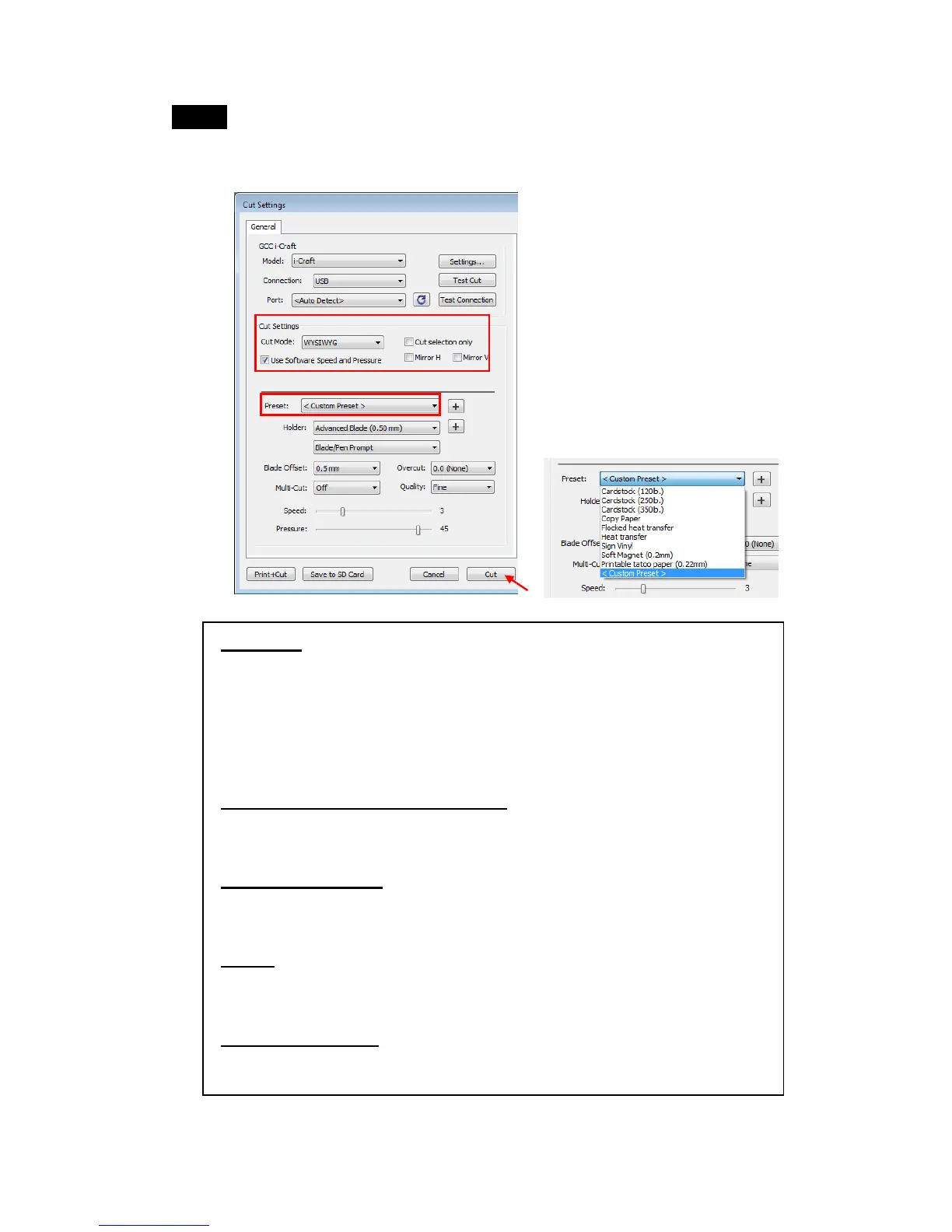
Step 5 Under “Cut Settings” section, there are some useful functions. After
setting the parameters, click on “Cut” to send the data to i-Craft
TM
and
i-Craft
TM
will start the cutting job.
*Cut Mode: there are “WSIWYG” and “Origin Point” options, WSIWYG
means what you see is what you get, the i-Craft
TM
will output the
graphic at same position in preview window. While with Origin Point
mode, i-Craft
TM
will cut the graphic from top left origin point of adhesive
mat.
*Use Software Speed and Pressure: tick this section, and you can set
the values of speed and pressure manually.
*Cut Selection Only: when tick the Cut Selection Only, i-Craft
TM
will
only output the selected graphics.
*Preset: select a proper material to apply the preset speed and
pressure parameter automatically.
*Speed & Pressure: you may adjust values of speed and pressure
manually to get quality results.


 To Next Page