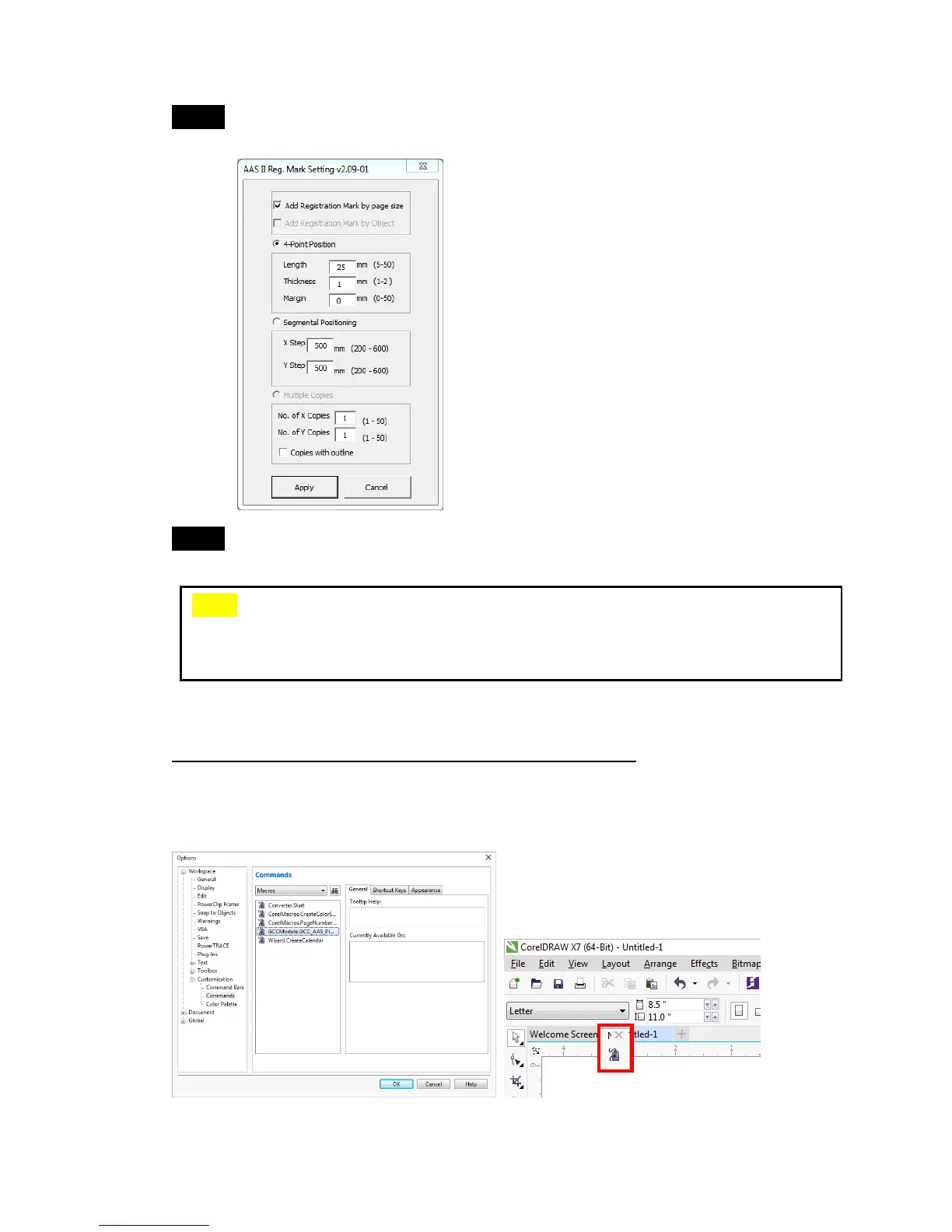
Step 3 Click on “Apply” and select whether you would like to add the
registration marks by page size or by object.
Step 4 Now you can print out the image file with registration marks.
You can also add a Hot Icon for the AAS Plug-in
Select “Tools Options Workspace Customization Commands
Macros GCCMadual.GCC_AAS_Plug_In” and Click OK.
Note: “Add Registration Mark by Object” will be the default selection if you click on
the image whereas “Add Registration Mark by page size” will be the default one
when the blank area on the page is clicked.


 To Next Page