CHAPTER 3: INTERFACES SOFTWARE SETUP
345 TRANSFORMER PROTECTION SYSTEM – INSTRUCTION MANUAL 3–13
• Upgrade the 345 firmware
The EnerVista 3 Series Setup software allows immediate access to all 345 features with
easy to use pull down menus in the familiar Windows environment. This section provides
the necessary information to install EnerVista 3 Series Setup , upgrade the relay firmware,
and write and edit setting files.
The EnerVista 3 Series Setup software can run without a 345 connected to the computer. In
this case, settings may be saved to a file for future use. If a 345 is connected to a PC and
communications are enabled, the 345 can be programmed from the setting screens. In
addition, measured values, status and trip messages can be displayed with the actual
value screens.
Hardware and
software
requirements
The following requirements must be met for the EnerVista 3 Series Setup software.
• Pentium 4 (Core Duo recommended)
• Windows XP with Service Pack 2 (Service Pack 3 recommended) , Windows 7 (32-bit or
64-bit), Windows 8.1 (32-bit or 64-bit), Windows 10 (32-bit or 64-bit)
• 1 GB of RAM (2 GB recommended)
• 500 MB free hard drive space (1 GB recommended)
• 1024 x 768 display (1280 x 800 recommended)
The EnerVista 3 Series Setup software can be installed from either the GE EnerVista CD or
the GE Multilin website at http://www.gegridsolutions.com/multilin
Installing the
EnerVista 3 Series
Setup software
After ensuring the minimum requirements indicated earlier, use the following procedure to
install the EnerVista 3 Series Setup software from the enclosed GE EnerVista CD.
1. Insert the GE EnerVista CD into your CD-ROM drive.
2. Click the Install Now button and follow the installation instructions to install the no-
charge EnerVista software on the local PC.
3. When installation is complete, start the EnerVista Launchpad application.
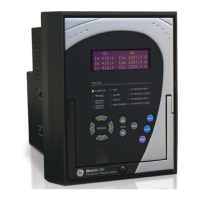
4. Click the IED Setup section of the LaunchPad toolbar.
5. In the EnerVista Launchpad window, click the Add Product button and select the
345 Feeder Protection System as shown below. Select the Web option to ensure the
most recent software release, or select CD if you do not have a web connection, then
click the Add Now button to list software items for the 345 .


 To Next Page