CHAPTER 3: INTERFACES SOFTWARE SETUP
345 TRANSFORMER PROTECTION SYSTEM – INSTRUCTION MANUAL 3–25
Creating a new
setpoint file
The EnerVista 3 Series Setup software allows the user to create new setpoint files
independent of a connected device. These can be uploaded to a relay at a later date. The
following procedure illustrates how to create new setpoint files.
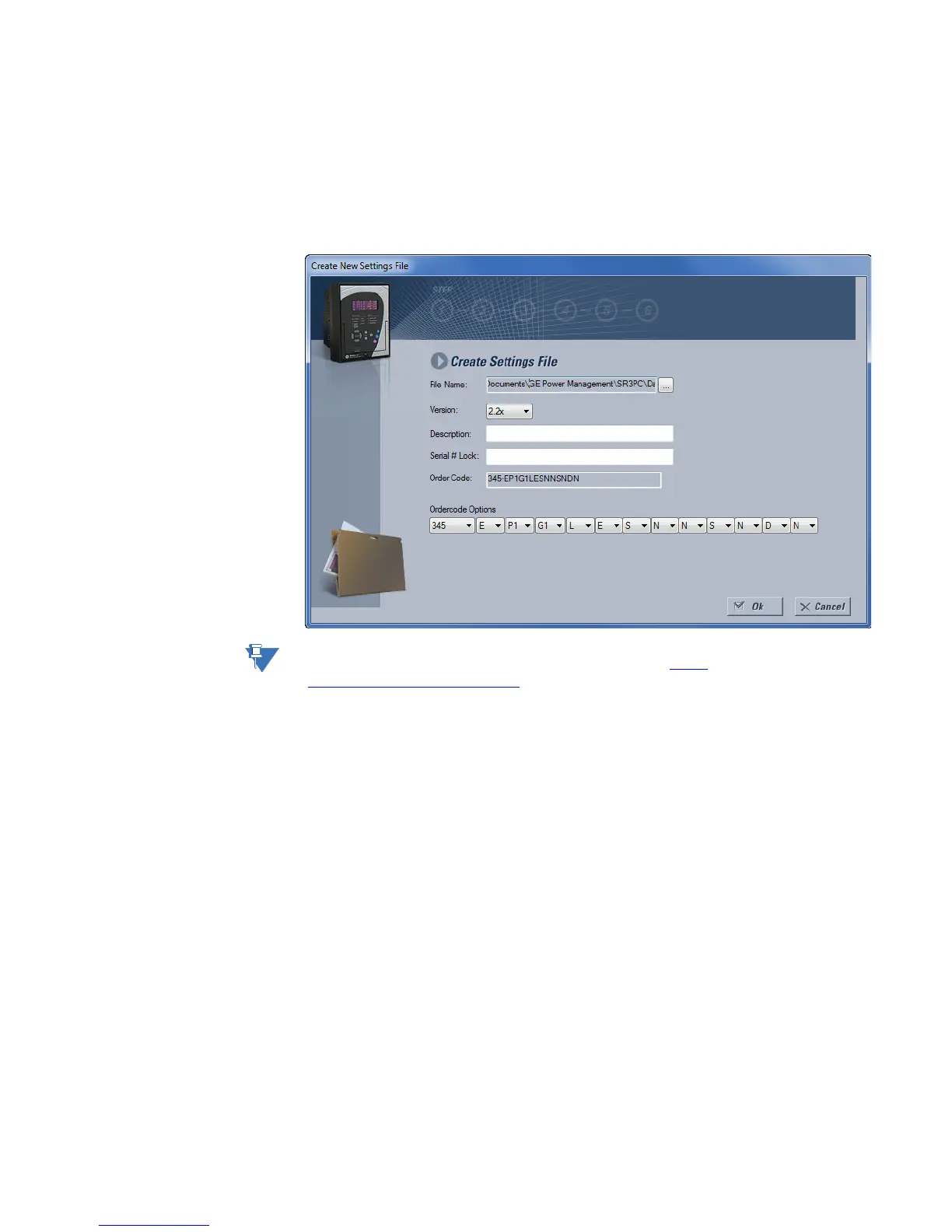
1. In the File pane, right click on File and select the New Settings File item. The following
box will appear, allowing for the configuration of the setpoint file for the correct
firmware version. It is important to define the correct firmware version to ensure that
setpoints not available in a particular version are not downloaded into the relay.
NOTE:
Discontinued order codes may be included to maintain back-compatibility of setpoint files.
For current order codes, refer to the GE Multilin website at http://
www.gegridsolutions.com/multilin.
2. Select the Firmware Version, and Order Code options for the new setpoint file.
3. For future reference, enter some useful information in the Description box to facilitate
the identification of the device and the purpose of the file.
4. To select a file name and path for the new file, click the button beside the File Name
box.
5. Select the file name and path to store the file, or select any displayed file name to
replace an existing file. All 345 setpoint files should have the extension ‘SR3’ (for
example, ‘feeder1.SR3’).
6. Click OK to complete the process. Once this step is completed, the new file, with a
complete path, will be added to the EnerVista 3 Series Setup software environment.
Upgrading setpoint
files to a new revision
It is often necessary to upgrade the revision for a previously saved setpoint file after the
345 firmware has been upgraded. This is illustrated in the following procedure:
1. Establish communications with the 345 relay.
2. Select the Maintenance > M1 Relay Info menu item and record the Firmware
Revision.
3. Load the setpoint file to be upgraded into the EnerVista 3 Series Setup environment as
described in the section, Adding Setpoints Files to the Environment.
4. In the File pane, select the saved setpoint file.


 To Next Page