EasyManua.ls Logo

GE iBox - User Manual

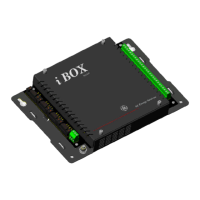
GE iBox
172 pages
Print Icon
To Next Page IconTo Next Page
Loading...
GE
Grid Solutions
iBox/iBox Kit
Installation and Maintenance Guide
994-0047
Version 5.10 Revision 4
GE Information

Table of Contents

Questions and Answers

  • A
    Alyssa SmithSep 23, 2025
    How to fix WESMAINT when it will not run on GE iBox Controller?
    • A
      Alexander RyanSep 23, 2025
      To address the issue of WESMAINT not running on your GE Controller, access the System Monitor, type EL /P, type EL/R, reboot the iBox, and press ENTER to display a low-level error log.
  • J
    Joseph DavisAug 25, 2025
    What to do if RUN LED does not light on GE iBox?
    • J
      Joanna SchroederAug 25, 2025
      If the RUN LED on your GE Controller doesn't light up, it could be because the unit isn't getting power or there's no BootROM. First, check that the power source is working. Then, make sure the BootROM is installed at U4XU4.
  • V
    Vanessa RichardsonAug 25, 2025
    What to do if digital output coils are not in the state requested by the software Plant I/O Sub failure in GE iBox Controller?
    • M
      Mary RobersonAug 26, 2025
      If digital output coils are not in the state requested by the software Plant I/O Sub failure, it could be due to a hardware watchdog issue. Check the control voltage source fuses and voltage. You can also force it from WESMAINT.
  • P
    pcampbellAug 27, 2025
    How to fix system hangs on GE Controller?
    • L
      laura05Aug 27, 2025
      If your GE Controller experiences a system hang, which may be due to a watchdog failure, attempt a reboot and clear the CCU error logs.
  • A
    Amy WallaceAug 27, 2025
    How to fix TX LED when it does not light on GE iBox?
    • C
      Christopher BallardAug 27, 2025
      If the TX LED on your GE Controller isn't lighting up, it means the unit isn't transmitting data. Check the cabling to your modems. If you're connected to a modem or converter, make sure RTS, CTS, and DCD are enabled. If you're using a direct serial connection, try disabling RTS, CTS, and DCD.
  • S
    Sierra SmithSep 15, 2025
    What to do if RS LED does not light on GE iBox?
    • G
      Gina WongSep 15, 2025
      If the RS LED on your GE Controller doesn't light up, it means the RTS line is disabled. Enable RTS.
  • M
    michelledanielsSep 12, 2025
    What to do if coil status check fails on GE iBox?
    • H
      Henry HayesSep 13, 2025
      If your GE Controller's coil status is incorrect, because the iBox Plant I/O Subsystem monitoring detects a conflict between desired and actual coil status, verify the coil status.
  • S
    Shannon WilliamsSep 14, 2025
    Why GE Controller allows only diagnostic input?
    • C
      Cindy JamesSep 14, 2025
      If your GE Controller is only allowing diagnostic input, it means no configuration is detected in either NVRAM or EPROM on start-up. Download a configuration remotely via the system monitor and reboot.
  • N
    Nicholas LamSep 5, 2025
    Why is GE iBox Controller rejecting digital output requests?
    • D
      Dillon KimSep 5, 2025
      If your GE Controller is rejecting digital output requests, it could be because the Controls Jumper is in the Local position (JP2 is removed) or the iBox Plant I/O Subsystem monitoring detects a conflict between desired and actual coil status. Move the Controls Jumper to the Remote position (Install JP2) and verify coil status.
  • M
    Mark KelleySep 3, 2025
    What causes active operations aborted on GE iBox Controller?
    • J
      jeffrey59Sep 3, 2025
      If your GE Controller is experiencing active operations being aborted, it's likely because the Controls Jumper is in the Local position (JP2 is removed). To resolve this, move the Controls Jumper to the Remote position by installing JP2.

Summary

Section 1: Getting Started

What is an iBox?

An overview of the iBox, its functions, features, and patent protection.

Unpacking and Inspection

Instructions for inspecting the shipping package and the iBox unit for damage.

Installation Tools

Lists the required tools and ESD protective gear for installation procedures.

Section 2: iBox Installation and Maintenance

Familiarization

Details the iBox front panel, operation, maintenance, and input/output specifications.

Installing the iBox

Covers the main steps and guidelines for physically installing the iBox unit.

Installation Guidelines

Provides critical rules for installation environment, power supply, grounding, and connections.

Configuring your iBox

Explains the process of configuring the iBox using the SGConfig system.

Testing your iBox

Describes system checks to verify the proper functioning of the iBox software.

Troubleshooting your iBox

Provides instructions for addressing system malfunctions and interpreting error messages.

Safety Precautions

Hazardous Voltages

Warns about shock, burns, or death from hazardous voltages and outlines safety measures.

Product Warning Symbols

Explains the meaning of various product warning symbols used in the manual.

Section 3: iBox Kit Installation and Maintenance

Installing the iBox Kit

Outlines the main steps and guidelines for installing the iBox Kit.

Physical Mounting

Provides instructions and considerations for mounting the iBox Kit in a rack.

Configuring the iBox Kit Components

Details the configuration process for various iBox Kit components.

Configuring the Ethernet Module

Step-by-step guide for configuring the Digi One IAP Ethernet Module.

Configuring the DC Analog Module

Instructions for configuring the ADAM-4017+ DC Analog Input Module.

Testing the iBox Kit

Methods for verifying the iBox Kit's operation using LEDs and pinging.

Troubleshooting your iBox Kit

Guides on using LED indicators and checking configuration for troubleshooting kit issues.

GE iBox Specifications

General IconGeneral
BrandGE
ModeliBox
CategoryController
LanguageEnglish

Related product manuals