GE COMPANY
D
IRECTION 5745295-1EN, REVISION 1 OPTIMA CT520 DOD IB UPGRADE INSTRUCTION
Chapter 2 - Upgrade Procedure Page 21
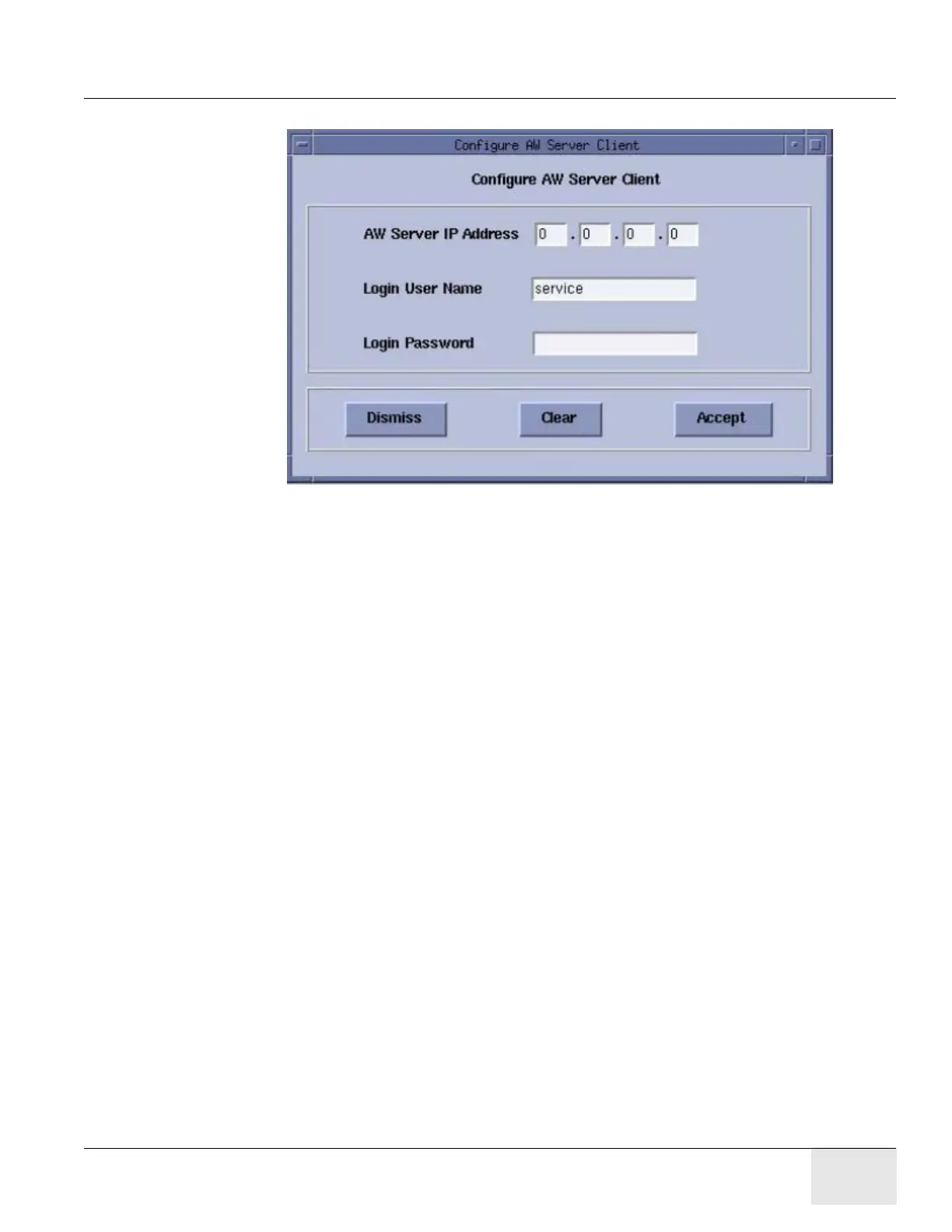
3.) Select in sequence: Configuration -> Configure AW Server Client and record AW server INFO.
1.2 Save System State
Refer to the latest service methods (5457941-2EN) to understand the detailed Save State
Procedure and other information saving procedure.
Note: If a Save State was just completed, it can be omitted here.
Note: When performing Save/Restore System State, makesurethereisONLYoneUSBstoragedevice
pluggedinUSBportsofbothConsoleandMediaTowersimultaneously,otherwiseitmayresultin
incorrectdatastorage
.
1.) Insert the System State DVD-RAM media into the peripheral tower drive or USB media in any
of the console’s USB ports.
2.) Select [Service Desktop] -> [Utilities].
3.) Select [System State] for DVD-RAM media or [System State - USB] for USB media. The
System State Save/Restore screen appears.
4.) Select [All] to select all the cals, characterization, etc.
5.) Select [Save].
6.) If DVD-RAM or USB is ready, select [Yes].
7.) When completed select [Dismiss].
8.) Remove System State DVD-RAM media from the peripheral tower or USB media from USB
port.



 To Next Page