page | 53
Creating a Sample Presentation
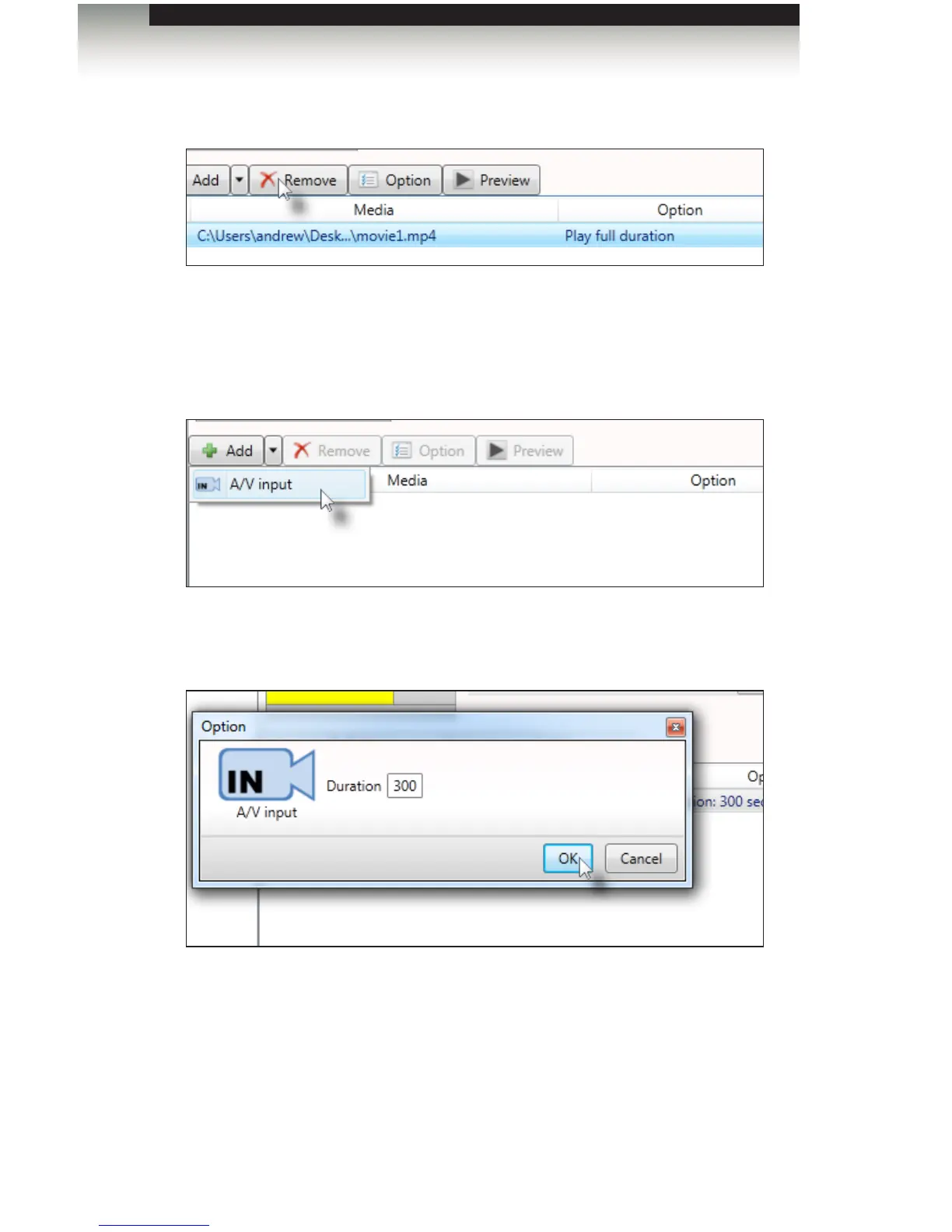
2. Highlight the movie le under the Media tab and click the Remove button.
A warning dialog will be displayed, asking you to conrm the removal of the le from
the project. Click the OK button.
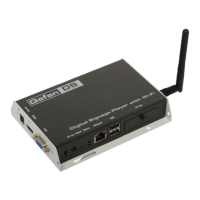
3. Click the arrow next to the Add button to select External audio-visual content
(A/V input).
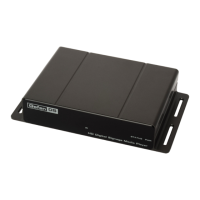
4. Highlight (external audio-visual content) under the Media tab and then click the Option
button (or right-click on the content to bring up the context menu).
By default, the external content will be displayed for 300 seconds. However, you can
change this by clicking the Option button after selecting External visual content. The
maximum value is 9999. For now, leave it at 300.
5. Click the Save button on the Option dialog.
6. Export the project to the Digital Signage Player. The external video / audio source will
now be displayed in the video portion of the template.
Signage Manager Express Software


 To Next Page