page | 70
Signage Manager Express Software
Using Weekly Schedules
Adding, Editing, and Deleting Time Blocks
Time blocks can be added or removed from any weekly schedule. Existing templates can
be customized by adding or removing time blocks.
1. Make sure Weekly schedule mode is selected, then select File > New(N) to clear
the current project.
2. Click the Add button. Two options will be presented: Add and Screen off.
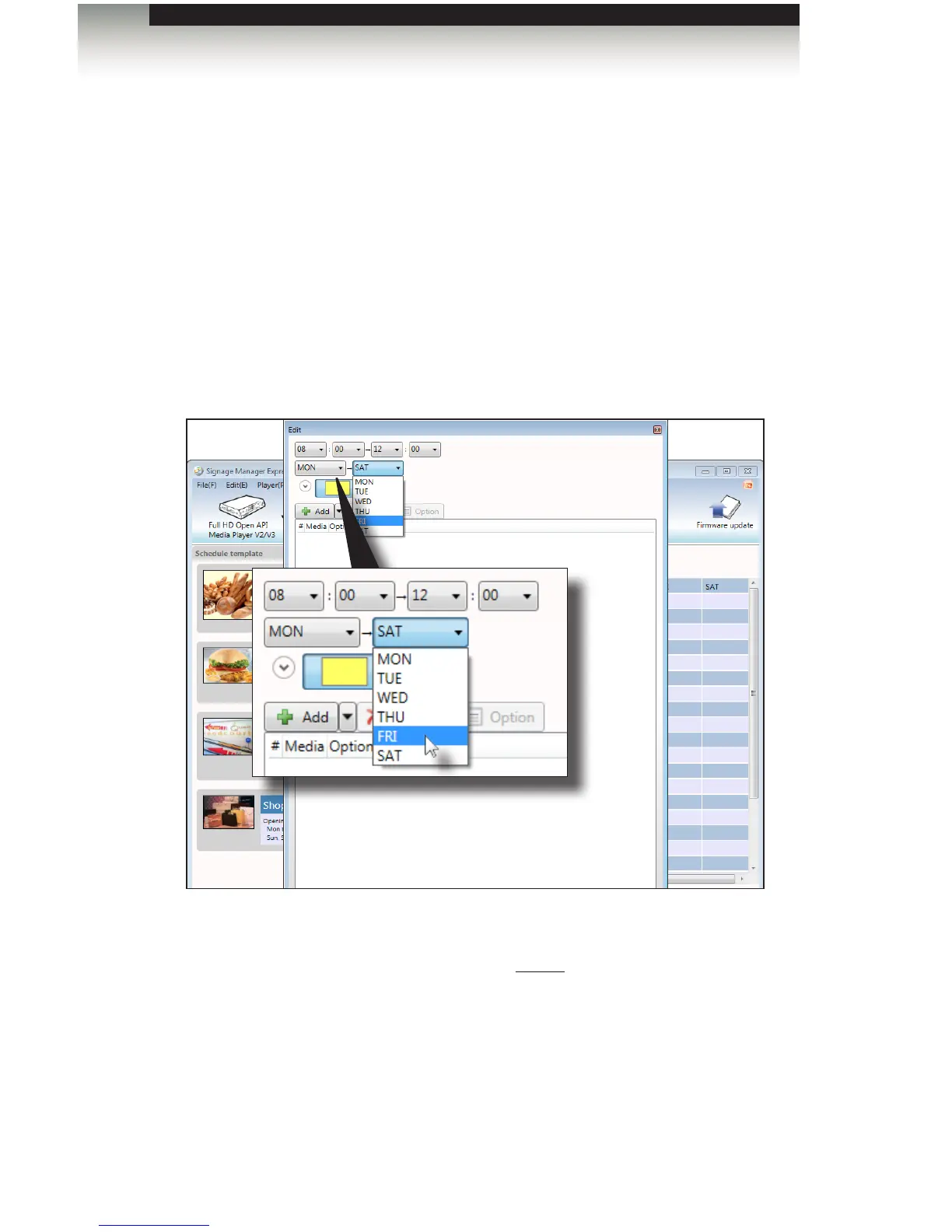
3. Click Add to display the Edit dialog box.
4. Set the desired start time, start day, end time, and end day
5. Click the OK button to save the changes. The new time block will appear in the
scheduling area. Note that each time block that is created will automatically be coded
in a different color. Screen-off time blocks will always be dark gray.
6. To remove (delete) a time block, select it within the scheduling area and click the
Remove button.
7. To change the duration of a time block, click the desired time block in the scheduling
area and click the Edit button.


 To Next Page