page | 54
Creating a Sample Presentation
Adding a Ticker
In addition to video, audio, and graphics, the Digital Signage Player also allows you to
add a text ticker to your Digital Signage presentations. A text ticker is ideal for presenting
headlines or minor pieces of news to your audience. The ticker can run at the top, bottom,
or both the top and the bottom of the screen.
1. Create a text le (using Windows Notepad, etc) and add the text you want to display
in the ticker window. Save the text le.
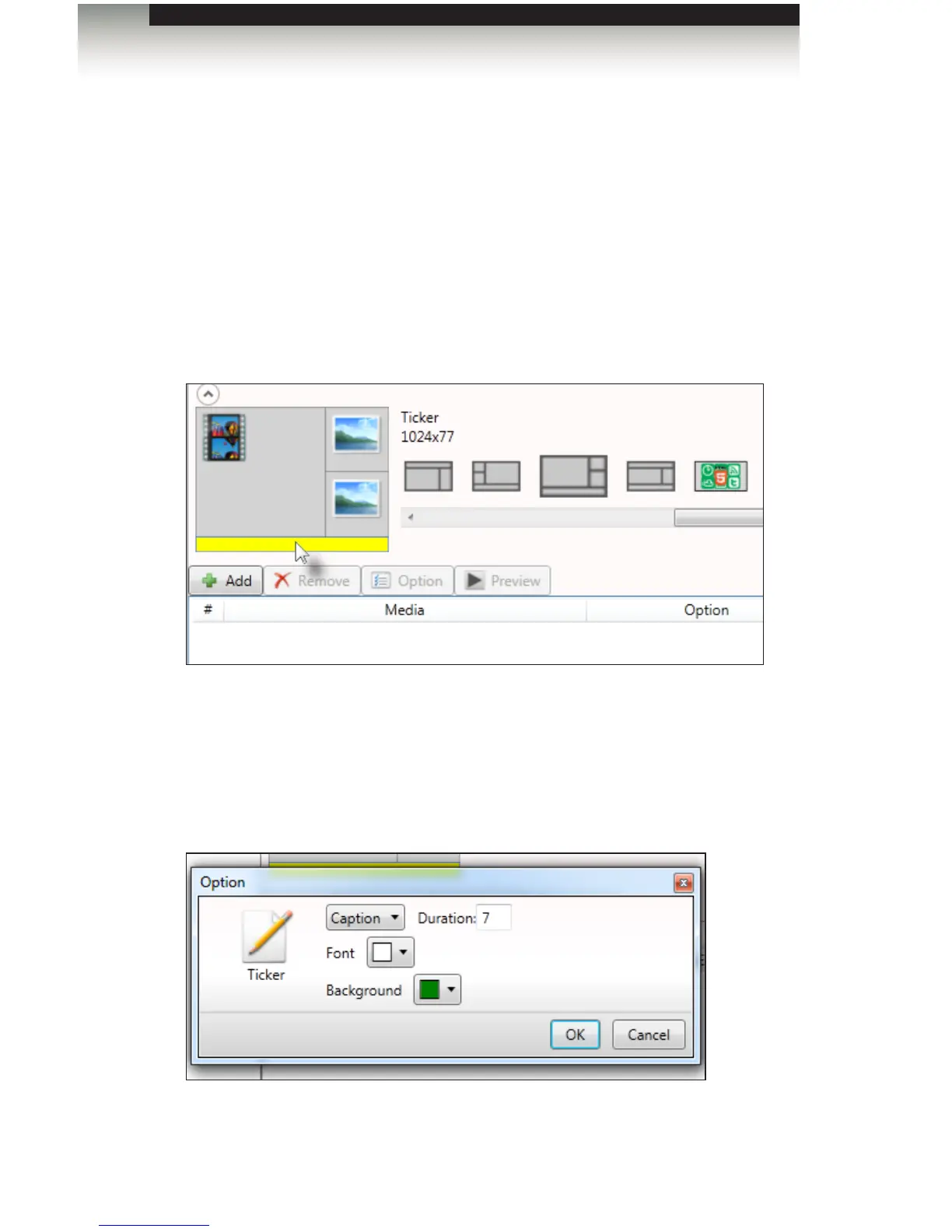
2. Select the Ticker window in the template, as shown below.
3. Click the Add button and select the text le (*.txt) le you created.
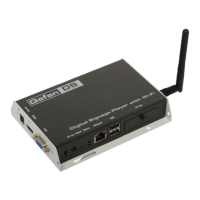
4. Next, we’re going to change the background color as the ticker effect.
Click the Option button, above the Media window, or right-click the ticker le
in the Media window and select Option.
Signage Manager Express Software


 To Next Page