12.1.4.1 EDITING THE ROUTING MATRIX
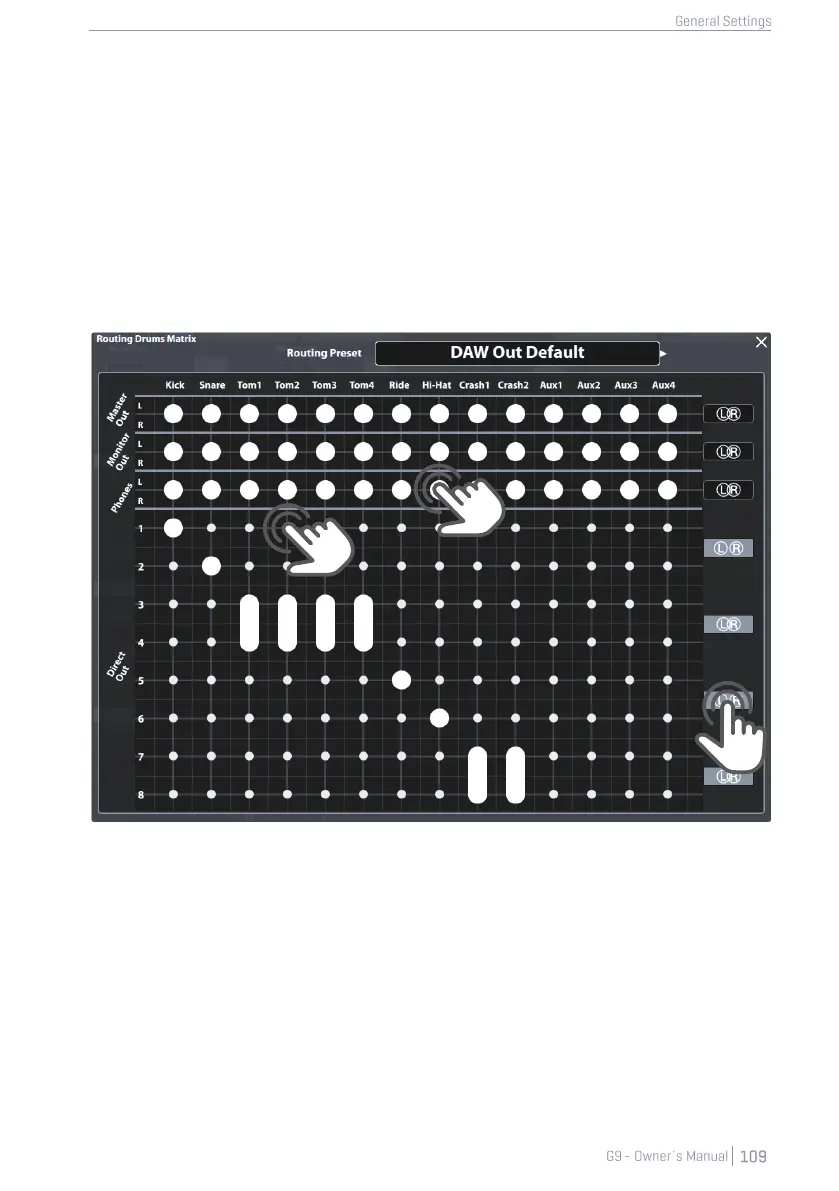
1. Tap on [Routing Drums] or [Routing Others] to open the corresponding Routing Matrix.
Note that the Input Channels, effects and routable sound sources (Pads in particular) are arranged
horizontally (Columns), whereas the available Output Channels are arranged vertically (Rows). Big
dots indicate in which output an Input channel is audible and small dots show channels which are
muted in the Mix sent to an output.
2. Remove an input channel from an output by tapping the big dot at the point of intersec-
tion of input column and output row.
3. Add an input to an output channel by tapping the small dot at the point of intersection of
input column and output row.
Direct Outs (Routing Drums) are special in a way that you can bind them together to a stereo out-
put. Instead of 8 Mono outputs, you have the option of at most 4 stereo outputs. The L/R icons on
the right-hand side of the routing matrix inform you about the current state. Intersection of the
circles stands for stereo, whereas circles without intersection indicate a Mono configuration. A thick
line will be drawn between the dots when adding an input channel to combined Direct Outs (ste-
reo). L/R icons for direct outs are switchable in the routing matrix, too. Change mono/stereo settings
of the Direct Outs by simply tapping the according buttons in the routing matrix, or:
1. Close the Routing Matrix and go to General Settings ➔ Module 1 ➔ Direct Outs.


 To Next Page