13.5.3 IMPORT SOUNDS FROM THE CLOUD
Sounds purchased in the Sound Store will appear in the Storage column after they have been down-
loaded to your local device using the G9 Shop application (see section 13.6.1 Connecting to the Cloud on
page 164). The import process is identical with the import of custom sounds. However, sounds are
downloaded and displayed as containers by instrument category in the storage tab. Complete
drum kits require each container to be imported individually. This allows the user to extract individual
instruments from a complete drum kit, cymbal set or instrument package.
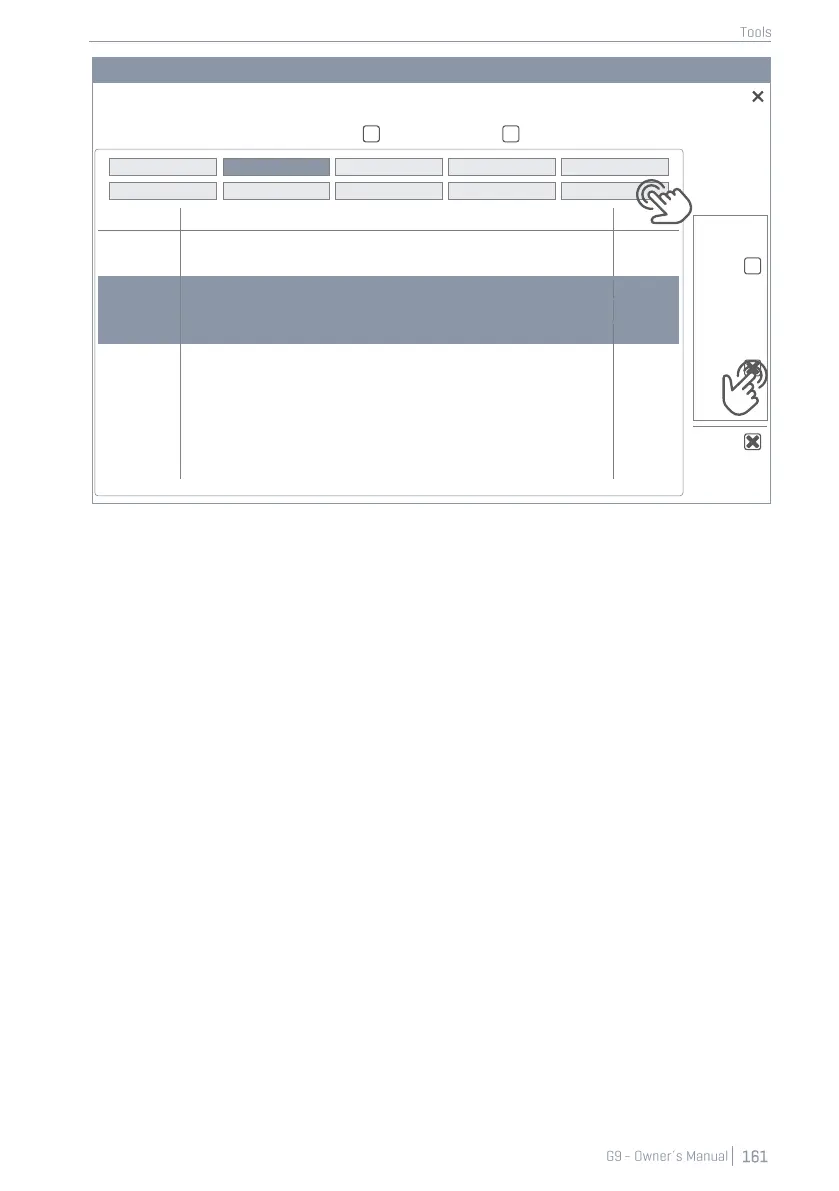
To import a sound container, proceed as follows:
1. Expand the downloaded sound package by tapping the [+] button.
2. Tap once on the containers to be imported.
3. Observe the Library column until the import is completed (a trash can appears next to the
imported file).
4. (Optional) Repeat steps 1 and 2 for other containers in the Storage tab.
5. Go to Kit Editor ➔ Module 2 ➔ Sound Select and assign imported sounds via the Sound Brows-
er.
The Sound Browser is explained in detail in the Kit Editor section. Imported sounds from the cloud are
automatically filed under the instrument categories associated with the imported containers. Select
Internal as Source (see section 9.2.1.4 Sound Browser – Properties on page 41).
13.5.4 DELETE SOUNDS FROM THE LIBRARY
1. Go to Tools ➔ Import Tool
2. Locate the sounds to be removed in the Library column.
3. Tap the Trash Can icon.


 To Next Page