4-4
Software
Installing the USB Driver
This section describes how to install the USB driver.
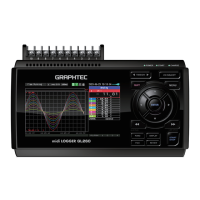
(1) Insert the GL450 User Guide CD-ROM provided as a standard accessory into the PC CD-
ROM drive.
(2) Connecting the GL450 to the PC.
Connect the GL450 to the PC using the USB cable, and then turn the power on.
(3) Install the USB driver. The installation procedure depends on the type of operating system and
whether or not you are installing the driver for the first time.
Windows XP : Driver software is to be installed for the first time.
:Driver software is already installed.
Windows 2000: Driver software is to be installed for the first time.
:Driver software is already installed.
Windows XP: Driver software is to be installed for the first time.
Installing the USB driver
(1) Detecting the hardware
Connect the USB cable to the PC and GL450. The "Found New Hardware" message appears.
(2) Starting the wizard
In the "Found New Hardware Wizard" window, select "Install from a list or specific location
(Advanced)" under "What do you want the wizard to do?" and click "Next".
(3) In the "Please choose your search and installation options." window, select "Don't search. I will
choose the driver to install." and click "Next".
(4) In the "Select the device driver you want to install for this hardware." window click "Have Disk".
(5) In the "Install from Disk" window, browse the CD-ROM under "Copy manufacturer's files from",
select "USB DRIVER "GTCUSBR.INF" and click "OK".
(6) In the "Select the device driver...." window, "Graphtec DM/GL/WR Series USB Driver" appears
in the "Model" box. Select it and click "Next".
(7) Installing the driver
Windows XP starts installing the driver.
(8) Completing installation
The "Completing the Found New Hardware Wizard" window appears. Click "Finish" to exit the
wizard.
Windows XP: Driver software is already installed.
Updating the USB driver
(1) Opening "Device Manager"
Select "Control Panel" → "System"→ "Hardware" tab or right-click "My Computer", select
"Properties" → "Hardware" tab → "System Properties" window, then click the "Device
Manager" button.
(2) In the "Device Manager" window, open "USB (Universal Serial Bus) Controller". Confirm that
"Graphtec DM/GL/WR Series USB Driver" is shown. Right-click it and select "Properties".
(3) Updating the driver
Select the "Driver" tab and click "Update Driver".
(4) Starting the update wizard
The "Hardware Update Wizard" appears. Select "Install from a list or specific location
(Advanced)" under "What do you want the wizard to do?" and click "Next".
(5) In the "Please choose your search and installation options." window, select "Don't search. I will








 To Next Page
