19
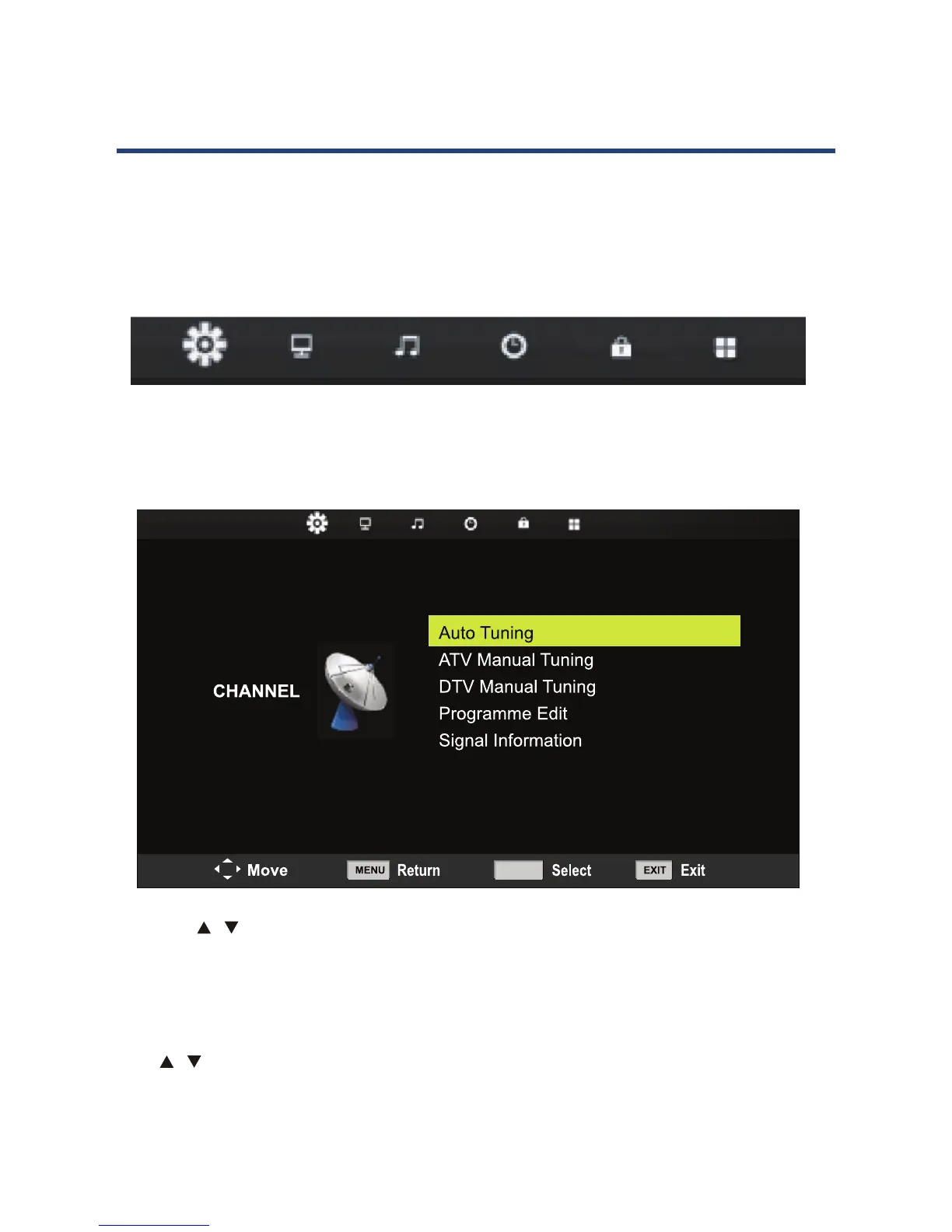
1. Press the MENU button on the remote control, the on-screen menu will appear on the
screen.
2. Use the left and right navigation keys to select your main option.
The main menu items, from left to right, are:
Operating the Menus
19
Operating the Menus
noraeppalliwunemneercs-noeht,lortnocetomerehtnonottubUNEMehtsserP.1
the screen.
2. Use the left and right navigation keys to select your main option.
The main menu items, from left to right, are:
Channel Picture Sound Time Lock Setup
Channel menu
1. Press button to select the option that you want to adjust in the CHANNEL menu.
2. Press OK button to adjust.
3.
MENU button to save and return back to the
previous menu.
Auto Tuning
Press
button to select Auto Tuning, then press OK button to start auto search.
OK
19
Operating the Menus
noraeppalliwunemneercs-noeht,lortnocetomerehtnonottubUNEMehtsserP.1
the screen.
2. Use the left and right navigation keys to select your main option.
The main menu items, from left to right, are:
Channel Picture Sound Time Lock Setup
Channel menu
1. Press button to select the option that you want to adjust in the CHANNEL menu.
2. Press OK button to adjust.
3.
MENU button to save and return back to the
previous menu.
Auto Tuning
Press
button to select Auto Tuning, then press OK button to start auto search.
OK
1. Press / button to select the option that you want to adjust in the CHANNEL menu.
2. Press OK button to adjust.
3. After nishing your adjustment, press MENU button to save and return back to the
previous menu.
Auto Tuning
Press / button to select Auto Tuning, then press OK button to start auto search.


 To Next Page