41
EPG (Electronic Program Guide)
EPG stands for Digital Electronic Program Guide. It is supplied by the program providers and oers
information about the program to be broadcast. You can access it in digital mode by pressing the
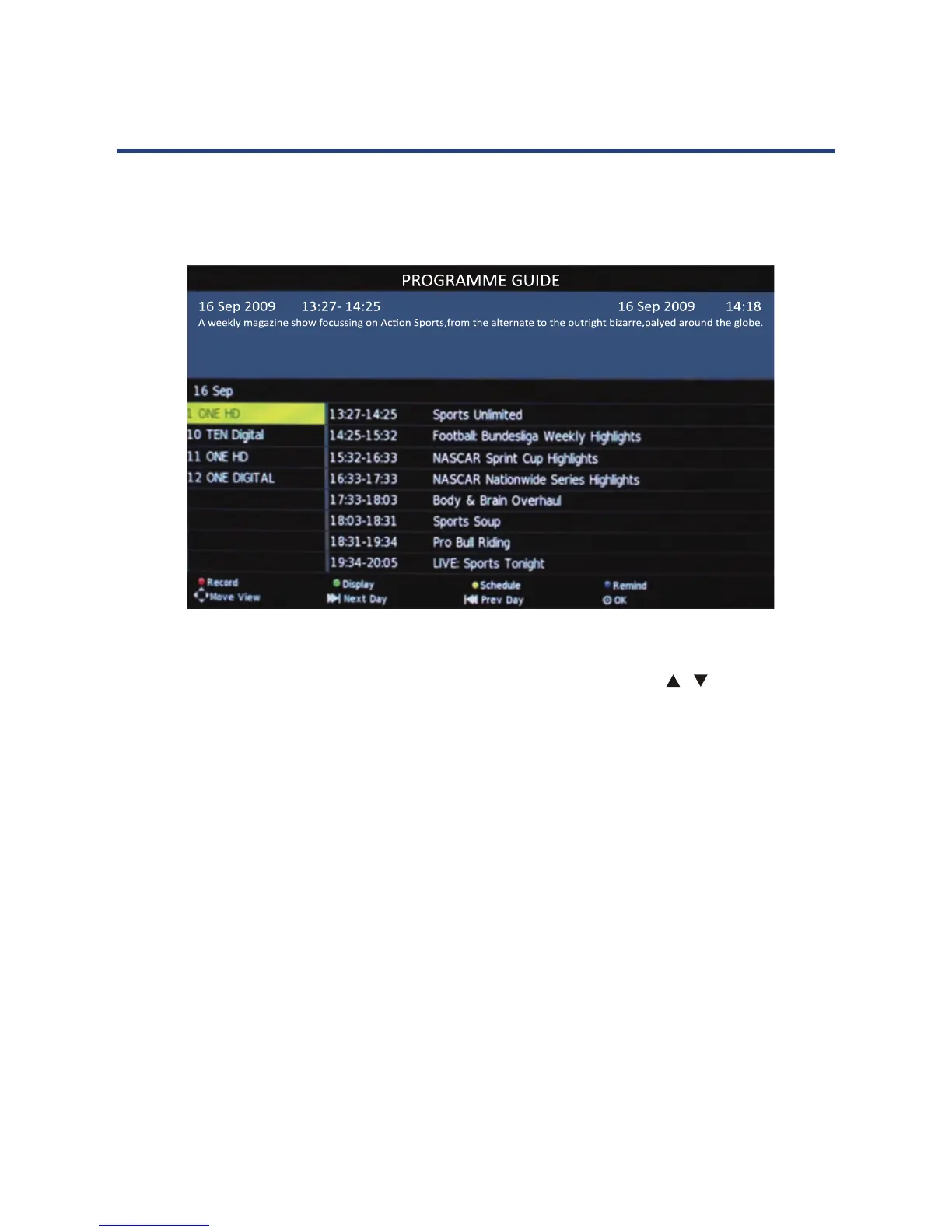
EPG button on the remote control, the menu will appear on the screen, as below:
39
EPG (Electronic Program Guide)
EPG stands for Digital Electronic Program Guide. It is supplied by the program providers and
by pressing the EPG button on the remote control, the menu will appear on the screen, as
below:
NOTE:
no EPG information is displayed after you have brought up the EPG menu, use the
and
left/right buttons to navigate to the channel you wish to display the information from and
when it is highlighted, press OK on the remote control to activate it. Once you have activated
a channel, use the
buttons to go to the top row (Channel), then use the button left/
right to bring up the programs to be broadcast and the / buttons to move up and down the
PVR/Record
To record a selected program, press the RED button and insert an appropriate USB device.
Display
Press the GREEN button to display the information about the DTV program.
Schedule
Press the YELLOW button to bring up a schedule of programmed recordings.
Remind
Press the BLUE button and use the / buttons to navigate between programs.
Next Day/Prev Day
Press key to select the information about next day/previous day.
NOTE: When the TV is rst turned on (in DTV mode), no EPG information is displayed. If still no
EPG information is displayed after you have brought up the EPG menu, use / the and left/
right buttons to navigate to the channel you wish to display the information from and when it
is highlighted, press OK on the remote control to activate it. Once you have activated a channel,
use the buttons to go to the top row (Channel), then use the button left/ right to bring up the
programs to be broadcast and the / buttons to move up and down the dierent timeslots.
PVR/Record
To record a selected program, press the RED button and insert an appropriate USB device.
Display
Press the GREEN button to display the information about the DTV program.
Schedule
Press the YELLOW button to bring up a schedule of programmed recordings.
Remind
Press the BLUE button and use the / buttons to navigate between programs.
Next Day/Prev Day
Press key to select the information about next day/previous day.


 To Next Page