32
NOTE: Before operating Media menu, plug un a USB devise, then press SOURCE button to
set the input source to media.
Press
/ button to select MEDIA in the Source menu, then press OK button to enter.
Media (Multimedia) Menu
NOTE: Before operating Media menu, plug un a USB devise, then press SOURCE button to set
the input source to media.
Press
button to select MEDIA in the Source menu, then press OK button to enter.
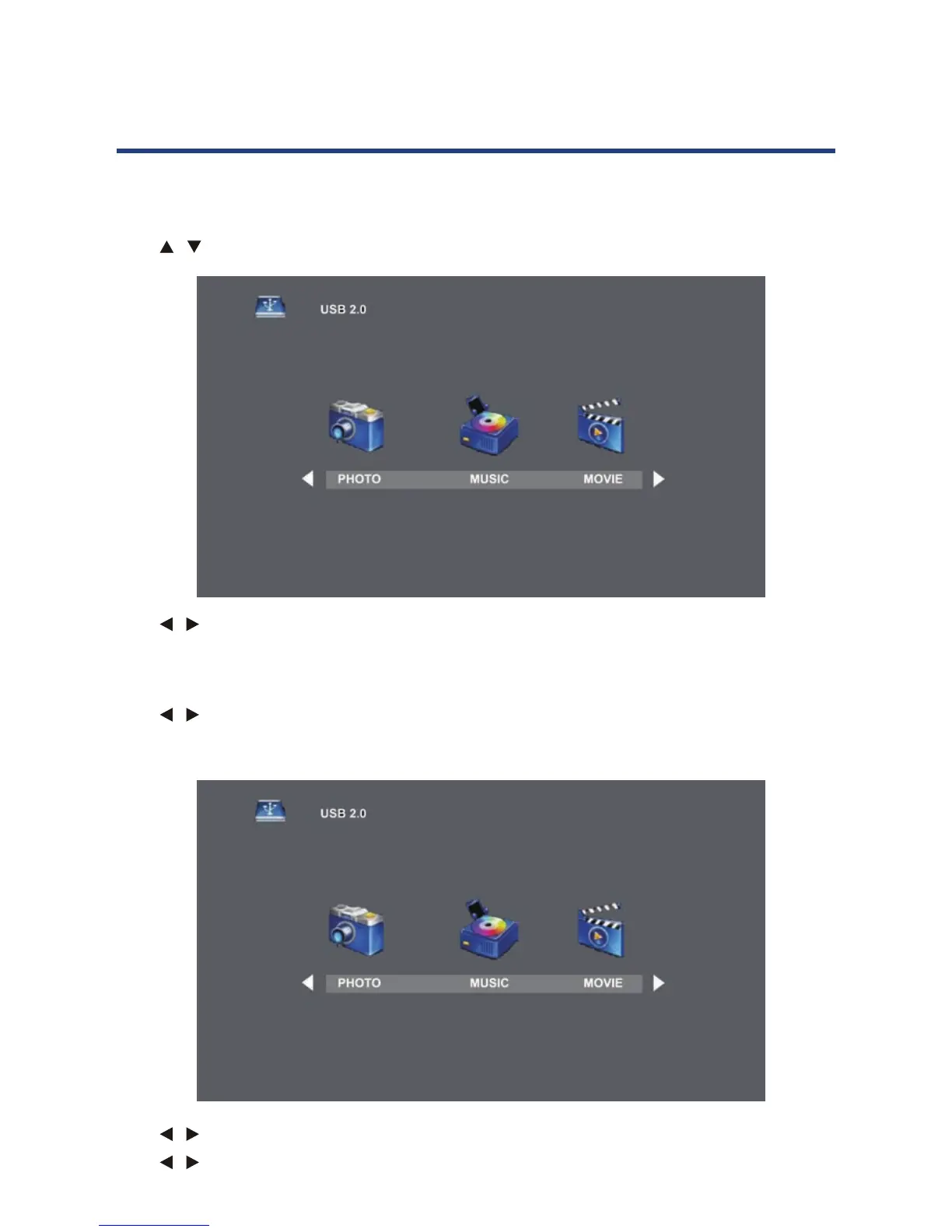
Press
button to select the option you want in the Media menu, then press
OK button to enter.
Press
button to select PHOTO in the main menu, then press OK button to enter.
Press Return option to return back to the previous menu and EXIT button to quit.
Press
button to select drive disk you want to watch, then press OK button to enter.
Press
button to select return option to go back to the previous menu.
Photo menu
32
Media (Multimedia) Menu
Press / button to select the option you want in the Media menu, then press OK button
to enter.
Photo menu
Press
/ button to select PHOTO in the main menu, then press OK button to enter.
Press Return option to return back to the previous menu and EXIT button to quit.
Press
/ button to select drive disk you want to watch, then press OK button to enter.
Press
/ button to select return option to go back to the previous menu.
NOTE: Before operating Media menu, plug un a USB devise, then press SOURCE button to set
the input source to media.
Press
button to select MEDIA in the Source menu, then press OK button to enter.
Press
button to select the option you want in the Media menu, then press
OK button to enter.
Press
button to select PHOTO in the main menu, then press OK button to enter.
Press Return option to return back to the previous menu and EXIT button to quit.
Press
button to select drive disk you want to watch, then press OK button to enter.
Press
button to select return option to go back to the previous menu.
Photo menu
32
Media (Multimedia) Menu


 To Next Page