23
OPERATING THE SMARTWATCH
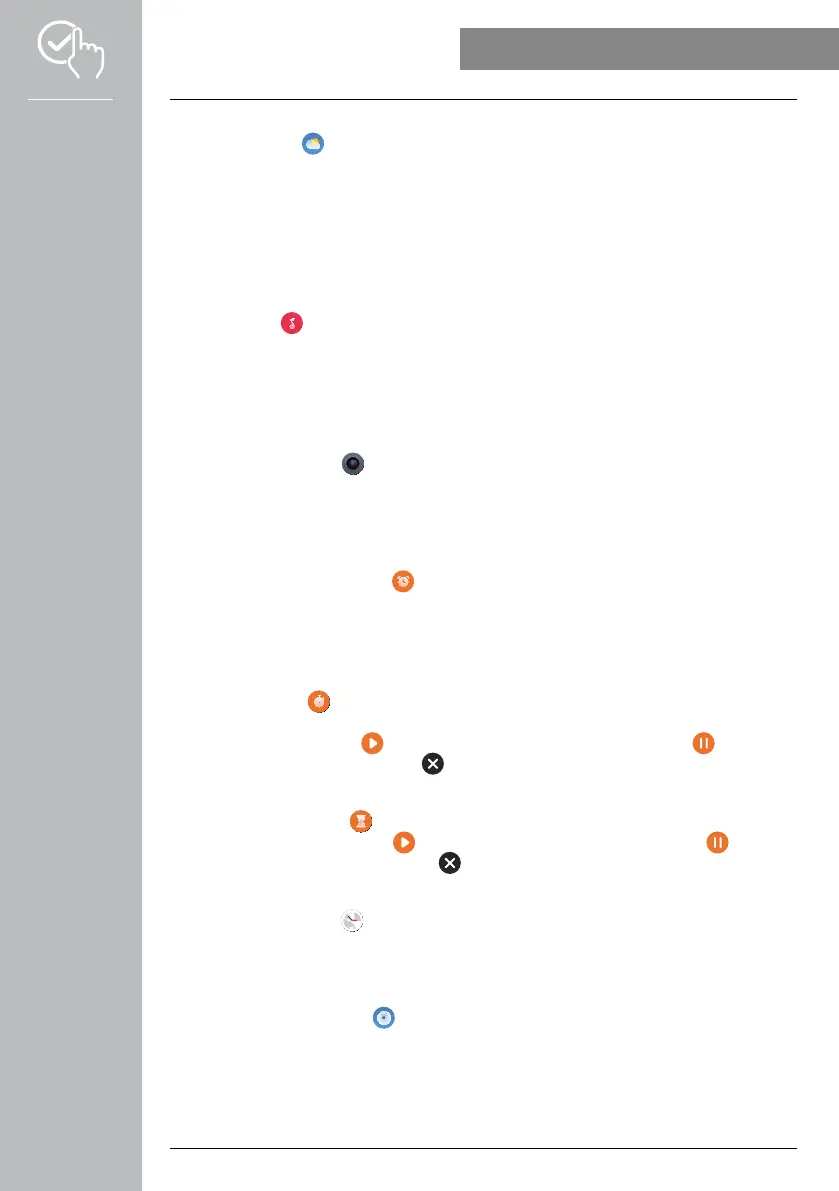
7.6.21 Weather
• Tap on [WEATHER ] to open the weather forecast for the respective day, including the current
temperature as well as the lowest and highest values. Swipe upwards to display further information
and the weather forecast for the following days.
• The weather data is transmitted and updated by synchronising your smartwatch with the app. The most
recent update appears at the bottom edge of the weather display screen.
• In order to use the Weather application, the corresponding function must be set-up and activated in
the app (see Chapter 9.3.8.7 Weather notification).
7.6.22 Music
• Tap on [MUSIC ] to open the control view for various music and streaming services. They can be
controlled on the smartphone via your smartwatch. You can start or stop the music, skip forward or
back in the tracks and regulate the volume.
• In order to use the Music application, the corresponding function must be set-up and activated in the
app (see Chapter 9.3.8.4 Music control).
7.6.23 Camera
• By tapping on [CAMERA ], you can use the smartwatch to control the camera on the smartphone
connected.
• In order to use the Camera application, the smartwatch and smartphone must be connected via
Bluetooth and the camera function must be activated on the smartphone.
7.6.24 Alarm clock
• After tapping on [ALARM CLOCK ], you can set an alarm time. You can activate or deactivate the
alarm clock or alarm reminder by tapping on the respective times.
• You can also set and manage the alarm times in the app, and also synchronise them with the
smartwatch (see Chapter 9.3.4 Alarm clock).
7.6.25 Timer
• Tapping on [TIMER ] provides you with the option of selecting from various timers or to set a
user-defined timer.
• To start the timer, tap on the [ ] symbol. To enter a pause for the timer, tap on the [ ] symbol. To
conclude the measurement, tap on the [ ] symbol.
7.6.26 Stopwatch
• Tapping on [STOPWATCH ] enables you to use the smartwatch as a stopwatch.
• To start the stopwatch, tap on the [ ] symbol. To interrupt the stopwatch, tap on the [ ] symbol.
To conclude the measurement, tap on the [ ] symbol.
7.6.27 World clock
• Tap on [WORLD CLOCK ] to display the following world clocks:
Berlin, London, New York, Tokyo
• If so required, you can set-up more world clocks in the app (see Chapter 9.3.8.8 World clock).
7.6.28 Telephone search
• Tap on [TELEPHONE SEARCH ] to start a search for your smartphone should you have misplaced
it. Your smartphone starts vibrating or issues a loud acoustic signal.
• In order to use the Telephone search application, your smartwatch and smartphone must be
connected via Bluetooth.



 To Next Page