5.3.1 Capture Automacally
This funcon can capture pictures automacally during congured me periods.
Before You Start
If event-triggered capture is required, you should congure related linkage methods in event
sengs. Refer to Event and Alarm for event sengs.
Steps
1.
Go to Conguraon → Storage → Schedule Sengs → Capture .
2.
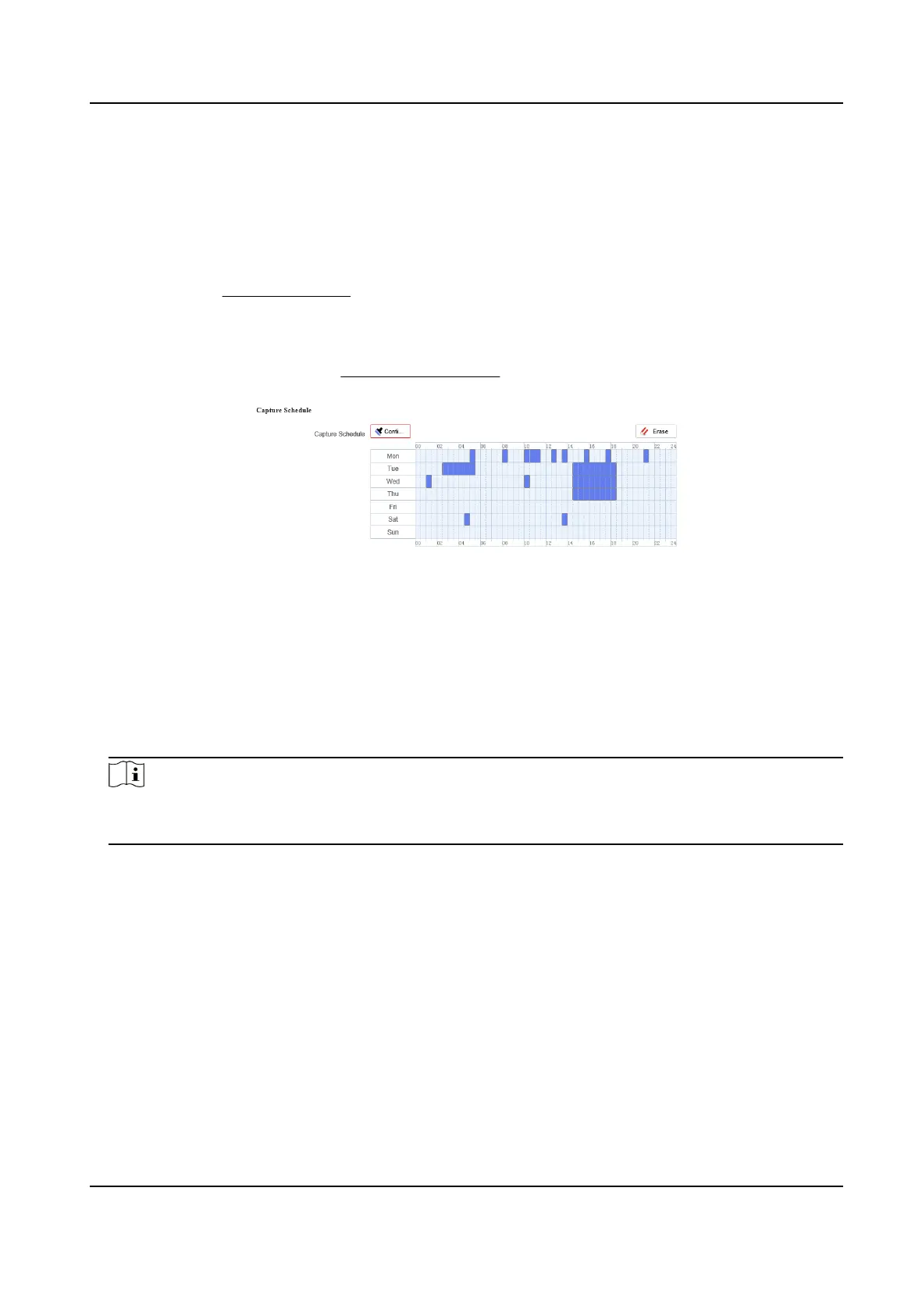
Set capture schedule. Refer to
Set Arming Schedule for conguring schedule me.
Figure 5-1 Set Capture Schedule
3.
Set the capture type.
Scheduled
Capture a picture at the
congured me interval.
Event-Triggered
Capture a picture when an event is triggered.
4.
Set the Format,
Resoluon, Quality, Interval, and Capture Number.
Note
The resoluon of the captured picture is the same as the resoluon of the captured picture
stream. You can select Stream Type in Advanced.
5.
Click Save.
5.3.2 Capture Manually
Steps
1.
Go to Conguraon → Local .
2.
Set the Image Format and saving path to for snapshots.
JPEG
The picture size of this format is
comparavely small, which is beer for network
transmission.
BMP
Network Camera User Manual
34


 To Next Page
 Loading...