Engl ish -25-
PC Mode
Installati on
• Power off both Computer and Display before making
any connections.
• Set your PC’s resolution correctly before connect-
ing to the TV. See the table on Appendix page.
• Use 15-pin display cable to connect a PC to the LC D
TV.
Note : PC menu will not be active for TV sets without
a PC input.
Menu Sy stem in PC mode
Sound Menu/Feature Menu
The items in these menus are described at Sound &
Feature Menu explained in “Menu System”.
PC Picture Menu
By pressing
a
/
button, select the second icon. PC
Picture menu appears on the screen.
Brightness, Contrast and Colour Temperature adjust-
ments in this menu are identical to adjustments de-
fined in TV picture menu in “MENU SYSTEM ”.
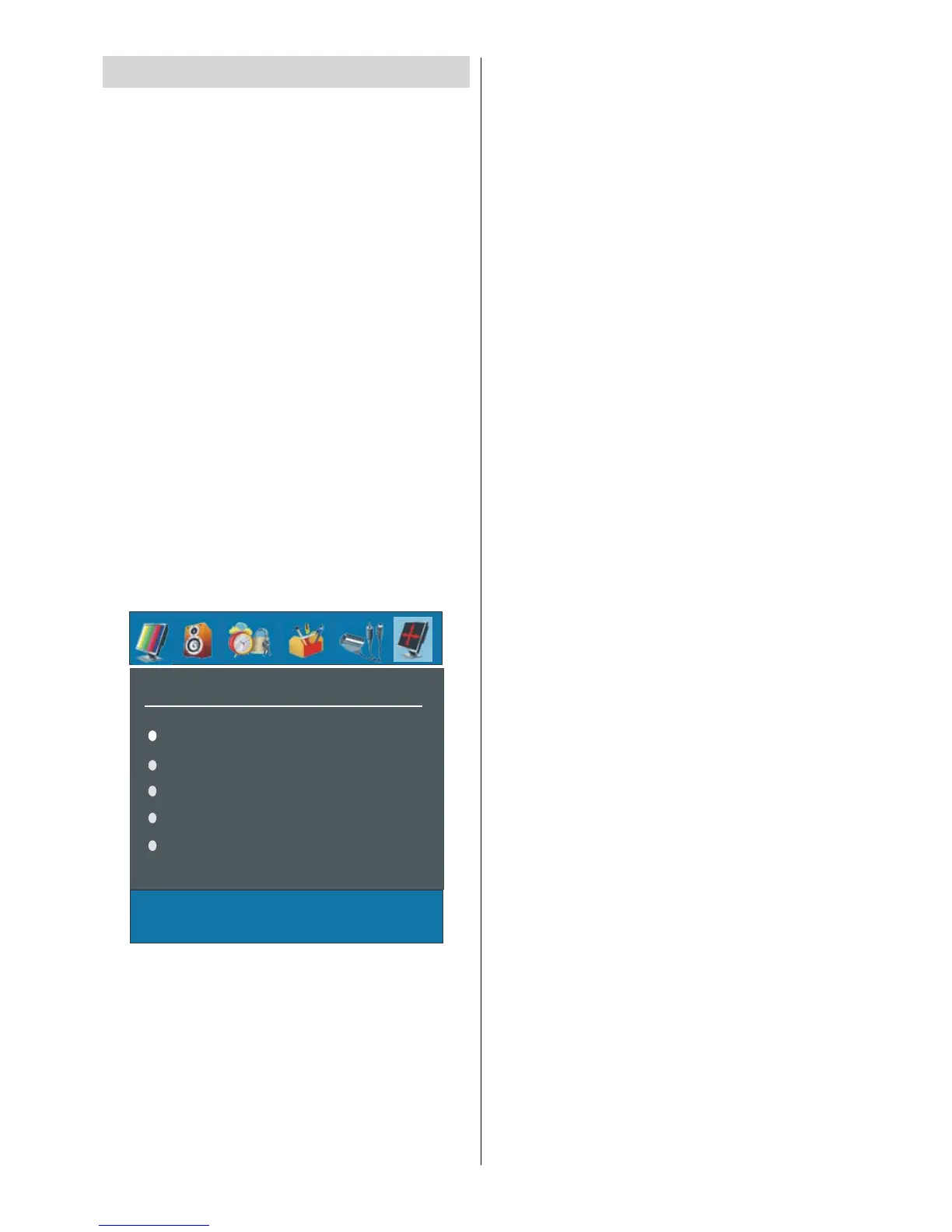
PC POSITION Menu
By pressing
a
/
b
button, select the sixth icon. PC
POSITION menu appears on the screen.
osition
H Position
V Position
Phase
Dot Clock
Autoposition
If you shift the picture horizontally or vertically to an
unwanted position, use this item to put the picture into
correct place automatically.
• Select Autoposition item by using
a
/
buttons.
Press or “OK” button.
Warning: Auto position adjustment recommended to
be done with the full screen image for the proper
adjustment.
H (H o ri z o nt a l) Posit io n
This item shifts the image horizontally to right hand
side or left hand side of the screen.
• Select H Position item by using
a
/
button to adjust the value.
V (Vertical) Position
This item shifts the image vertically toward s the top or
bottom of the screen.
• Select V Position item by using
a
/
button to adjust the value.
Phase
Depending on the resolution and scan frequency that
you input to the TV Set, you may see a hazy or noisy
picture on the screen. In such a case you can use
this item to get a clear picture by trial and error method.
•Use
button to adjust the value.
Dot Clock
Dot Clock adjustments correct interference that ap-
pear as vertical banding in dot intensive presenta-
tions like spreadsheets or paragraphs or text in smaller
fonts.
•Use
/
`
button to adjust the value.
Soun d in PC mode
• Connect the PC’s Audio output to the TV’s PC Audio
In socket with an audio cable.


 To Next Page