www.hi-ti.com
19
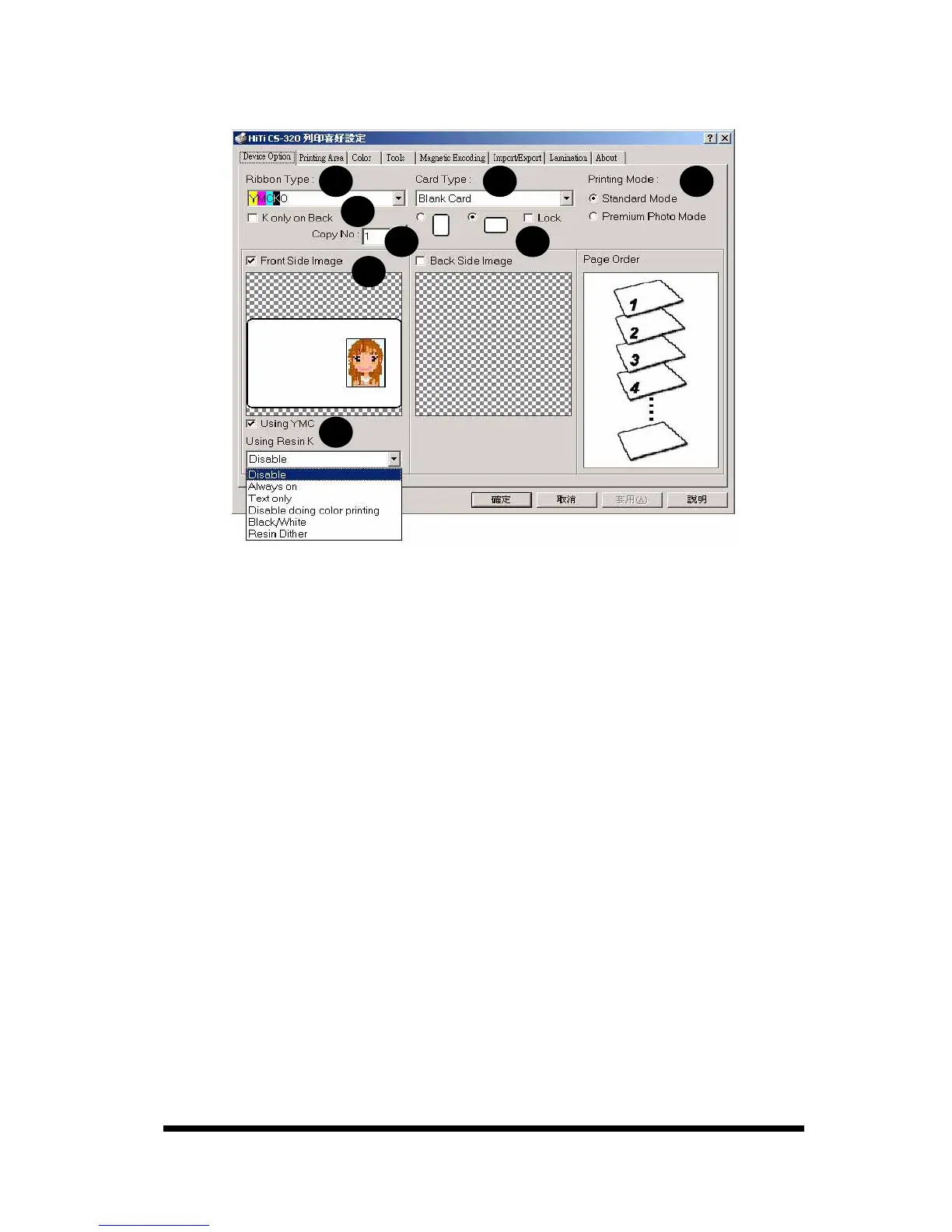
[Device Option]
You can modify the settings of the card printer in this page.
A. Ribbon Type: Select the ribbon type you want to use. 1. YMCKO ribbon,2. Resin K
ribbon, 3. YMCO ribbon, 4. KO ribbon or 5. YMCKOK ribbon.
B. Card Type: Select the card type you want to use. You may choose “Blank Card”, “6-pin
Smart Chip Card”, “8-pin Smart Chip Card”, “Magnetic Stripe Card”, “Chip/Magnetic
Card”, and “Adhesive Card”. (Default setting: “Blank Card”)*
*Remark: The Thickness tolerance of cards are 03mm +/-0.02mm (0.28 ~ 0.32mm),
0.5mm +/-0.03mm (0.47 ~ 0.53mm), 0.8mm +/-0.04mm (0.76 ~ 0.84mm), 1.0mm
+/-0.05mm (0.95 ~ 1.05mm). If your card thickness is out of the above specification, it
may cause significant damage to HiTi ribbon; may reduce the life span of HiTi Card
Printer; may damage print head; and may cause unsatisfactory color performance.
C. Printing Mode: Standard Mode is the default setting. If you select Premium Photo
mode, the printing quality will be enhanced but printing speed will be a little bit lower.
D. K only on Back: This option is available only for YMCKO ribbons. When it is marked,
the front side of the card will be printed by YMC of YMCKO; meanwhile, the back side
will be printed by K of YMCKO. Then the user can print out one double-side card by one
set of YMCKO (YMC for the front side; K for the back side).
E. Copies: Set the number of copies to print. (Default setting: 1)
F. Printing Direction: You can select “Portrait” or “Landscape”. (Default setting:
“Landscape”)
Lock: If you are using a 3
rd
party software application other than Card Desiree CS and
the default printer of your computer is not CS-310/320, then please enable “Lock” to fix
the printing direction.
G. Front/ Back side setting: Setup which side you want to print.
H. Printing Parameters: Select the printing parameters. When you change the Ribbon
type, it will automatically return to the default setting. If □Using YMC is unmarked, only
the Resin K and O portion of the YMCKO ribbon will be applied during the printing
process.
A B C
D
E F
G
H



 To Next Page