QuickConnect 20 (22)
4.3 Connecting to a Remote Device
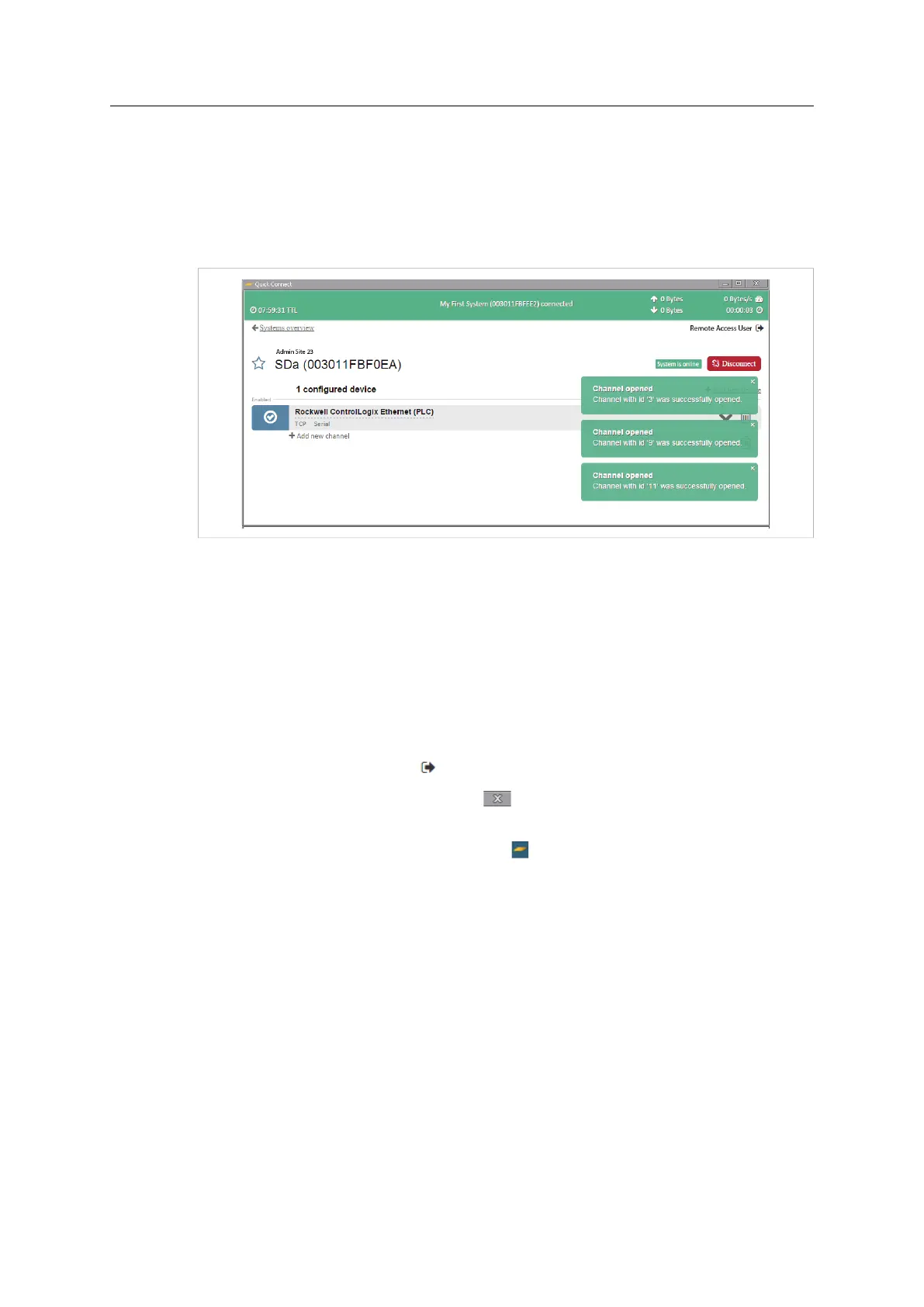
When the configuration is complete in QuickConnect as well as in Netbiter Argos, click
on Connect to open the tunnel to the remote device.
When the connection is up and running, the time elapsed and the amount of data traffic
can be seen in the green bar at the top of the window.
Fig. 30 System connected
For further information on how to remotely control a device, see the manufacturer’s docu-
mentation for the specific software tools.
4.4 Logging Out and Exiting QuickConnect
The QuickConnect application and the communication tunnels can be terminated in a
number of ways:
• Clicking on Disconnect will close the currently displayed tunnel connection.
• Clicking on the logout icon
will logout the user and close all open tunnels.
• Clicking on the “close window” icon
in QuickConnect will minimize the applica-
tion to the system tray and logout the user. Any open tunnels will stay open.
• Right-clicking on the QuickConnect icon
in the system tray and selecting Exit will
terminate the application and close any open tunnels.
• Opening a new communication tunnel to a system will automatically close any exist-
ing tunnel to that system.
Timeout
• After 60 minutes of inactivity, the user will be automatically logged out. Any open
tunnels will stay open.
• An open tunnel will automatically close after 8 hours. The closure is definite and will
terminate any ongoing communication.
Netbiter
®
Remote Access User Manual Doc ID: HMSI-27-240 Version: 2.0



 To Next Page