EasyManua.ls Logo

HP 6000 - User Manual

HP 6000
114 pages
Print Icon
To Next Page IconTo Next Page
Loading...
®
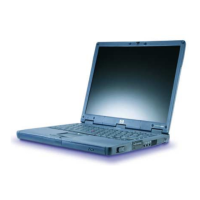
HP Omnibook 6000/6100
Service Manual

Table of Contents

Other manuals for HP 6000

Questions and Answers

  • C
    Christopher Adams PhDAug 20, 2025
    What to do if my HP Laptop does not boot on AC or battery?
    • M
      Mark KellyAug 20, 2025
      If your HP Laptop doesn't boot when connected to AC power or running on battery, try these steps: Verify the power source is working. Reset the computer by pressing the system-off switch. Turn on the computer by pressing the blue sleep button. Disconnect the AC adapter and remove all batteries, then reconnect the power. Remove all but one SDRAM module and try again. Reinsert any other SDRAM modules and try again. The issue might be related to the AC adapter, SDRAM module, CPU module, power supply PCA, display interface PCA, motherboard, display assembly, or hard drive.
  • W
    William DelgadoAug 22, 2025
    Why my HP Laptop battery does not charge?
    • J
      Jorge ChangAug 22, 2025
      If your HP Laptop battery isn't charging, check the power source and battery contacts. If available, try another battery and AC adapter. Move the computer away from any nearby heat source. Unplug the AC adapter and allow the battery to cool down. Also, check for blocked air vents. The cause may be a faulty battery or its contacts, the AC adapter, the motherboard, or the heatsink.
  • B
    Bradley WeberAug 25, 2025
    How to troubleshoot general keyboard problems on HP Laptop?
    • L
      Laura CarsonAug 25, 2025
      To troubleshoot general keyboard problems on your HP Laptop, check the settings in BIOS Setup. The cause might be the keyboard itself, the power supply PCA, or the motherboard.
  • J
    Joseph WaltonAug 26, 2025
    How to fix display problems (dark display or no light) on HP Laptop?
    • S
      Sandra CastilloAug 26, 2025
      To fix display problems like a dark or unlit screen on your HP Laptop, first, adjust the display brightness. Then, press Fn+F5 several times. You can also try connecting an external monitor to see if the issue persists. The problem may stem from the display cable connection, the display assembly itself, or the motherboard.
  • C
    Casey FranklinAug 27, 2025
    How to extend battery life on my HP Laptop?
    • R
      rjohnsonAug 27, 2025
      To extend the battery life of your HP Laptop, try the following: Turn down the display brightness. Check the power management settings in BIOS Setup and try the default settings. Shut down and restart the laptop, and during boot at the F2 prompt, press F6 to start a process that recalibrates the battery gauge. This may improve operating time. The issue could be related to the battery or the motherboard.
  • J
    James AllenAug 30, 2025
    Why my HP Laptop does not run on battery and shows empty battery indication?
    • T
      Thomas OconnorAug 30, 2025
      If your HP Laptop doesn't run on battery and indicates an empty battery, check the battery and its contacts. If available, try another battery. The issue might be due to the battery, its contacts, or the motherboard.
  • K
    Keith RiveraAug 31, 2025
    How to fix sluggish startup or shutdown on HP Laptop?
    • D
      davidsontriciaAug 31, 2025
      To fix a sluggish startup or shutdown on your HP Laptop, run ScanDisk and Disk Defragmenter to check and optimize the hard drive. Also, delete temporary and unneeded files.
  • J
    Jasmine GarciaSep 2, 2025
    What to do if my HP Laptop does not boot from CD/DVD?
    • E
      Ethan AndersonSep 2, 2025
      If your HP Laptop isn't booting from a CD or DVD, ensure the CD or DVD is bootable. Check the boot order in BIOS Setup. Restart the computer. Test the DVD drive with the e-Diagtools diagnostics. The issue could be with the CD/DVD drive module or the motherboard.
  • D
    Derrick MillerSep 4, 2025
    Why my HP Laptop does not boot on battery but boots on AC?
    • J
      Jenna BensonSep 4, 2025
      If your HP Laptop boots on AC power but not on battery, check the battery level on the battery LEDs and inspect the battery contacts. If available, try another battery. The problem may be with the battery, its contacts, or the motherboard.
  • J
    Justin ThompsonSep 6, 2025
    Why my HP Laptop turns off immediately after turning on?
    • J
      johnathangreeneSep 6, 2025
      If your HP Laptop turns off immediately after being turned on, plug in the AC adapter, insert a charged battery, or plug in a secondary battery. The cause is likely a problem with the battery.

Summary

HP Omnibook Product Information

Features and External Views

Detailed illustrations and descriptions of the computer's external features.

Operation and Power Management

How to operate the computer, including power modes and status lights.

Technical Specifications

Comprehensive technical specifications for Omnibook 6000/6100 models.

Internal Design and Component Layout

Diagram showing the internal replaceable modules and their connections.

HP Omnibook Component Service Procedures

Disassembly Flowchart and Repair Notes

Outlines the disassembly process and provides essential notes for repairs.

User-Replaceable Parts Removal

Procedures for removing user-serviceable parts like battery and SDRAM.

Hard Disk Drive and Mini-PCI Removal

Procedures for removing the hard disk drive and mini-PCI card.

Power Button Panel and Small Parts Removal

Steps for removing the power button panel and other small external parts.

Display Assembly Removal (Authorized Providers)

Instructions for removing the display assembly, for authorized service providers.

Keyboard Removal (Authorized Providers)

Detailed procedure for removing and replacing the keyboard, for authorized providers.

Heatsink and CPU Module Removal (Authorized Providers)

Instructions for removing heatsink, CPU module, for authorized providers.

Top Case and Motherboard Removal (Authorized Providers)

Procedures for removing the top case and motherboard, for authorized providers.

BIOS IC Repair (Authorized Providers)

Steps for repairing the BIOS IC, for authorized service providers.

HP Omnibook Troubleshooting and Diagnostics

Troubleshooting Process and Problem Analysis

General steps and suggestions for diagnosing and solving computer problems.

Diagnostic Tools Overview and Usage

Introduction to the various diagnostic programs and their usage.

e-Diagtools and POST Error Interpretation

Using e-Diagtools and interpreting POST beep codes for diagnostics.

POST Messages and BIOS Setup Utility

Explanations of POST messages and guide to the BIOS Setup utility.

Sycard PCCtest 450 CardBus Card Usage

Information on using the Sycard PCCtest 450 for PCMCIA slot diagnostics.

HP Omnibook Replaceable Parts

Omnibook Replaceable Parts List

Comprehensive list of parts replaceable by users and service providers.

Accessory Replaceable Parts List

List of replaceable parts for Omnibook accessories.

Part Number Cross-Reference Guide

Table cross-referencing part numbers with descriptions and models.

HP Omnibook Reference Information

Password Removal Policy and Procedure

HP's policy and procedure for removing system passwords.

Display Quality Guidelines and Standards

Guidelines for assessing cosmetic imperfections on TFT displays.

HP 6000 Specifications

General IconGeneral
AudioIntegrated High Definition Audio
ProcessorIntel Core 2 Duo
RAMUp to 8GB DDR3
StorageUp to 1TB HDD
GraphicsIntegrated Intel Graphics Media Accelerator 4500, Optional discrete graphics cards
Operating SystemWindows 7
Optical DriveDVD-ROM
NetworkIntegrated 10/100/1000 Ethernet
PortsUSB 2.0, VGA, Serial, Parallel, PS/2, Audio In/Out
Expansion SlotsPCI, PCIe x1, PCIe x16
Power Supply300W

Videos

How to set up HP Envy 6000 series printer

How to download Drivers for HP Envy 6000 All-in-One Printer

How to Connect HP Envy 6000 to Wi-Fi

How to Reset network settings on HP Envy 6000 series printer

How to check Wi-Fi Direct name and password on HP Envy 6000 series printer

How to change inks on HP Envy 6000 series

Related product manuals