EasyManua.ls Logo

HP 6000 - User Manual

HP 6000
114 pages
Print Icon
To Next Page IconTo Next Page
Loading...
®
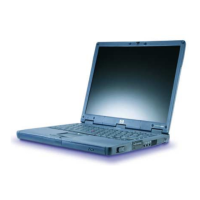
HP Omnibook 6000/6100
Service Manual

Table of Contents

Other manuals for HP 6000

Questions and Answers

  • R
    Robert MartinSep 8, 2025
    How to fix "Invalid system disk" or "Auto IDE error" on HP Laptop?
    • K
      Kelli LeonardSep 8, 2025
      To resolve an "Invalid system disk" or "Auto IDE error" message on your HP Laptop, first check for a disk in the floppy drive. Then, check the boot order in BIOS Setup. Finally, remove and reinsert the hard drive. The issue might stem from the hard drive contacts or the hard drive itself.
  • M
    miguel23Sep 10, 2025
    What to do if my HP Laptop beeps once, spins hard disk, repeats, but does not boot?
    • W
      whitechelseaSep 10, 2025
      If your HP Laptop beeps once, spins the hard disk, repeats, but doesn't boot, make sure at least one SDRAM module is installed. The cause of this issue is often a missing or improperly installed SDRAM module.
  • L
    Lisa BrownSep 12, 2025
    What to do if files are corrupted on HP Laptop?
    • J
      John BlackSep 12, 2025
      If files on your HP Laptop are corrupted, run the VirusScan program. Check the disk surface by running Scandisk (Windows 95/98) or by using the Tools tab in the disk’s Properties sheet (Windows 2000). Test the hard disk drive with the e-Diagtools diagnostics. Use the Recovery CD to restore original factory software.
  • E
    edwardsjamesSep 13, 2025
    What to do if the hard disk never spins on HP Laptop?
    • J
      Jonathan LevySep 13, 2025
      If the hard disk on your HP Laptop never spins, check the power source. Remove and reinsert the hard drive, and check the connector. The issue could be with the hard drive itself, the connector, or the motherboard.
  • W
    william62Sep 15, 2025
    What to do if my HP Laptop does not boot from floppy drive?
    • W
      wlawrenceSep 15, 2025
      If your HP Laptop isn't booting from the floppy drive, make sure the floppy disk is bootable. Ensure the floppy drive is installed or connected correctly. Use BIOS Setup to check the boot order and to make sure that floppy boot is enabled. Try using an alternate connection (with or without floppy cable). The issue might be with the floppy drive, its contacts, the floppy cable, or the motherboard.
  • K
    kevin72Sep 18, 2025
    How to solve Accessories Docking product I/O problems on HP Laptop?
    • C
      Curtis WilsonSep 18, 2025
      To solve I/O problems with accessories docking on your HP Laptop, make sure AC power is connected to the dock. Ensure the computer is fully inserted in the dock. Check the computer’s power supply and the settings in BIOS Setup. The issue might be with the docking product or the motherboard.

Summary

HP Omnibook Product Information

Features and External Views

Detailed illustrations and descriptions of the computer's external features.

Operation and Power Management

How to operate the computer, including power modes and status lights.

Technical Specifications

Comprehensive technical specifications for Omnibook 6000/6100 models.

Internal Design and Component Layout

Diagram showing the internal replaceable modules and their connections.

HP Omnibook Component Service Procedures

Disassembly Flowchart and Repair Notes

Outlines the disassembly process and provides essential notes for repairs.

User-Replaceable Parts Removal

Procedures for removing user-serviceable parts like battery and SDRAM.

Hard Disk Drive and Mini-PCI Removal

Procedures for removing the hard disk drive and mini-PCI card.

Power Button Panel and Small Parts Removal

Steps for removing the power button panel and other small external parts.

Display Assembly Removal (Authorized Providers)

Instructions for removing the display assembly, for authorized service providers.

Keyboard Removal (Authorized Providers)

Detailed procedure for removing and replacing the keyboard, for authorized providers.

Heatsink and CPU Module Removal (Authorized Providers)

Instructions for removing heatsink, CPU module, for authorized providers.

Top Case and Motherboard Removal (Authorized Providers)

Procedures for removing the top case and motherboard, for authorized providers.

BIOS IC Repair (Authorized Providers)

Steps for repairing the BIOS IC, for authorized service providers.

HP Omnibook Troubleshooting and Diagnostics

Troubleshooting Process and Problem Analysis

General steps and suggestions for diagnosing and solving computer problems.

Diagnostic Tools Overview and Usage

Introduction to the various diagnostic programs and their usage.

e-Diagtools and POST Error Interpretation

Using e-Diagtools and interpreting POST beep codes for diagnostics.

POST Messages and BIOS Setup Utility

Explanations of POST messages and guide to the BIOS Setup utility.

Sycard PCCtest 450 CardBus Card Usage

Information on using the Sycard PCCtest 450 for PCMCIA slot diagnostics.

HP Omnibook Replaceable Parts

Omnibook Replaceable Parts List

Comprehensive list of parts replaceable by users and service providers.

Accessory Replaceable Parts List

List of replaceable parts for Omnibook accessories.

Part Number Cross-Reference Guide

Table cross-referencing part numbers with descriptions and models.

HP Omnibook Reference Information

Password Removal Policy and Procedure

HP's policy and procedure for removing system passwords.

Display Quality Guidelines and Standards

Guidelines for assessing cosmetic imperfections on TFT displays.

HP 6000 Specifications

General IconGeneral
AudioIntegrated High Definition Audio
ProcessorIntel Core 2 Duo
RAMUp to 8GB DDR3
StorageUp to 1TB HDD
GraphicsIntegrated Intel Graphics Media Accelerator 4500, Optional discrete graphics cards
Operating SystemWindows 7
Optical DriveDVD-ROM
NetworkIntegrated 10/100/1000 Ethernet
PortsUSB 2.0, VGA, Serial, Parallel, PS/2, Audio In/Out
Expansion SlotsPCI, PCIe x1, PCIe x16
Power Supply300W

Videos

How to set up HP Envy 6000 series printer

How to download Drivers for HP Envy 6000 All-in-One Printer

How to Connect HP Envy 6000 to Wi-Fi

How to Reset network settings on HP Envy 6000 series printer

How to check Wi-Fi Direct name and password on HP Envy 6000 series printer

How to change inks on HP Envy 6000 series

Related product manuals