EasyManua.ls Logo

HP Compaq Pro 6305 - User Manual

HP Compaq Pro 6305
232 pages
Print Icon
To Next Page IconTo Next Page
Loading...
Maintenance and Service Guide
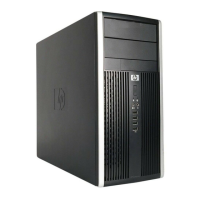
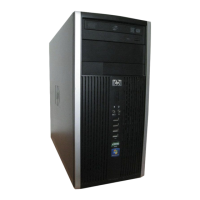
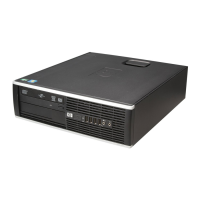
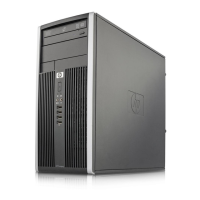
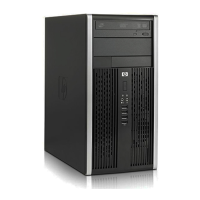
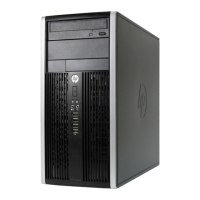
HP Compaq Pro 6305 Microtower Business PC
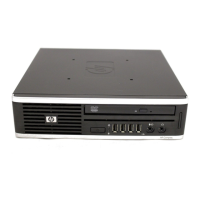
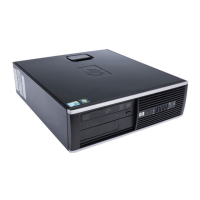
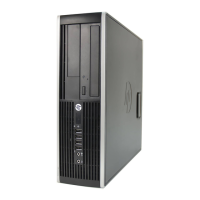
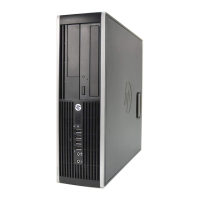
HP Compaq Pro 6305 Small Form Factor Business
PC

Table of Contents

Other manuals for HP Compaq Pro 6305

Questions and Answers

  • R
    Richard ThomasAug 17, 2025
    Why is my HP Desktop performance so poor?
    • D
      Daniel RodriguezAug 17, 2025
      Poor performance on your HP Desktop can stem from several factors. The processor might be overheating due to blocked airflow, so ensure that the computer's air vents are unobstructed. A full hard drive can also cause this, so try transferring data to free up space. Other potential causes include low memory (consider adding more), a fragmented hard drive (defragment it), too many applications running (close unnecessary ones), or even a virus (run a virus scan). Restarting the computer can also help if a program didn't release reserved memory.
  • C
    Courtney GilesAug 20, 2025
    What to do if my HP Compaq Pro 6305 computer appears locked up?
    • M
      Molly MathewsAug 20, 2025
      If your HP Desktop appears locked up and the power button doesn't work, software control of the power switch may not be functional. Press and hold the power button for at least four seconds until the computer turns off. If that doesn't work, disconnect the power cord from the electrical outlet.
  • E
    Emily KingAug 22, 2025
    What to do if my HP Compaq Pro 6305 system does not power on?
    • C
      Charles SmithAug 22, 2025
      If your HP Desktop system doesn't power on and the front LEDs aren't flashing, try pressing and holding the power button for less than 4 seconds. Ensure the unit is plugged into a working AC outlet. Also, verify that the power button harness and both power supply cables are properly connected to the system board. If the 5V_aux light on the system board is on, replace the power button harness. If it's off, replace the power supply.
  • D
    daustinAug 25, 2025
    How to fix no sound on my HP Desktop?
    • L
      Lee CastroAug 26, 2025
      If there's no sound or the sound volume is too low on your HP Desktop, the system volume may be set low or muted. Check the F10 BIOS settings to make sure the internal system speaker is not muted. Also, make sure the external speakers are properly connected and powered on, and that the speakers' volume control is set correctly. Use the system volume control available in the operating system to make sure the speakers are not muted or to increase the volume.
  • C
    Craig WhitakerAug 28, 2025
    What to do if my HP Compaq Pro 6305 Desktop computer will not respond to USB keyboard or mouse?
    • J
      Johnny GrantAug 28, 2025
      If your HP Desktop isn't responding to the USB keyboard or mouse, the computer might be in standby mode. To resume, press the power button or any key. If the system has locked up, restart the computer.
  • W
    William CaseyAug 30, 2025
    Why does my HP Desktop power supply shut down intermittently?
    • L
      Lisa TylerAug 30, 2025
      If your HP Desktop power supply shuts down intermittently, the voltage selector switch on the rear of the computer chassis (on some models) might not be switched to the correct line voltage (115V or 230V). Select the proper AC voltage using the selector switch.
  • M
    Mr. Eric ThomasSep 1, 2025
    How to fix incorrect date and time on my HP Compaq Pro 6305?
    • R
      Robert HuffmanSep 1, 2025
      If the date and time display on your HP Desktop is incorrect, the RTC (real-time clock) battery may need to be replaced. Connecting the computer to a live AC outlet prolongs the life of the RTC battery.
  • J
    jenna04Sep 4, 2025
    What to do if my HP Compaq Pro 6305 hard drive error occurs?
    • M
      Melissa WilliamsSep 4, 2025
      If a hard drive error occurs on your HP Desktop, the hard disk may have bad sectors or has failed. In Windows 7, right-click Start, click Explore, and right-click on a drive. Select Properties then select the Tools tab. Under Error-checking click Check Now. You can also use a utility to locate and block usage of bad sectors, or, if necessary, reformat the hard disk.
  • L
    Lauren JonesSep 6, 2025
    How to fix cursor movement with arrow keys on HP Compaq Pro 6305 Desktop?
    • P
      Peter MartinezSep 6, 2025
      If the cursor won't move using the arrow keys on your HP Desktop, the Num Lock key may be on. Press the Num Lock key. The Num Lock light should not be on if you want to use the arrow keys.
  • J
    Jill DunnSep 9, 2025
    What to do if my HP Compaq Pro 6305 drive is not found?
    • E
      Emily CarterSep 9, 2025
      If a drive is not found on your HP Desktop, check cable connections to ensure they are secure. If this is a newly installed drive, run the Computer Setup utility and try adding a POST delay under Advanced > Power-On. Also, if the device is attached to a SATA port that has been hidden in Computer Setup, run the Computer Setup utility and ensure Device Available is selected for the device's SATA port in Security > Device Security. If the drive responds slowly immediately after power-up, run Computer Setup and increase the POST Delay in Advanced > Power-On Options.

Summary

3 Computer Setup (F10) Utility

Computer Setup (F10) Utilities Overview

Lists the capabilities and functions of the Computer Setup (F10) Utility.

Accessing and Using Computer Setup

Provides steps to access and navigate the Computer Setup utilities menu.

5 Routine Care, SATA Drive Guidelines, and Disassembly Preparation

Electrostatic Discharge (ESD) Information

Explains ESD risks and precautions to protect components from static damage.

Preventing Electrostatic Damage

Provides packaging and grounding precautions to prevent ESD damage.

Routine Care Procedures

General procedures for routine care and cleaning of the computer.

6 Removal and Replacement Procedures Microtower (MT) Chassis

Memory Module Installation (DIMMs)

Details on installing memory modules (DIMMs) into the system.

Installing Memory Modules (DIMMs)

Step-by-step guide for installing memory modules.

Expansion Card Installation

Instructions for installing PCI and PCI Express expansion cards.

Drive Installation and Removal

Procedures for installing and removing various drive types.

Processor Replacement

Procedure for removing and replacing the system processor.

Power Supply Replacement

Steps to remove and replace the power supply unit.

System Board Replacement

Procedure for replacing the system board.

7 Removal and Replacement Procedures Small Form Factor (SFF) Chassis

Preparation for Disassembly

Steps and precautions before starting SFF chassis disassembly.

Memory Module Installation (SFF)

Details on installing memory modules in the SFF system.

Installing Memory Modules (DIMMs) in SFF

Step-by-step guide for installing SFF memory modules.

Expansion Card Installation (SFF)

Instructions for installing expansion cards in the SFF chassis.

Drive Installation and Removal (SFF)

Procedures for SFF drives.

Processor Replacement (SFF)

Procedure for replacing the processor in SFF.

8 Troubleshooting Without Diagnostics

Solving General Problems

Common computer issues and their solutions.

Solving Power Problems

Solutions for issues related to power supply and startup.

Solving Hard Drive Problems

Troubleshooting steps for hard drive errors and performance.

Solving Display Problems

Troubleshooting steps for display and monitor issues.

Solving Keyboard and Mouse Problems

Solutions for issues with keyboard and mouse input devices.

Solving Network Problems

Troubleshooting steps for network connectivity issues.

Solving Memory Problems

Solutions for memory-related errors and performance issues.

Solving Processor Problems

Troubleshooting common processor performance issues.

Solving Internet Access Problems

Steps to resolve issues connecting to the internet.

Solving Software Problems

Solutions for common software installation and configuration issues.

9 HP PC Hardware Diagnostics

Why Run HP PC Hardware Diagnostics - UEFI

Explains the benefits of using HP PC Hardware Diagnostics for hardware failures.

Accessing and Running UEFI Diagnostics

Provides steps to access and run the UEFI diagnostics tool.

10 POST Error Messages

POST Numeric Codes and Text Messages

Lists POST error codes, messages, and recommended actions.

11 Password Security and Resetting CMOS

Resetting the Password Jumper

Procedure to reset setup or power-on passwords via a jumper.

Clearing and Resetting the CMOS

Steps to clear CMOS settings and reset BIOS defaults.

12 Backup and Recovery

Restoring and Recovering in Windows 7

Procedures for data backup and system recovery in Windows 7.

Backup and Recovery in Windows 8

Procedures for data backup and system recovery in Windows 8.

Performing a System Recovery

Tools and procedures for recovering the system.

HP Compaq Pro 6305 Specifications

General IconGeneral
Processor cache1 MB
Processor cores2
Processor modelA6-6400B
Processor familyAMD A6
Processor socketSocket FM2
Processor frequency3.9 GHz
Processor cache typeL2
Processor manufacturerAMD
Processor boost frequency4.1 GHz
Number of processors installed1
Memory slots4x DIMM
Internal memory4 GB
Memory clock speed1600 MHz
Internal memory typeDDR3-SDRAM
Maximum internal memory32 GB
Memory layout (slots x size)1 x 4 GB
HDD size3.5 \
HDD speed7200 RPM
HDD interfaceSATA
Storage mediaHDD
Optical drive typeDVD Super Multi
Card reader integrated-
Total storage capacity500 GB
On-board graphics cardYes
Discrete graphics card modelNot available
On-board graphics card modelAMD Radeon HD 8470D
On-board graphics card familyAMD Radeon HD 8000
Recovery operating systemWindows 8 Pro
Operating system installedWindows 7 Professional
Operating system architecture64-bit
Wi-FiNo
Cabling technology10/100/1000Base-T(X)
Ethernet LAN data rates10, 100, 1000 Mbit/s
HDMI ports quantity0
USB 2.0 ports quantity6
USB 3.2 Gen 1 (3.1 Gen 1) Type-A ports quantity4
Chassis typeMicro Tower
Product colorBlack
Country of originChina
Product typePC
Motherboard chipsetAMD A75
Power supply320 W
Operating temperature (T-T)10 - 35 °C
Operating relative humidity (H-H)10 - 90 %
Weight and Dimensions IconWeight and Dimensions
Depth431 mm
Width177 mm
Height377 mm
Weight9300 g

Related product manuals