HP D300 Digital Dispenser
5 Create plate configurations
5-1 Create the fluids table
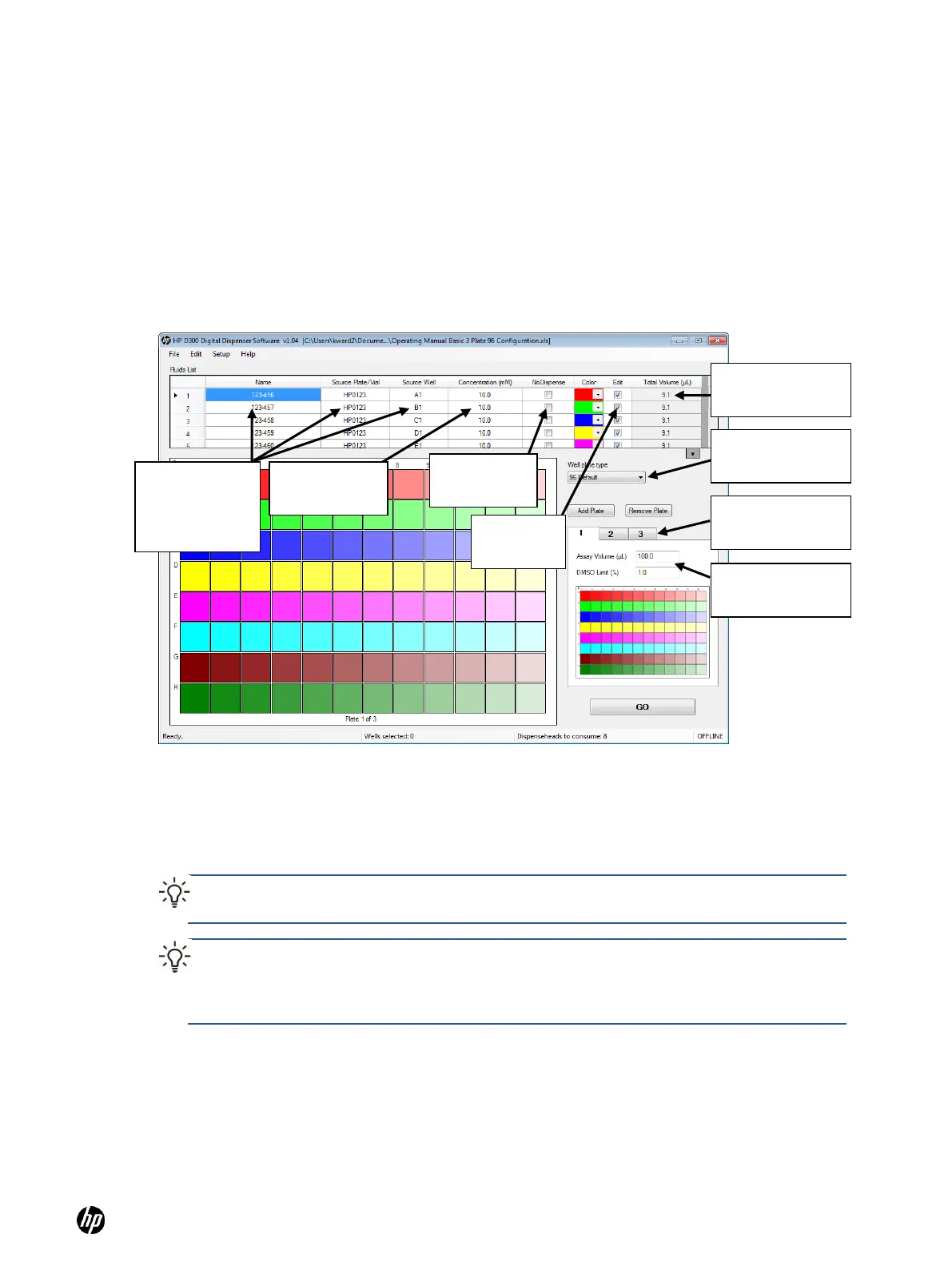
1. On the right side of the main operating window, select the type of well plate you will use from
the Well Plate drop-down list box, either 96 or 384. Up to five plates can be part of a single
configuration, but all of them must be of the same type, 96 or 384. The same fluids, or different
fluids, can used in all the plates in a configuration.
Figure 5-1 The HP D300 Digital Dispenser main operating window
2. Enter one or more fluids (compounds to dispense in this set of plates):
a. Click in a cell in the Name column of the Fluids List and type the name.
b. Optional: click in a cell in the Source Plate/Vial column and type the source plate name.
c. Optional: click in a cell in the Source Well column and type the source well location.
TIP: If desired, information can be entered into the Name, Source Plate/Vial columns by
scanning a bar code, using a USB bar code reader attached to your computer.
TIP: The Fluids List can also be created by copying and pasting information from an Excel
spreadsheet that contains some or all of the fluid data (see ―Get familiar with the
software‖). Fluid information in the Excel file must have columns in the same order as the
Fluids Table.
d. Enter the source fluid concentration in the Concentration column.
e. Select a color for each of the fluids in the Color column if you do not want to use the default
colors.
f. Repeat steps a through e for all of the fluids that will be dispensed into this set of well
plates. Up to five plates to be run together can be saved in a single configuration file.
Name, Source
Plate/Vial &
Source Well
columns
Assay Properties
for current plate
Well Plate drop-
down list box


 To Next Page