Administering the Remote System
Controller
4
Learn about the HP Remote System Controller administration features.
Perform a factory reset
When you perform a factory reset, the HP Remote System Controller resets to its initial configuration
state. Complete one of the following tasks to perform a factory reset:
NOTE: The HP Remote System Controller does not retain any user data after a factory reset.
● In the Operations section in the RSC Settings tab, select Factory Reset.
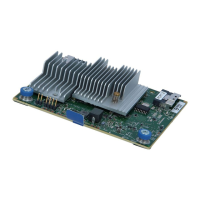
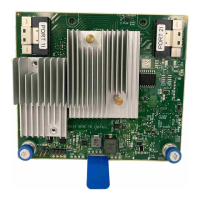
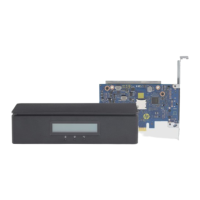
● While the Remote System Controller is turned on, use a paper clip to carefully push the button (long
press) in the RESET hole on the bottom of the controller (external), or on the PCIe bracket (internal)
for 10 seconds.
● Use a Redfish API call
NOTE: When you perform a factory reset, the connection is closed and all configuration data
pertaining to that particular Remote System Controller is not retained.
NOTE: A factory reset does not remove any firmware updates.
Restart the Remote System Controller
Complete one of the following tasks to restart the Remote System Controller:
NOTE: When you restart the Remote System Controller, it interrupts any activity that is currently
occurring.
● Using a paper clip, carefully push the reset button (short press) in the RESET hole on the bottom of
the controller (external), or on the PCIe plate (internal).
● Disconnect, and then reconnect the power cord from the Remote System Controller.
● Using API or through the web interface, restart the controller.
Administering the Remote System Controller
21


 To Next Page