Getting started1
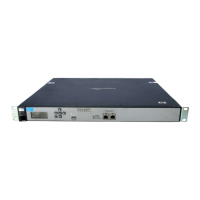
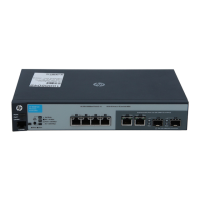
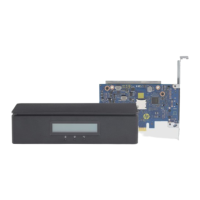
HP Remote System Controller enables you to monitor, troubleshoot, and control power and hardware
alerts on a remote host and has other out-of-band workstation management capabilities.
Features include:
● Access the workstation and hardware information at any time
● Initiate a keyboard, video, and mouse (KVM) session to control the remote host
● Control power to the remote host
● Access BIOS; change host BIOS settings on the remote host without KVM
● Edit the Remote System Controller settings
● Check event logs
● Mount virtual media to the host, for imaging or updates
Requirements
Before you use HP Remote System Controller, make sure that your environment meets the following
requirements.
● Locate the laser-etched label on the bottom next to the QR code for the HP Remote System
Controller, or on a sticker on the HP Integrated Remote System Controller. You can also scan the QR
code with a smartphone camera to see the following information as a comma-separated list:
– Serial number
– Default password
– MAC address
NOTE: You can change only the password. You cannot change the MAC address or serial
number.
● The Remote System Controller is connected to the network, and an IP address is assigned to it. The
Remote System Controller displays the IP address.
NOTE:
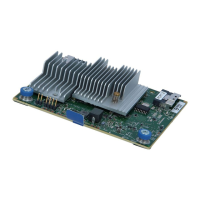
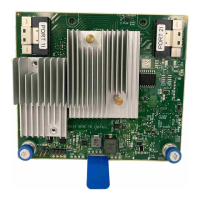
● The HP Integrated Remote System Controller does not have an LCD display to view
information.
● A dedicated network port, which does not support network traffic passthrough to the host, is
required for the HP Integrated Remote System Controller.
● An AC outlet is required for the HP Remote System Controller for Universal KVM (7K7N2AA)
version of the product.
Getting started
1


 To Next Page