Sending an email
1 Open
Email.
2 T
ouch
.
3 T
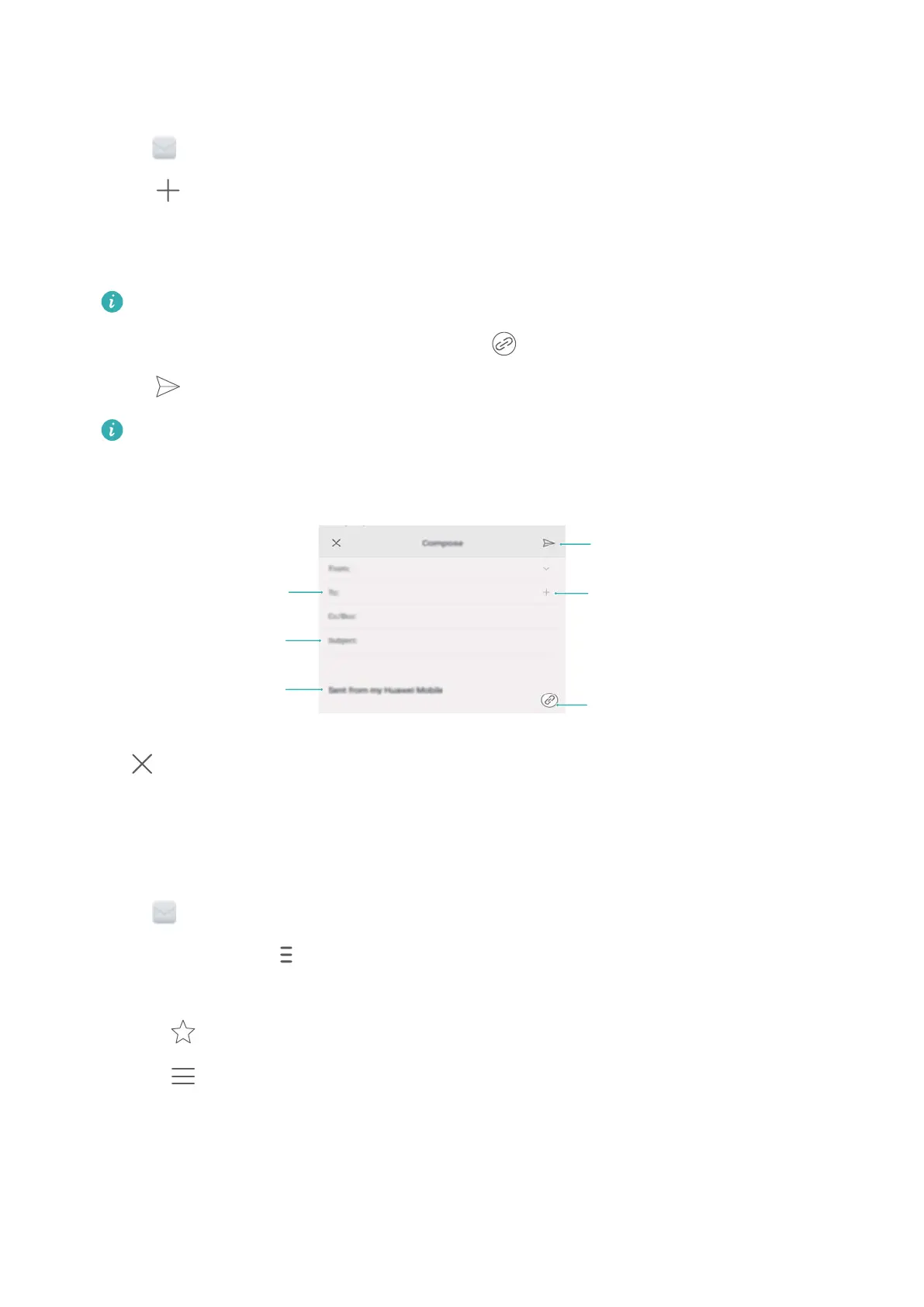
ouch From: and then select the email account you want to use.
4 Enter one or more recipients.
To Cc or Bcc the email to multiple recipients, touch Cc/Bcc:.
5 Enter your email subject and main body
. Touch
to add an attachment.
6 T
ouch
.
Your email service provider may place a limit on the size of email attachments. If your
attachments exceed the limit, send the attachments in separate emails.
Amy@huawei.com
Recipient
Email body
Add attachment
Send
Subject
Select recipient
from contact list
Touch > Save to save your email as a draft.
Checking your emails
Open Email and then swipe down in your Inbox to refresh the list of emails.
1 Open Email.
2 In your Inbox, touch in the upper left corner to select an account.
3 T
ouch the email you want to read. You can:
l Touch
to star for future reference.
l T
ouch
to reply, forward or delete the email.
l Swipe left or right to read the next or previous email.
Messaging and Email
70


 To Next Page