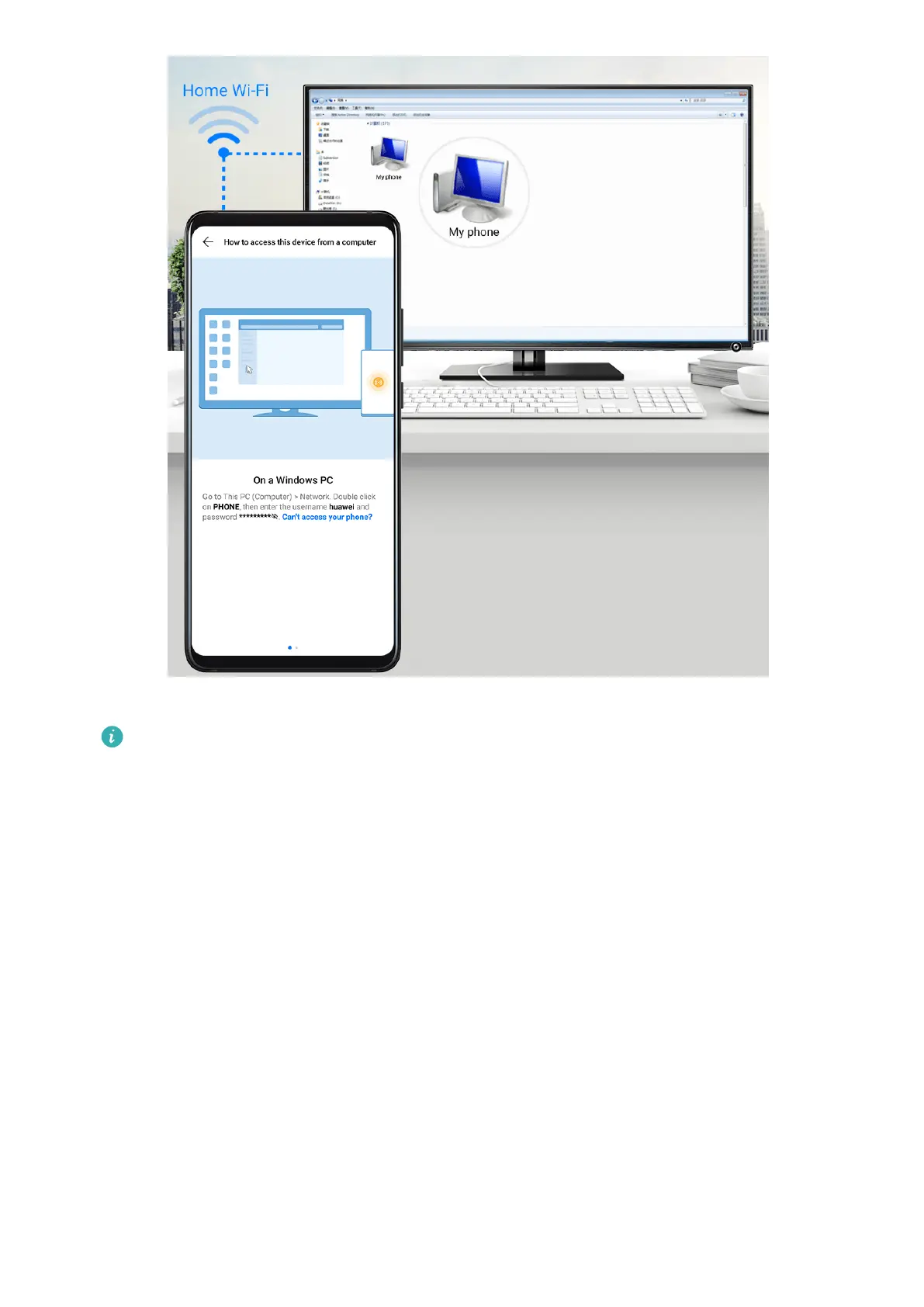
1 Make sure your phone and computer are connected to the same Wi-Fi network.
If the computer is a MateBook (PC Manager earlier than version 9.1), this is not
necessary. All you need to do is make sure its Wi-Fi and Bluetooth switches are
enabled.
2 On your phone, enter the Huawei Share settings screen, and enable Huawei Share and
Computer share.
3 Record the Name shown on computers and the username and password under
Verication on computers.
4 On your computer, go to:
• Windows: Computer > Network
• iOS (iOS 10.8 or later): Finder > Go to > Network
5 On your computer, double-click the name of your phone, and enter the username and
password recorded earlier.
6 Open a folder of your phone such as the Internal storage folder, then view, edit, or copy
les from the folder to the computer, or copy les from the computer to this folder to
store them in your phone.
You can also edit the les in this folder on your computer, and the changes will be synced
to your phone automatically. Similarly, if you edit any les on your phone, the changes
will be synced to your computer as well.
Smart Features
45


 To Next Page